A goal is a target you set and Outro tracks. You pick what to count, how much and by when, and Outro keeps the total. For work Outro can't count, you write a checklist and tick it off yourself.
You can try Goals in the demo on a sample project.
Click Goals in the rail to open it. It sits below the project screens, because it counts across your projects.
Outro counts what you record in Outro: your Log, your tasks and your phases. Goals work the same with any DAW.
The Goals list
Goals has three tabs: List, Roadmap and Check-in. This section covers the List. The roadmap and the weekly check-in cover the other two.
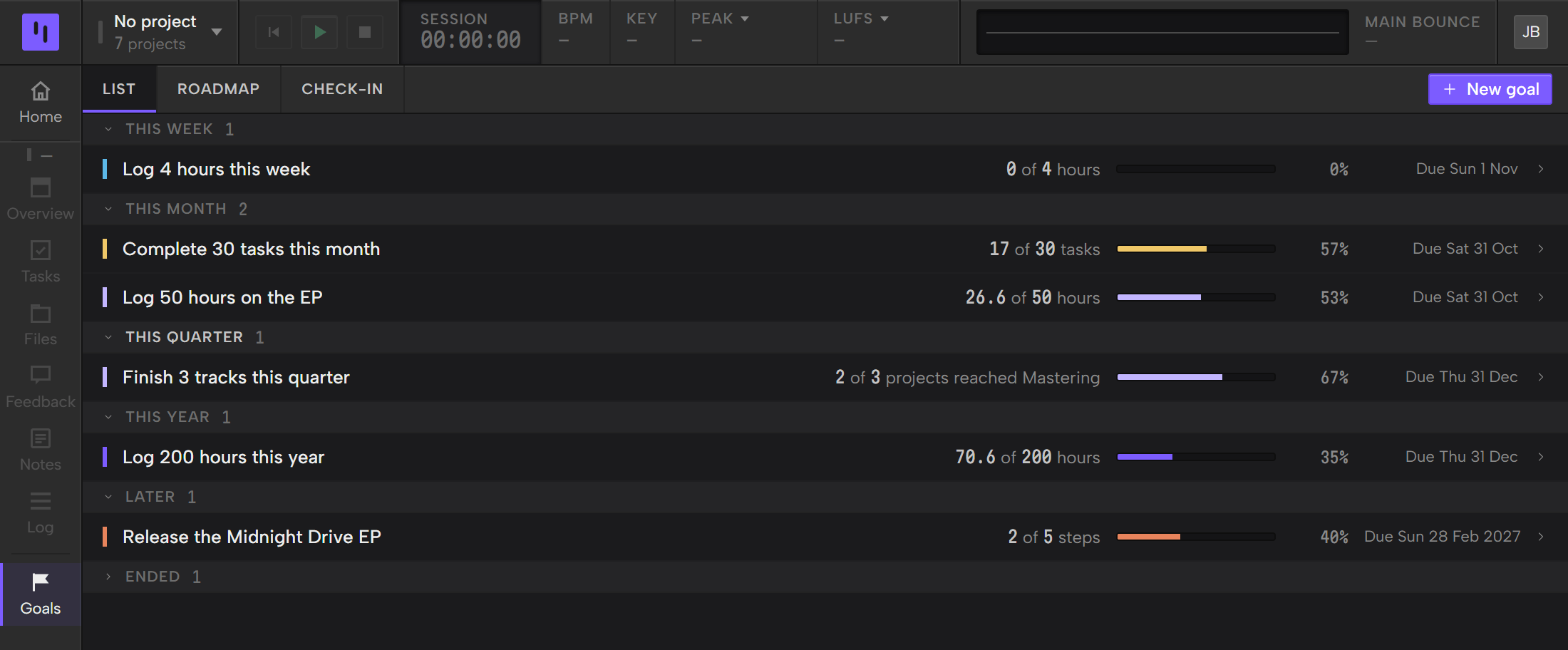
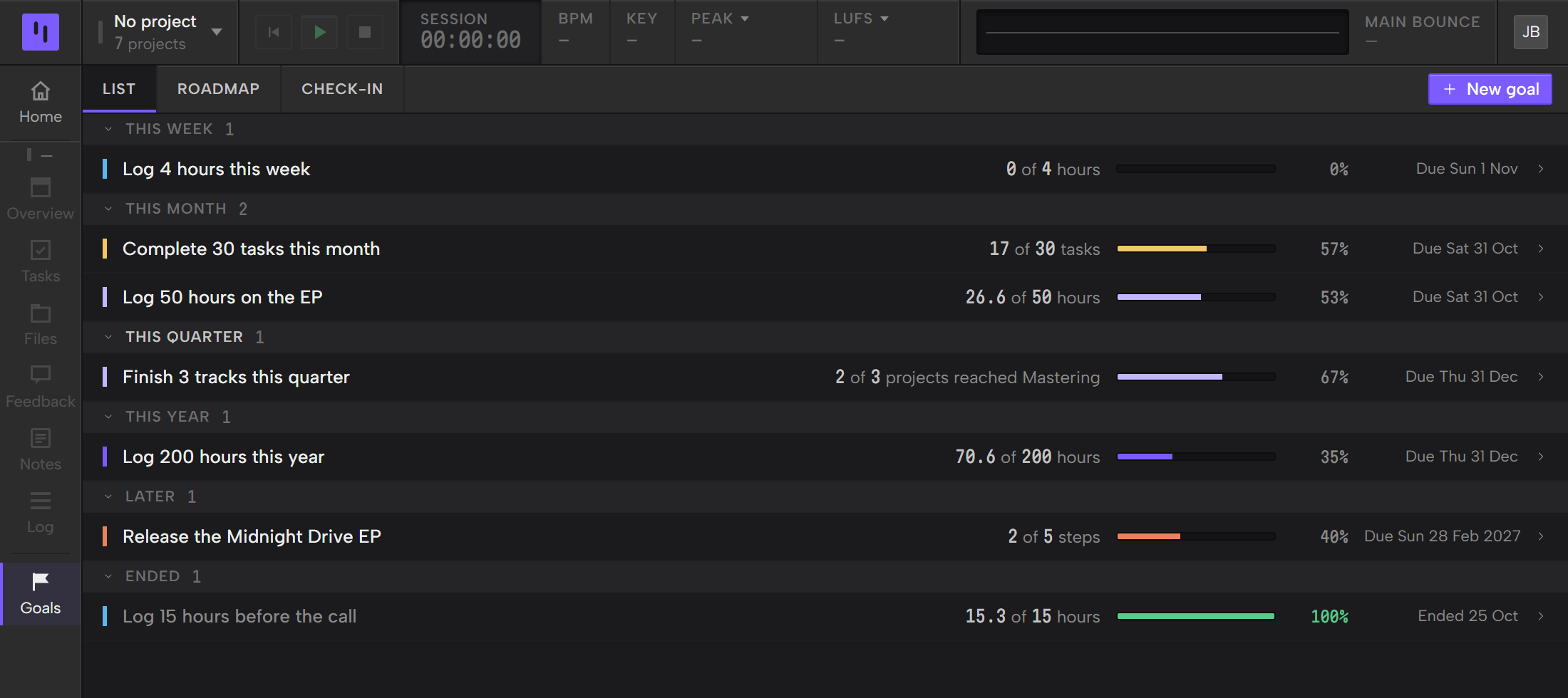
The List holds your goals in groups by when they're due: This week, This month, This quarter, This year, Later and Ended. A group shows only when it has a goal in it. Click a group's bar to fold it. Ended starts folded.
Each goal is one row:
- Its title, after a short tick in the goal's color.
- Its progress, such as 14 of 20 hours.
- A bar and a percent.
- When it's due, such as Due Sun 25 Oct. After that day it reads Ended and the date.
The bar and the percent turn green when the goal reaches its target. The percent reads 100 only when the target is really reached. A goal that ended short turns grey.
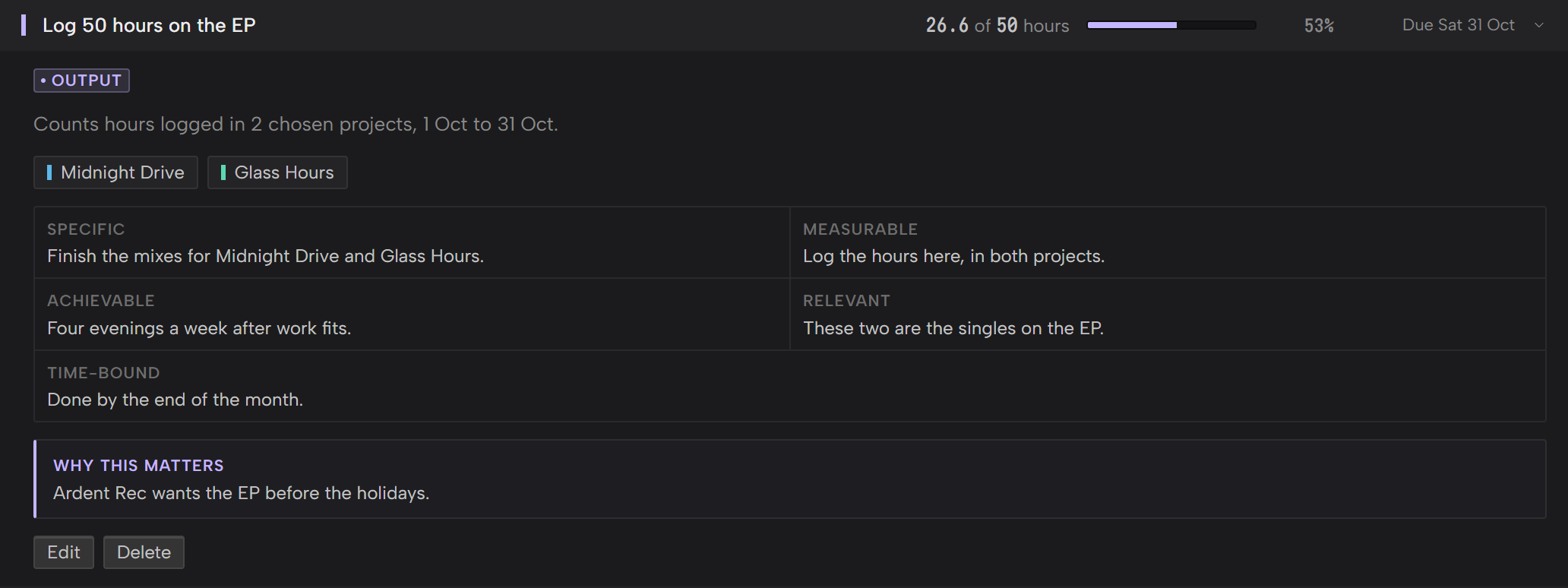
Click a row to open it. An open goal shows what it counts, the projects you chose, its steps if it's a checklist, your SMART answers and Why this matters, then Edit and Delete.
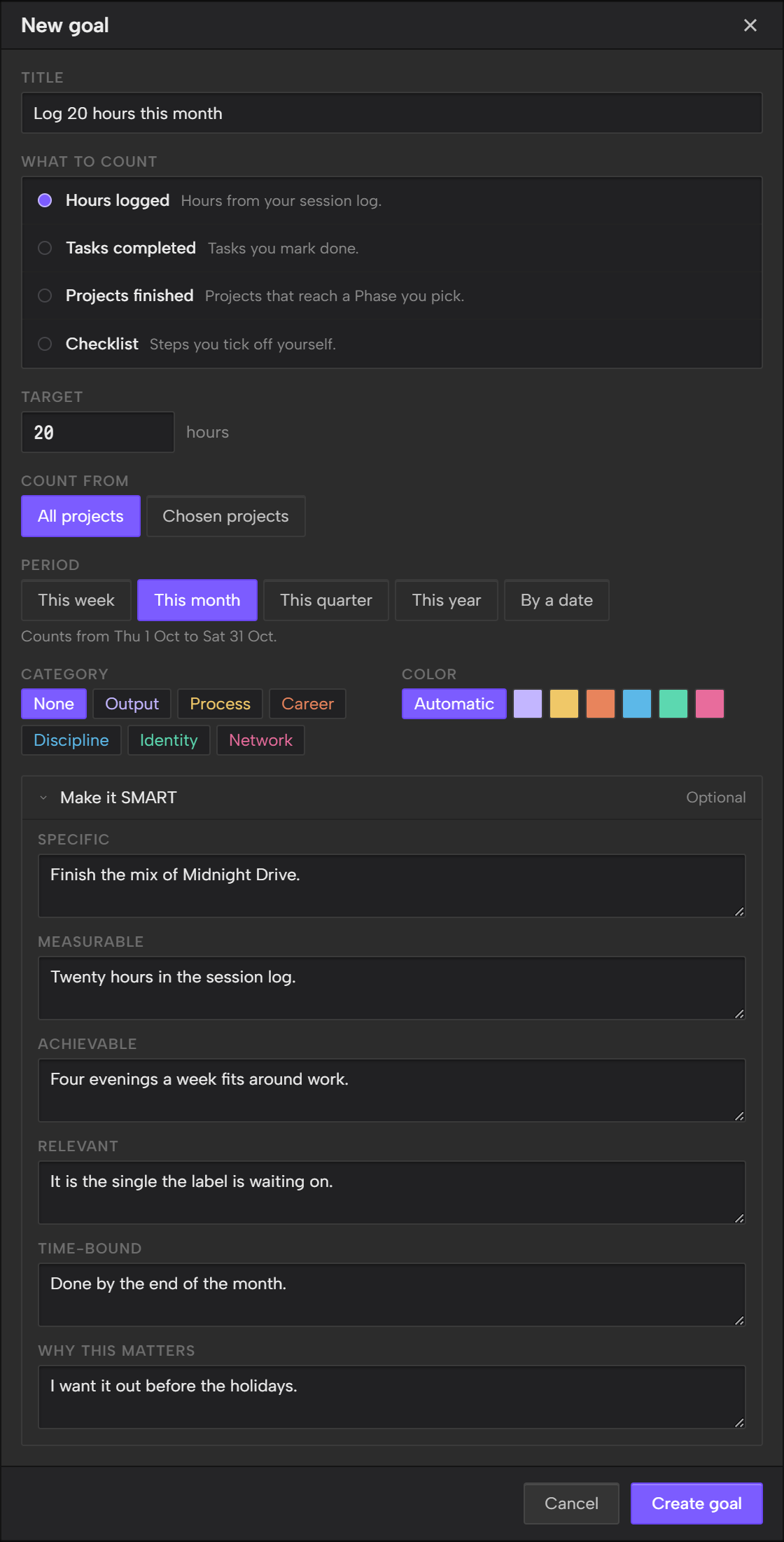
Make a goal
- Click Goals in the rail.
- Click New goal.
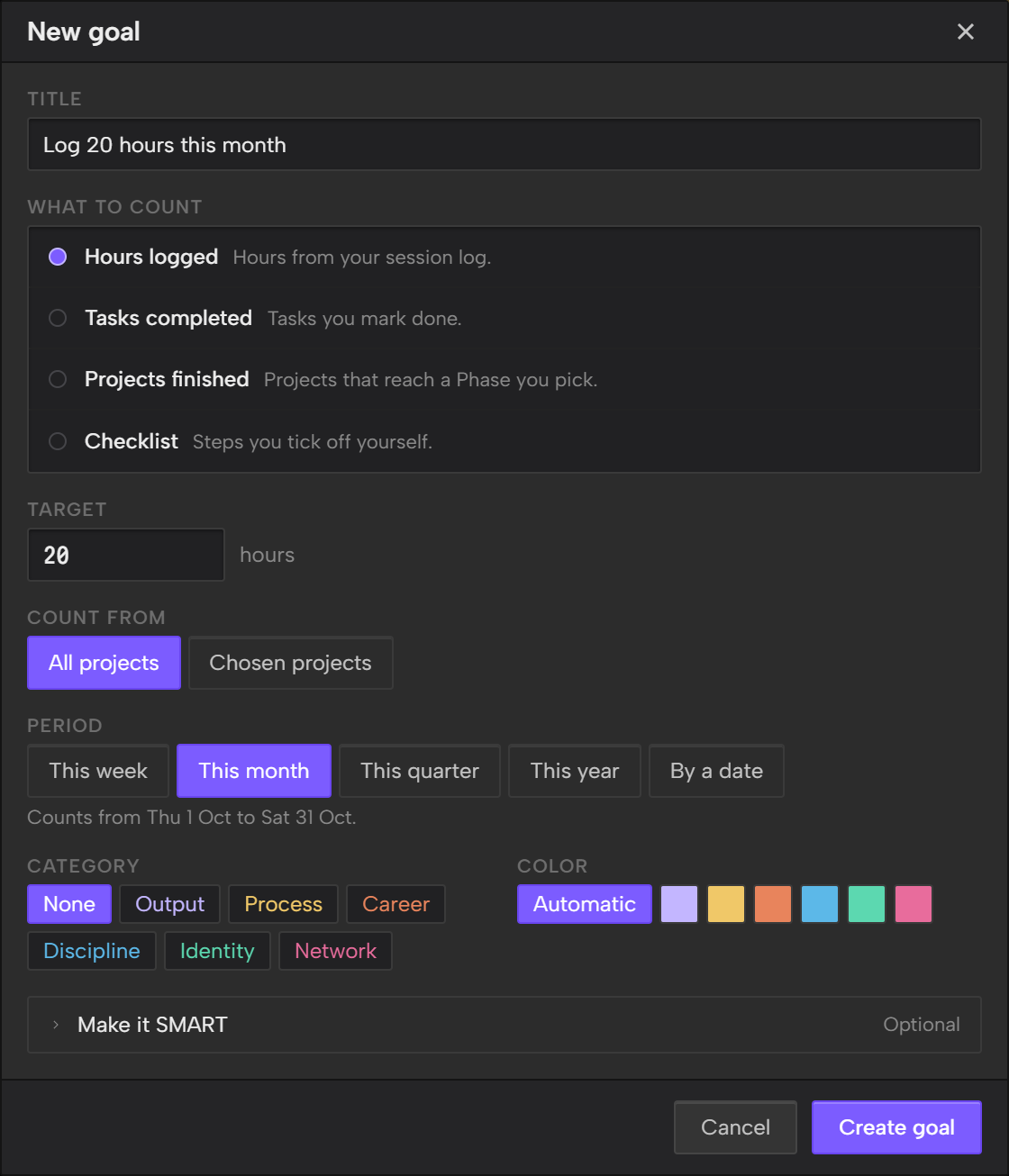
- Type a Title.
- Under What to count, pick one. What Outro counts covers each.
- Type the Target.
- Under Count from, click All projects or Chosen projects.
- If you picked Chosen projects, tick the projects under Pick projects.
- Under Period, click when the goal counts. Pick a period covers them.
- Click Create goal.
Projects finished also asks what finished means: pick a phase under Finished means reaching. A Checklist has Steps in place of a target and Count from. Make a checklist covers it.
A title is up to 200 characters. A target is more than 0 and at most 10,000, and a whole number unless it counts hours.
Category and Color are optional, and they only change how the goal looks. The categories are Output, Process, Career, Discipline, Identity and Network. With Automatic, the goal takes its category's color.
The new goal opens in the List.
Edit or delete a goal
Open the goal and click Edit or Delete.
Edit opens Edit goal with everything filled in. Change what you want and click Save goal. What to count is fixed once a goal exists, and the form says Set when the goal was made. To count something else, make a new goal.
Delete asks Delete this goal? Click Delete goal. The goal and its steps are removed. Your projects, tasks and logs stay.
What Outro counts
A goal counts one thing, from the first day of its period to the end of its due day. For a week, month, quarter or year, work from earlier in that period counts, even if you made the goal later. You never type progress in yourself. Outro works it out from your Log, your tasks and your phases.
An open goal says what it counts, in a line such as Counts hours logged in 2 chosen projects, followed by the first and last day.
Hours logged
Hours logged adds up the sessions in your Log. A session counts on the date it's logged for. Sessions you time and sessions you log by hand both count, and a session you delete stops counting.
Hours are your own. In a shared project, only the time you log counts, because each person keeps their own log.
The target can be a fraction, such as 7.5 hours.
Tasks completed
Tasks completed counts the tasks you mark done. A task counts when it moves to the project's completion status, which ticking its checkbox does. Finish or block a task covers it. A task counts on the day it was completed, and if you reopen it, it stops counting.
Only tasks count. Subtasks never do, and neither does a task you delete.
In a shared project, a task a Collaborator completes counts for you too, once it syncs to your computer.
Projects finished
Projects finished counts projects that reach a phase. Under Finished means reaching, pick the phase that counts as finished. It starts on the last phase in your list.
A project counts once, when it moves into that phase or a later one during the period. Later means later in your phase list, so if you reorder the phases in Settings, the count follows the new order. Change the phases covers the list.
What counts as a move:
- A move you make. Pick a new phase in the Phase column on All projects, or in Project settings. Track progress with phases covers both.
- A project made in that phase doesn't count, because nothing moved it there. A group's phase doesn't count either.
- Moving a project back doesn't take it off the count.
Outro records phase moves from Outro 0.11.0 on. A move from before you updated isn't counted, and Outro can't add it afterward.
If you delete a phase that a goal counts, Outro asks which phase to move the goal to.
All projects and chosen projects
Count from says which projects a goal counts.
- All projects counts every project on your projects list, and a project you add later counts too. It leaves out the Demo Project, and any shared project that's hidden on your list because you signed in with a different account. Shared projects and your account covers that.
- Chosen projects counts only the projects you tick under Pick projects, up to 200. The Demo Project isn't in that list.
A chosen project you delete, or one that gets hidden the same way, drops out of the goal.
Pick a period
Period sets the days a goal counts. The line under the buttons names the first and last day. Pick one:
- This week is Monday to Sunday of the current week.
- This month is the first to the last day of the current month.
- This quarter is January to March, April to June, July to September or October to December, whichever holds today.
- This year is 1 January to 31 December.
- By a date runs from today to the date you pick, which has to be today or later.
The List puts each goal in the smallest group its whole period fits in, and a goal due after this year sits in Later.
When the due date passes, the goal moves to Ended. An ended goal keeps its final result: work after the due date doesn't change it.
If you change a goal's period in Edit goal, Outro works the days out again from today. On a By a date goal, changing the date moves only the end.
Make a checklist
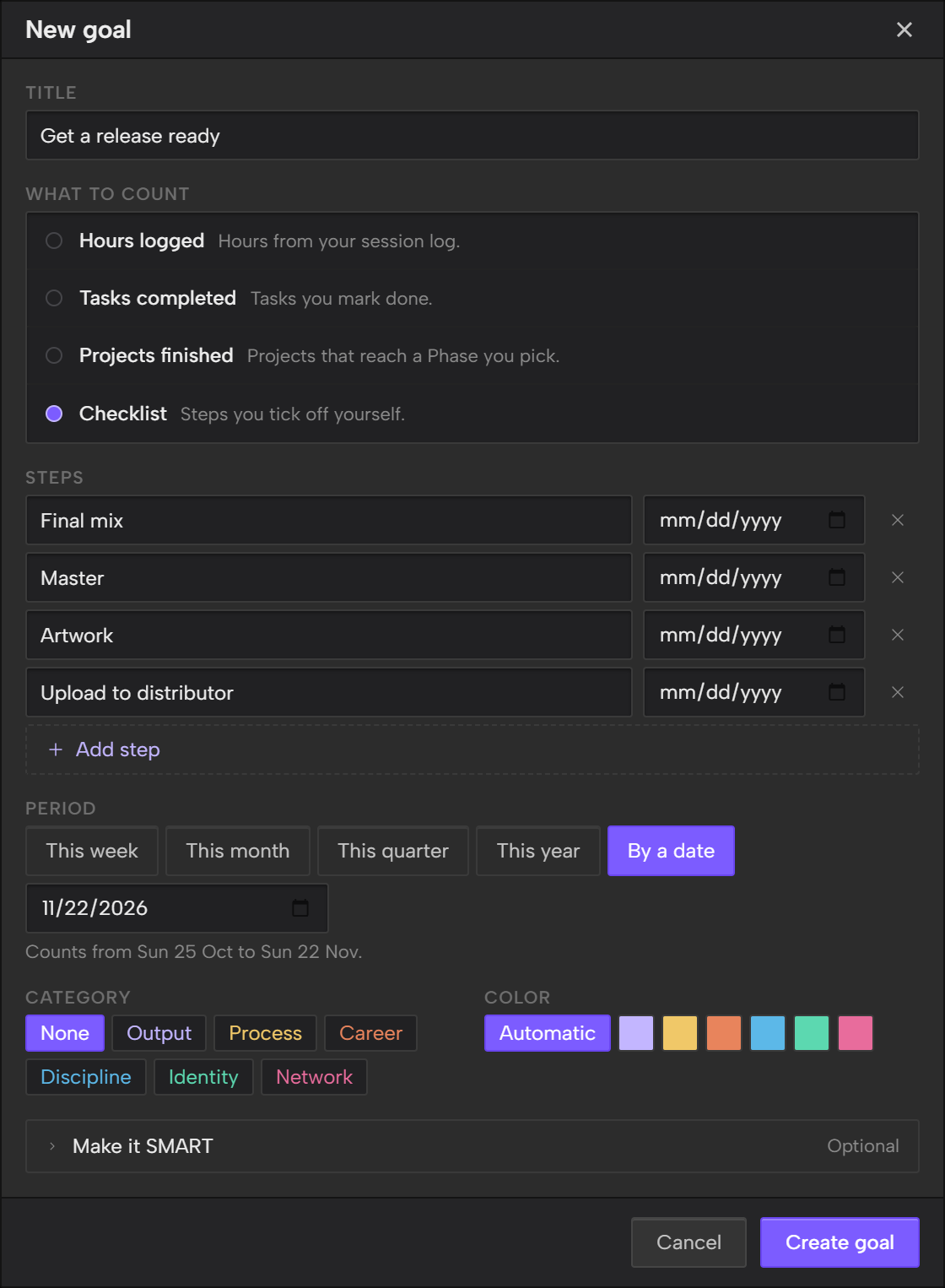
Some goals Outro can't count, like getting a release ready. For those, pick Checklist under What to count and write the steps yourself. A checklist has Steps in place of a target and Count from.
- Under What to count, pick Checklist.
- Type the first step under Steps.
- Pick a date beside it if the step has one.
- Click Add step for each step after that.
- Under Period, pick when the goal is due.
- Click Create goal.
A checklist has 1 to 50 steps, up to 200 characters each. A step's date is optional and doesn't change the progress.
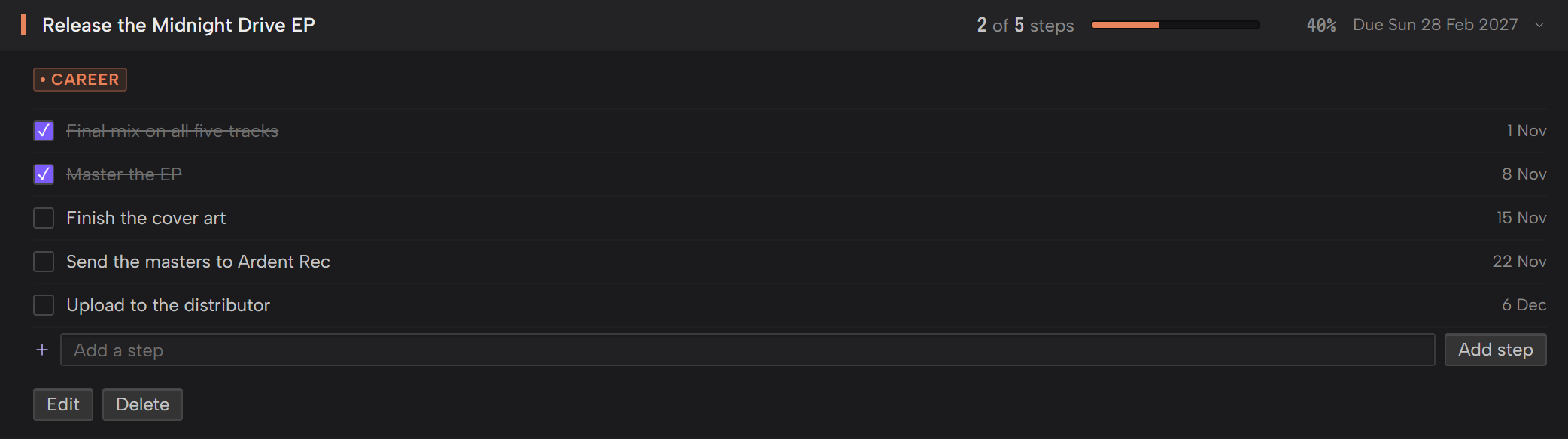
Open the goal to tick its steps. Click a step's box to tick or untick it. To add a step, type under Add a step and press Enter, or click Add step. To rename or remove steps, click Edit.
Progress is the steps you've ticked out of all the steps, such as 2 of 5 steps. Outro never ticks a step for you.
Start from a starter goal
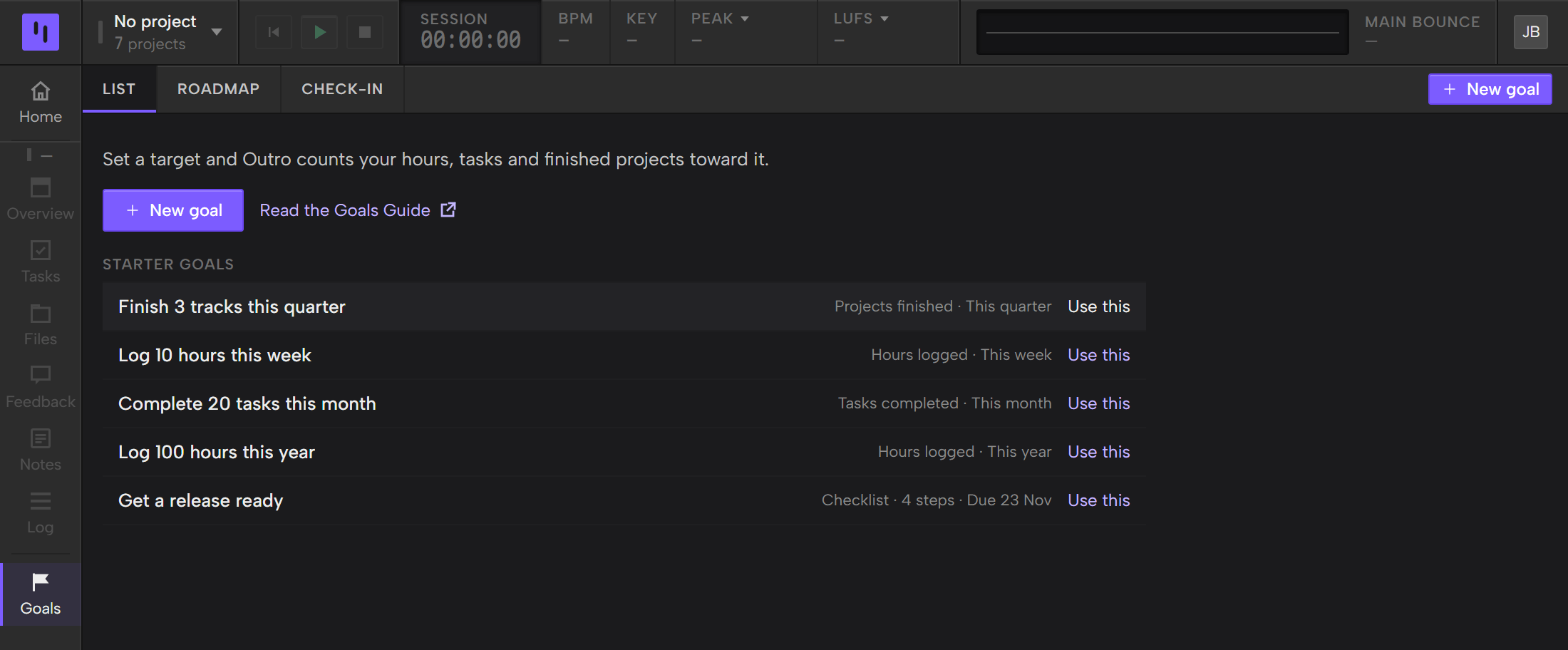
With no goals, the List shows Starter goals: goals Outro has already filled in. Each row says what it counts and when.
- Finish 3 tracks this quarter counts projects that reach the last phase in your list, which is Released until you change the list.
- Log 10 hours this week counts hours logged.
- Complete 20 tasks this month counts tasks completed.
- Log 100 hours this year counts hours logged.
- Get a release ready is a checklist with four steps: Final mix, Master, Artwork and Upload to distributor. It's due four weeks from the day you open Goals.
Click Use this on a starter. The New goal form opens with it filled in. Nothing is saved until you click Create goal, so you can change anything first.
Starters show only while you have no goals. Read the Goals Guide on that screen opens this page.
Make it SMART (optional)
SMART is a way of writing a goal down: Specific, Measurable, Achievable, Relevant and Time-bound. Make it SMART is a section at the bottom of the form. It starts closed, and it's marked Optional.
It has one box for each word, and one for Why this matters. Fill in as many as you like. A goal works the same with all of them empty, and they never change what Outro counts.
Each answer holds up to 500 characters, and Why this matters holds up to 2,000.
The answers show when you open the goal: a grid of the ones you filled in, then Why this matters under it. Make it SMART opens on its own when you edit a goal that has answers.
The weekly check-in
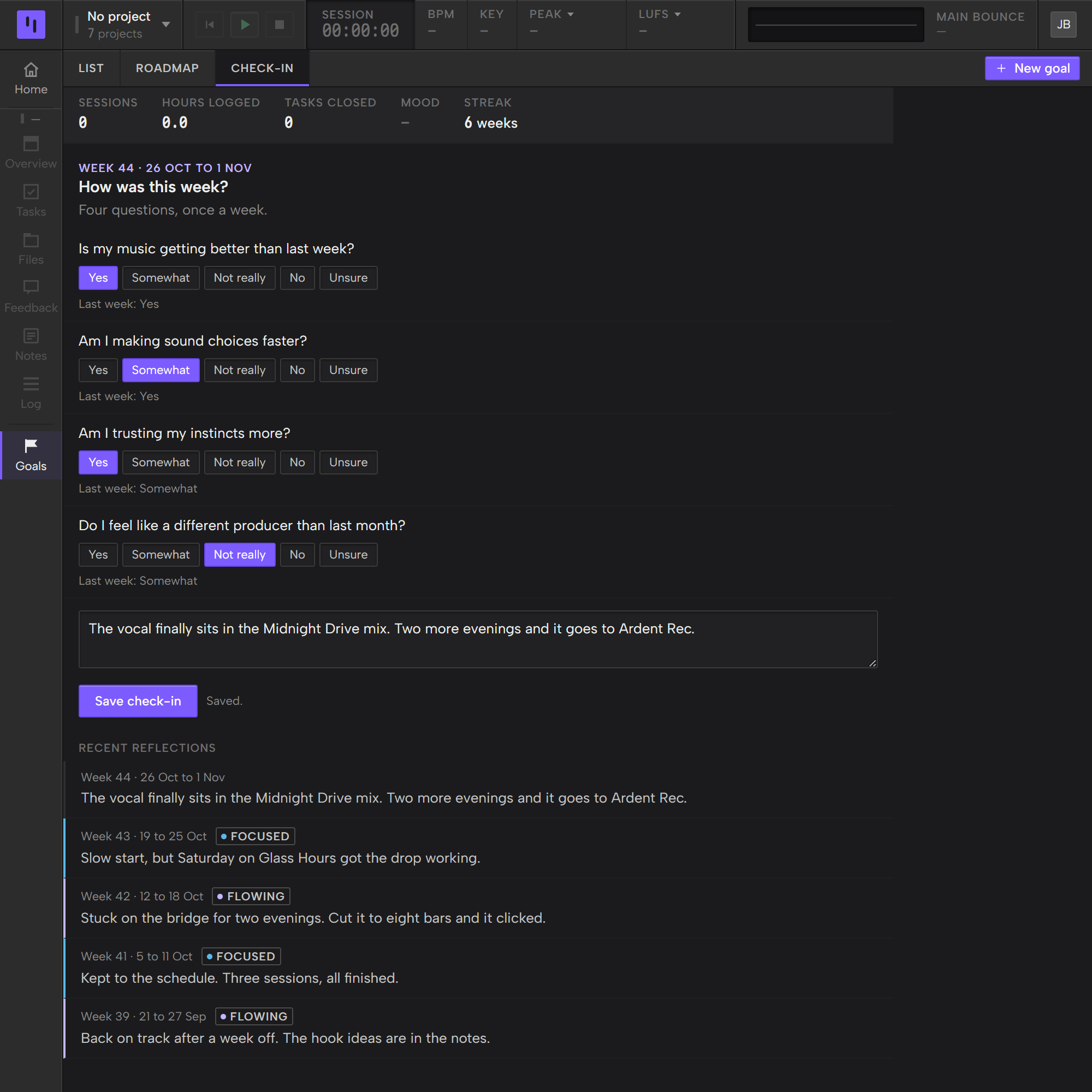
The Check-in tab is a short review once a week. It isn't tied to one goal: there is one check-in for each week, Monday to Sunday, and the tab always shows the current week.
Across the top is the week so far: Sessions, Hours logged, Tasks closed, Mood and Streak. Mood is the one you picked most often on that week's sessions. Streak counts the weeks in a row you've checked in, ending with this week, so it reads 0 until you check in.
Under How was this week? are four questions:
- Is my music getting better than last week?
- Am I making sound choices faster?
- Am I trusting my instincts more?
- Do I feel like a different producer than last month?
Answer each with Yes, Somewhat, Not really, No or Unsure. The questions are the same for everyone, and you can't change them. Under each one, a line shows your answer from the week before, or Last week: none.
Your answers save as you click, and you can change them during the week. Type a note in the box that asks What did you notice this week? It saves when you click out of the box. Save check-in saves again, and the line beside it reads Saves as you answer. or Saved.
Recent reflections lists your five newest notes, each with its week and that week's mood.
The roadmap
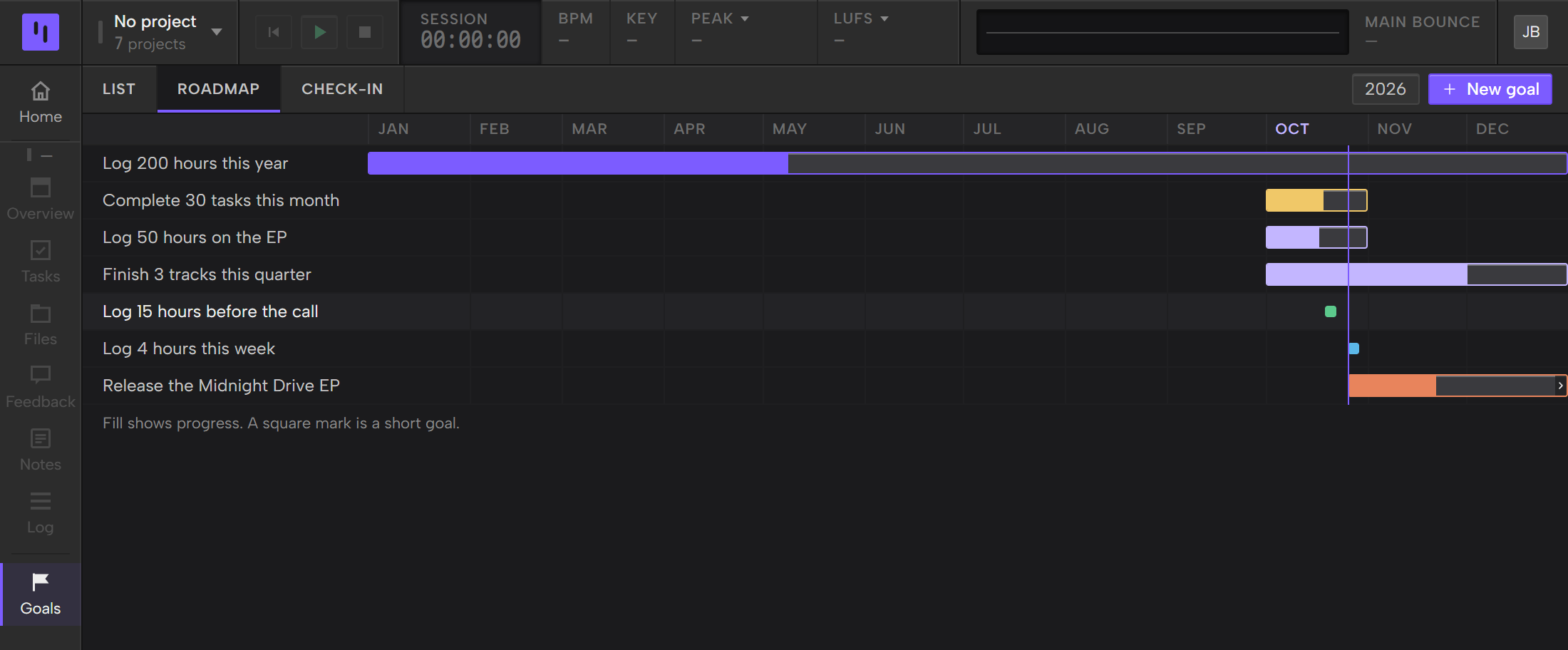
The Roadmap tab draws your goals on a line for the year, January to December. Each goal is a bar from its first day to its due date. The filled part of the bar shows progress, in the goal's color. It's green once the goal reaches its target, and grey if the goal ended short.
A thin line marks today. A goal too short to read as a bar shows as a small square instead.
Goals run top to bottom in the order they start. Click a bar, a square or a goal's name to open that goal in the List.
The year in the toolbar, next to New goal, switches the Roadmap to another year. It lists the current year and every year a goal touches. A goal that runs past the edge of the year gets an arrow on that edge. The List shows goals from every year.
The Roadmap is for looking. To change a goal, open it in the List and click Edit.