Every project has the same frame: the transport bar across the top and the project's screens under it. This Guide covers the transport bar and the Overview screen.
Getting around
Home in the rail takes you back to your projects list, where you can organize your projects into groups and track progress with phases.
Under the project chip are the open project's screens: Overview, Tasks, Files, Feedback, Notes and Log.
Each one has its own Guide: Tasks, Files, Feedback, Notes and Log.
The toolbar above each project screen holds the session timer, the gear for Project settings and Add task.
The transport bar
The transport bar stays put on every screen. Left to right:
- The Outro mark. Click it to go back to your projects list.
- The project name. Click it to switch projects. The list shows the project you're in and your four other most recently touched projects. From one project screen, Outro opens the new project on the same screen.
- Return to start, Play and Stop. These play the project's main bounce.
- Session, Tempo, Key, Peak and LUFS. The readouts, covered under The readouts.
- Main bounce. The waveform, the file name and the playhead time.
- Your account. Your initials when your account is linked. Click it to open Settings.

Playing the main bounce
Nothing plays until the project has a main bounce. Set a main bounce in Getting started shows how.
Click or drag on the waveform to move the playhead.
Playback keeps going while you move between screens. Switching to another project stops it.
Only one player sounds at a time, so starting a track on Feedback stops the transport, and the other way round.
The readouts
- Session is the session timer's clock. It counts while a session runs and sits at zero otherwise. The Log Guide covers the timer.
- Tempo and Key come from the project's DAW session when Outro can read it. When it can't, they show the BPM and key you set on the project.
- Peak is the main bounce's true peak in dBTP, and LUFS is its integrated loudness. Outro measures both while the bounce plays.
Play the bounce through once for the full loudness reading. Until then the reading is partial, and hovering a value shows how much of the track has been heard.
Outro keeps the reading for that bounce, so you don't have to measure it again.
A peak above 0 dBTP turns amber.
Where tempo and key come from
Outro reads tempo and key from the project's main DAW session in its linked folder.
Which DAWs Outro can read, and what it reads from each, is in the Your DAW Guide.
For a session Outro can't read, Tempo and Key show the BPM and key you set on the project, in the New project window or in Project settings.
Hover Tempo or Key to see which file the value came from.
To choose which session Outro reads, see The project file in Files.
The Overview screen
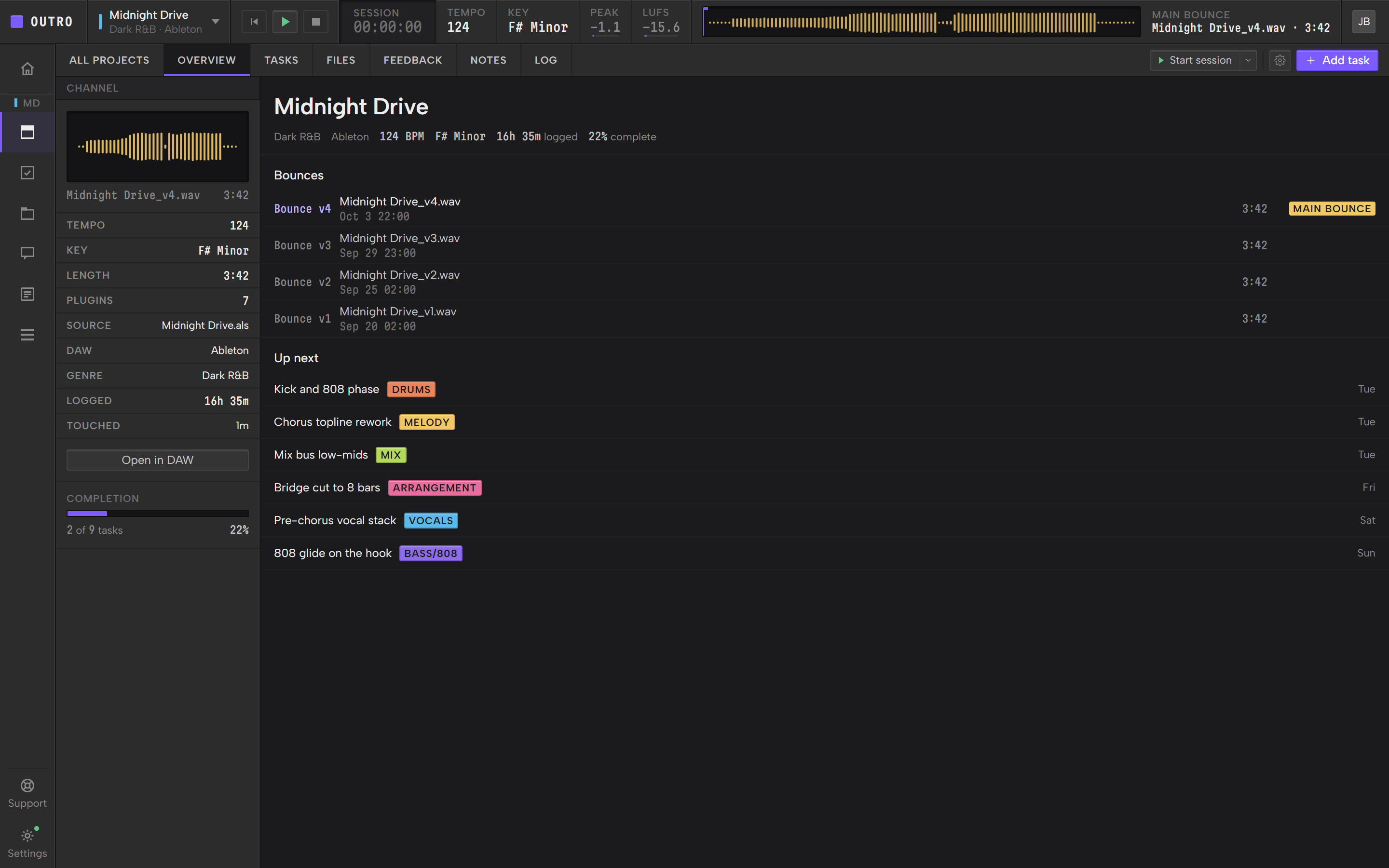
Overview shows where the project stands. It has a column of facts on the left, then the project's title, its bounces and the tasks due next.
The title line
The project's name sits at the top, with a line under it: genre, DAW, tempo, key, time logged and percent complete. Anything the project doesn't have is left out.
Notices from templates
When you start a project from a template, a strip near the top of Overview can say what happened:
- "Created from" and the template's name, then what it made, such as "4 lists, 7 statuses, 10 tasks and 2 notes".
- "Template saved for later", while a DAW template waits for you to link a folder.
- A note, when the template wasn't copied because the folder already has a session for that DAW or a file with that name.
- For Pro Tools, "Pro Tools saved" and the file's name, once Outro picks up the session you saved, with an Open in Pro Tools button.
A strip stays until you click its ×. Nothing fades on its own.
The card after a template copy
After Outro copies a DAW template into the project's folder, a purple card appears in the bottom right corner of the window. It says the new file is ready and asks whether to open it in your DAW now:
- Open opens the file in your DAW and closes the card.
- Not now closes the card and opens nothing.
The card stays until you answer it, and it doesn't block the screen behind it. Esc does the same as Not now. If you quit Outro first, the card doesn't come back. For Ableton it adds a line: Ableton asks where to save the first time, so choose this folder. Pro Tools gets no card, because its template isn't copied. Pro Tools templates in Files has its steps.
Channel
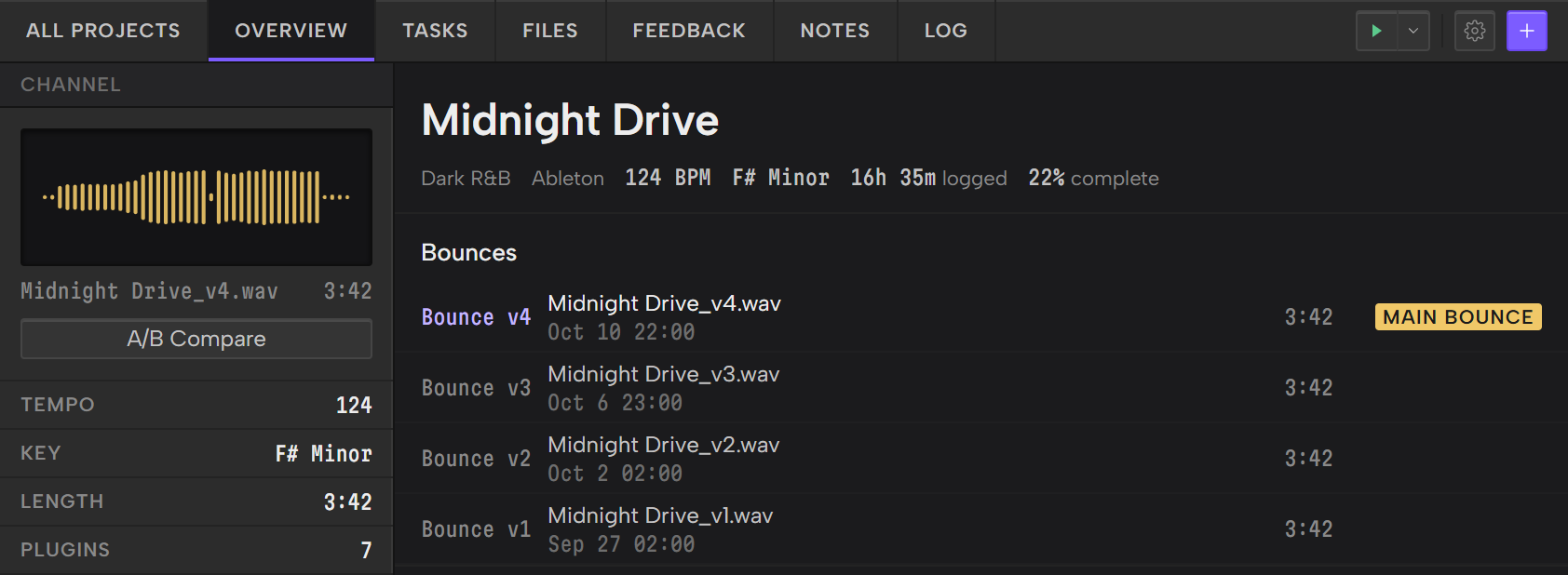
The Channel column on the left starts with the main bounce's waveform, its file name and its length.
A/B Compare sits under the file name. It opens the main bounce as track A, whether that's a file in the folder or an uploaded track, and opens the list to pick track B. Compare two or three files in Files covers the rest. The button is greyed out, with the reason under it, when the project has no main bounce or its file is missing.
Then come the project's facts:
- Tempo, Key and Plugins come from the DAW session, as in the transport bar. Plugins is a count.
- Length is how long the main bounce runs.
- Source names the DAW file those values came from. It reads No folder with no linked folder, No DAW session when the folder has none and Unsupported when Outro can't read the format. It shows Reading… while Outro reads the session, and Latest file in amber when the project file you picked is missing.
- DAW and Genre are what you set on the project.
- Logged is the total time logged on the project.
- Touched is how long ago the project was last worked on.
Open in DAW sits under the facts when the project has a DAW file. It opens the project file in your DAW, and nothing opens until you click it. A line under the button names the file and the DAW it went to.
Completion at the bottom is the percent you set under Progress in Project settings. The line under the bar counts done tasks out of all tasks.
Bounces
Bounces lists the tracks you've uploaded on Feedback, newest first.
Each row shows the label, the file name and when it went up, plus its length. The main bounce carries a Main bounce chip.
Click a row to open that track on Feedback.
Bounces needs a linked account. Without one it reads "Link your account to see bounces here." The Demo Project shows its sample bounces either way.
A local file set as the main bounce doesn't appear here, because Bounces only lists uploads. See Upload a bounce in Feedback.
Up next
Up next shows up to six open tasks. Tasks with a due date come first, soonest first, then the tasks with no due date.
Each row has the task's first tag and when it's due: Overdue, Today, a weekday for the next six days, or a date. A task with no due date shows a dash.
To work on a task, open Tasks.