Outro works on your computer without an account. Linking one is what lets you upload bounces for feedback and send Share Links.
This Guide covers linking, storage, your devices and how Outro updates itself.
Link your account
You need an Outro account first. Getting started covers the invite and sign-up.
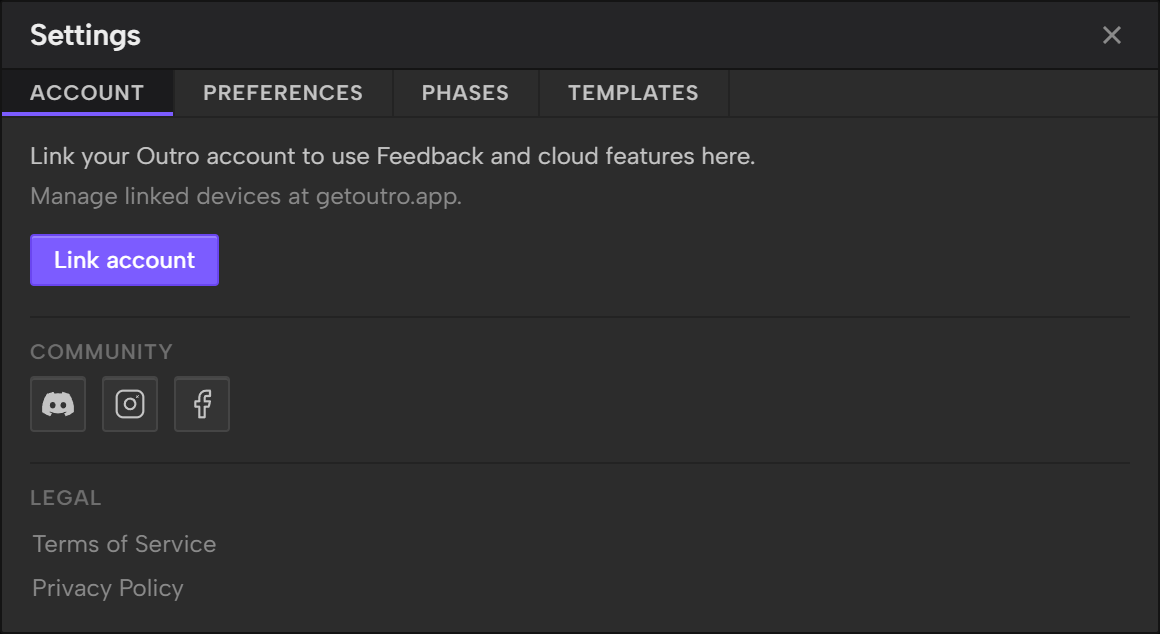
- Open Settings. It opens on the Account tab.
- Click Link account. Outro opens your browser.
- Sign in on getoutro.app if it asks.
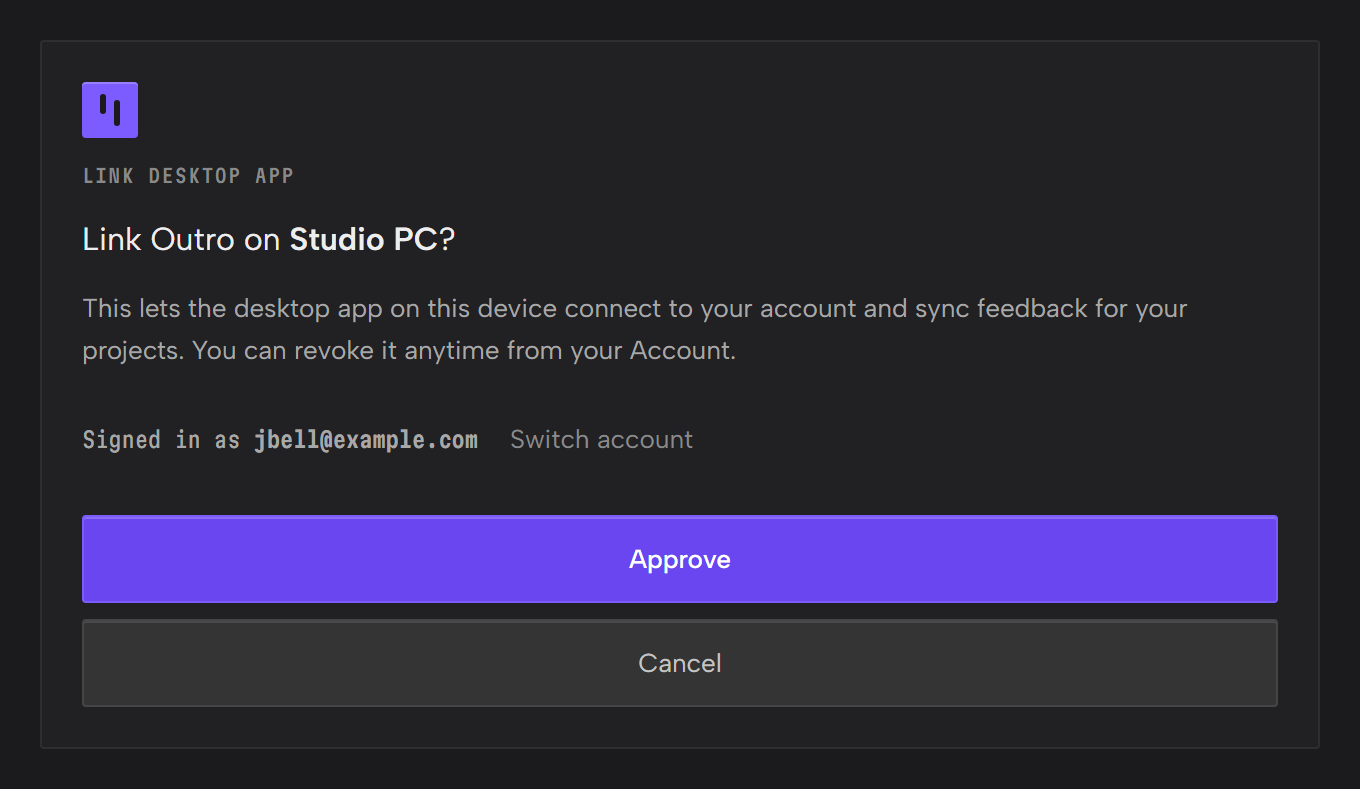
- Check the computer's name and the email you're signed in as, then click Approve.
- The page says Linked. Back to the app… and Outro comes back to the front.
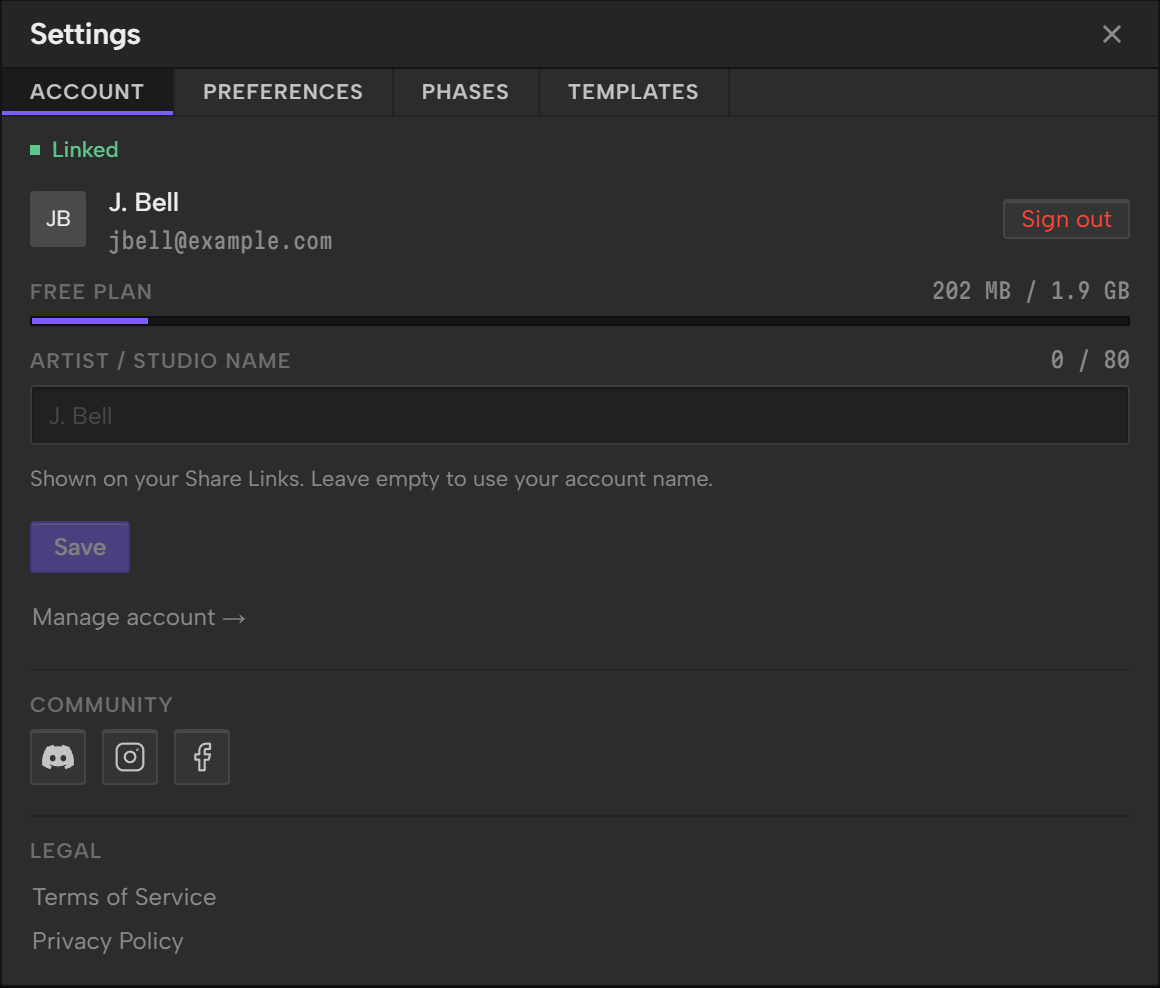
Settings then shows Linked with your name and email.
If you signed in with the wrong account, click Switch account on the approval page before you approve.
If Outro doesn't open after you approve, the browser page shows a code. The code works for 5 minutes, and the page counts it down. Copy it, then paste it into Or enter your code in Settings and click Link. The link request in Outro runs out after 15 minutes, and Start over begins a new one.
What's in Settings once you're linked
- Your Plan and how much Feedback storage you've used, as a bar with the used and total sizes.
- Artist / Studio name, the name Outro shows on your Share Links. Leave it empty to use your account name. Click Save to keep a change.
- Manage account →, which opens your account on getoutro.app to change your name, email or password.
- Sign out, which unlinks this computer.
The account button at the right of the transport bar opens Settings too.
Storage
Bounces you upload for feedback count toward your storage.
Your account page on getoutro.app shows the same Plan and storage bar.
When you've used all of it, new uploads stop until you make room.
Delete a track on Feedback to free up space, or contact Support to raise your limit.
Feedback covers uploading tracks, and Delete a track covers deleting them.
Your devices
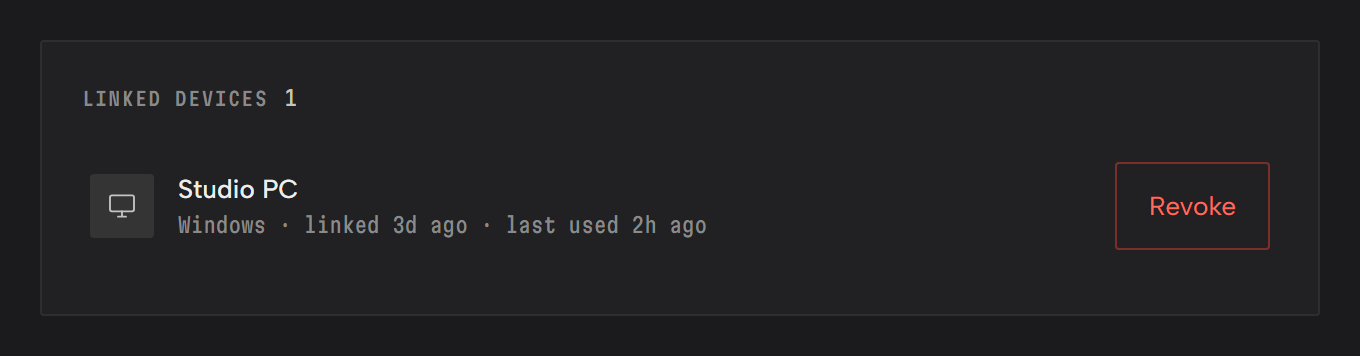
Each computer you link shows under Linked devices on your account page, with when it was linked and last used.
To unlink a computer you can't get to:
- Sign in at getoutro.app/account.
- Click Revoke next to the computer.
- Click Revoke again to confirm.
Outro on that computer is signed out and needs to be linked again.
If you sign out in the app while offline, Outro signs you out on that computer but can't tell getoutro.app. Revoke the computer there too.
Updates
Outro checks for a new Release when it opens and every 6 hours after that.
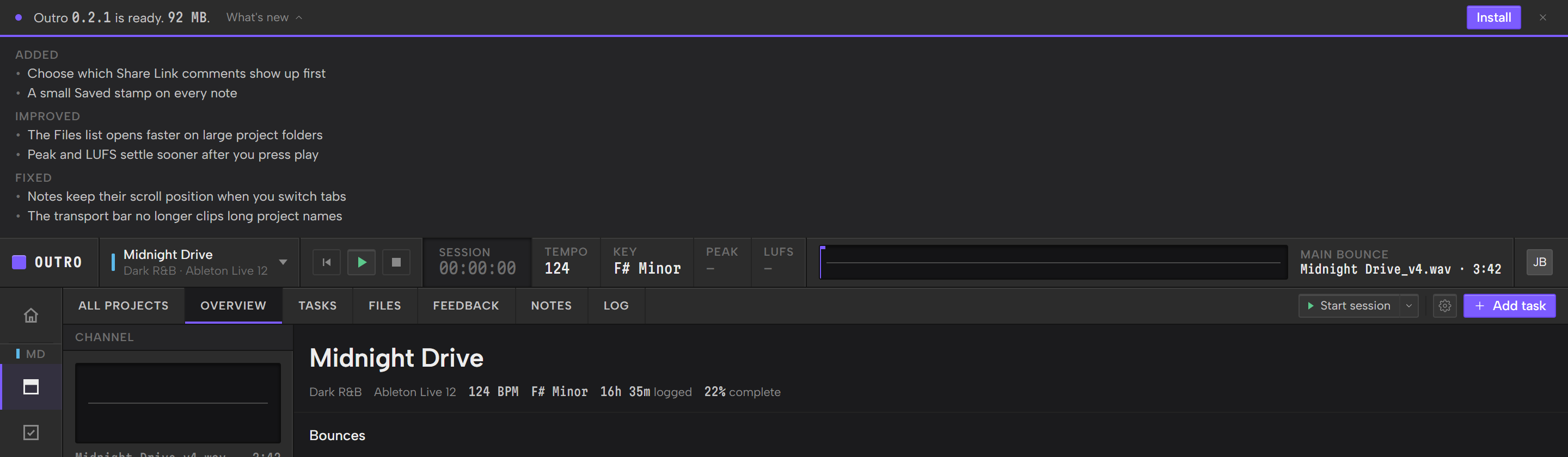
When one is out, a banner at the top of the app shows its Release number and download size.
Nothing downloads until you say so.
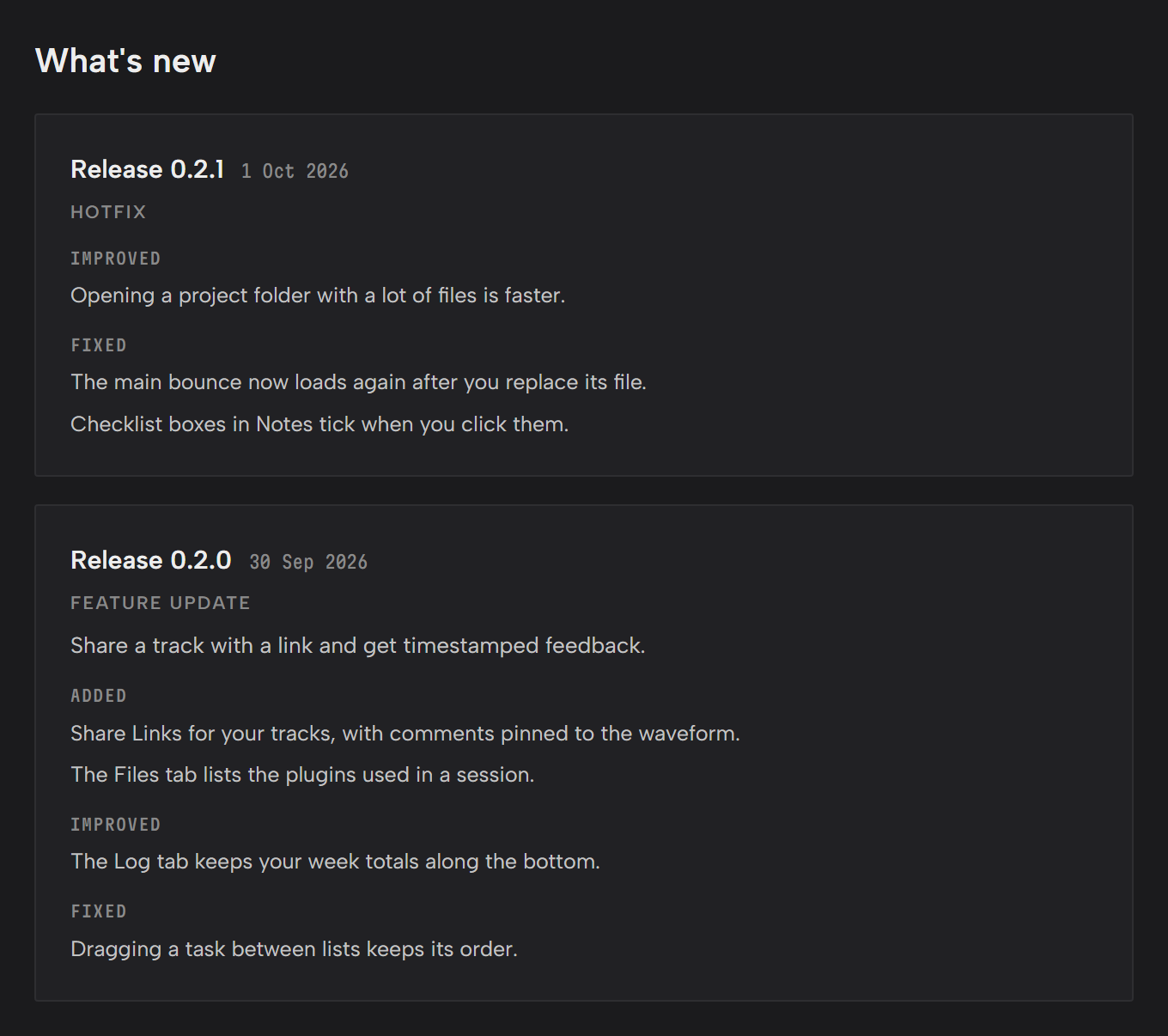
- Click What's new on the banner to read what changed.
- Click Install.
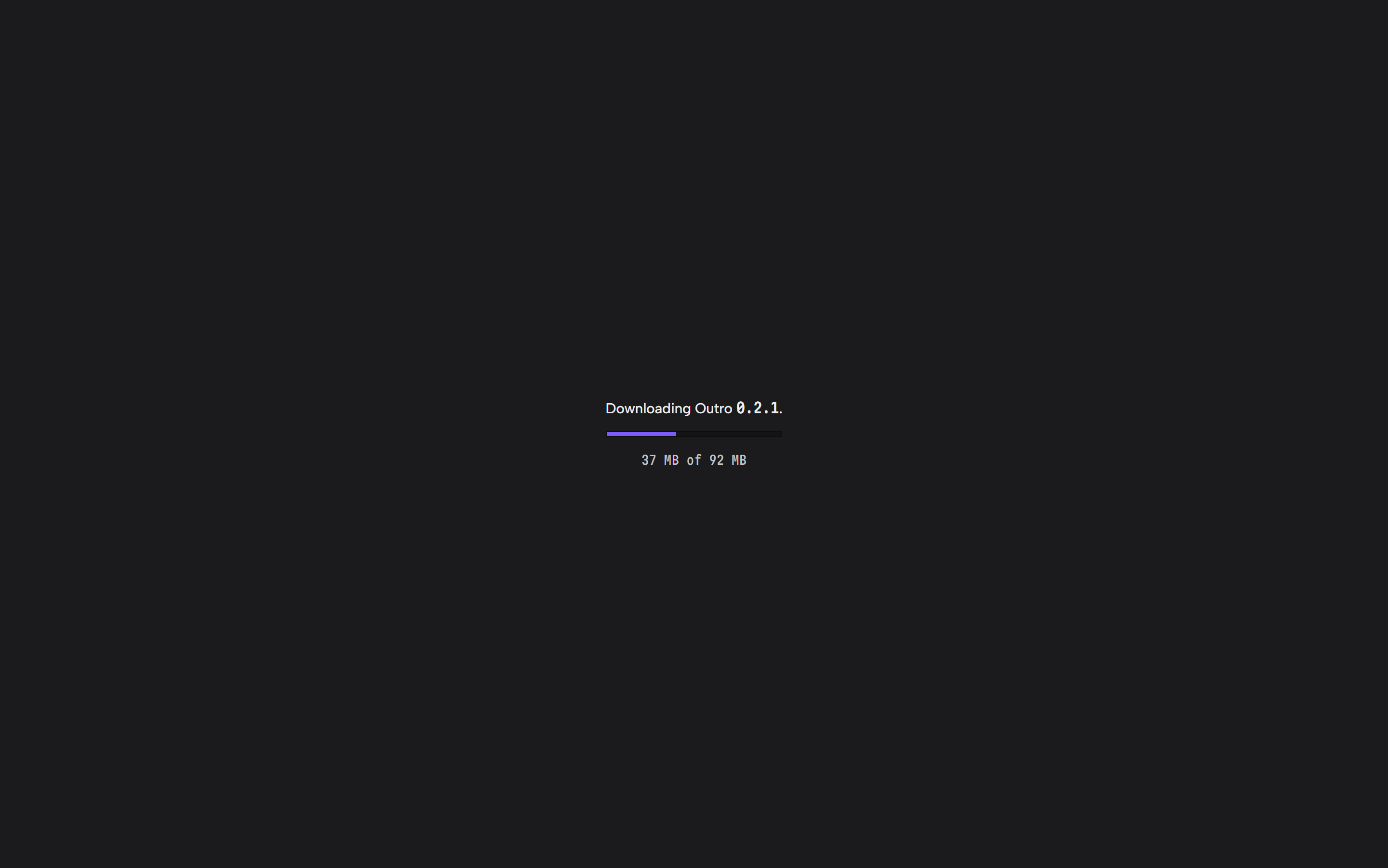
- Outro shows the download's progress, then restarts on the new Release.
- To skip a Release, close the banner with its close button. It won't come back for that Release until you click Check for updates.
- While a session timer is running, the banner says Outro will update when you finish this session. in place of Install.
- Some updates are required. The banner says This update is required. and can't be closed.
- If an update stops partway, Outro says Couldn't finish the update. Click Back to Outro and try again from Settings.
Check by hand
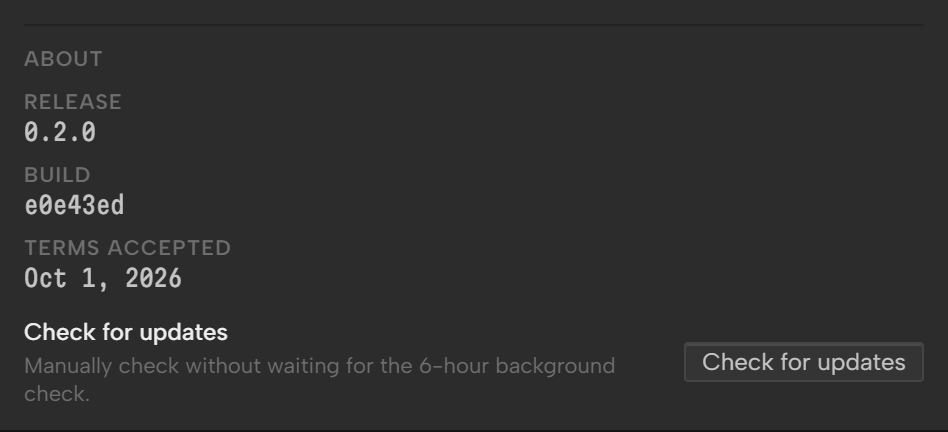
Open Settings, go to Preferences and find Release under About. It shows the Release you're running.
Click Check for updates to check now. Outro says You're up to date. or points you to the banner.
Release notes
Every Release has notes grouped as Added, Improved and Fixed.
Read them on the banner before you install, or any time on your account page: click View release notes under What's new.