Outro keeps each song you're working on in one place, next to your DAW.
This Guide takes you from signing up to your own project, with its folder linked and a main bounce playing. It ends with starting projects from a template and sorting them into phases and groups.
Get into the beta
- Click Join beta on getoutro.app.
- Fill in the form and send it.
- Check your email for the invite, and your spam folder too.
- Follow the link in the invite and create your Outro account.
A busy day can mean the invite comes a little later. You'll see a page that says so when you send the form.
Outro takes you to your account page when you're done.
Joining the beta doesn't get you the app on its own. The invite does.
If you already have an Outro account, the email says so. Sign in at getoutro.app/account instead of making a new one.
Download Outro
The installers are on your account page, and only there.
- Sign in at getoutro.app/account.
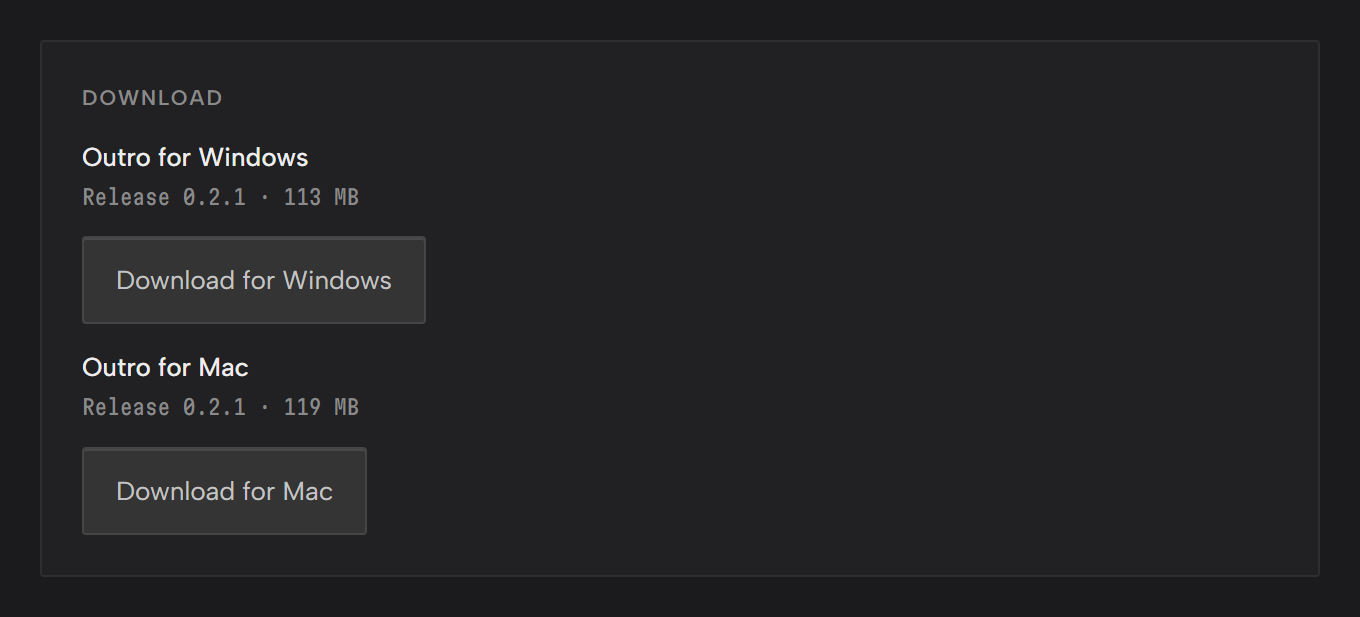
- Under Download, click Download for Windows or Download for Mac.
Outro runs on 64-bit Windows 10 or later, and on macOS 12 Monterey or later with Apple silicon or Intel.
If Download says Not in the beta yet, the account you're signed in to doesn't match your invite. Sign in with the email address the invite went to.
Install it
- Open the installer you downloaded.
- Accept the terms on the license page.
- Keep the suggested install folder or pick your own.
- On the last screen, leave Run Outro ticked to open Outro straight away.
Outro installs for your Windows user only, so it doesn't ask for admin rights. It adds a desktop shortcut and a Start menu entry.
- Open the disk image you downloaded.
- Agree to the terms.
- Drag Outro onto the Applications folder.
- Open Outro from Applications.
Once it's installed, Outro updates itself from inside the app. Updates in Account & updates covers how that works.
First launch
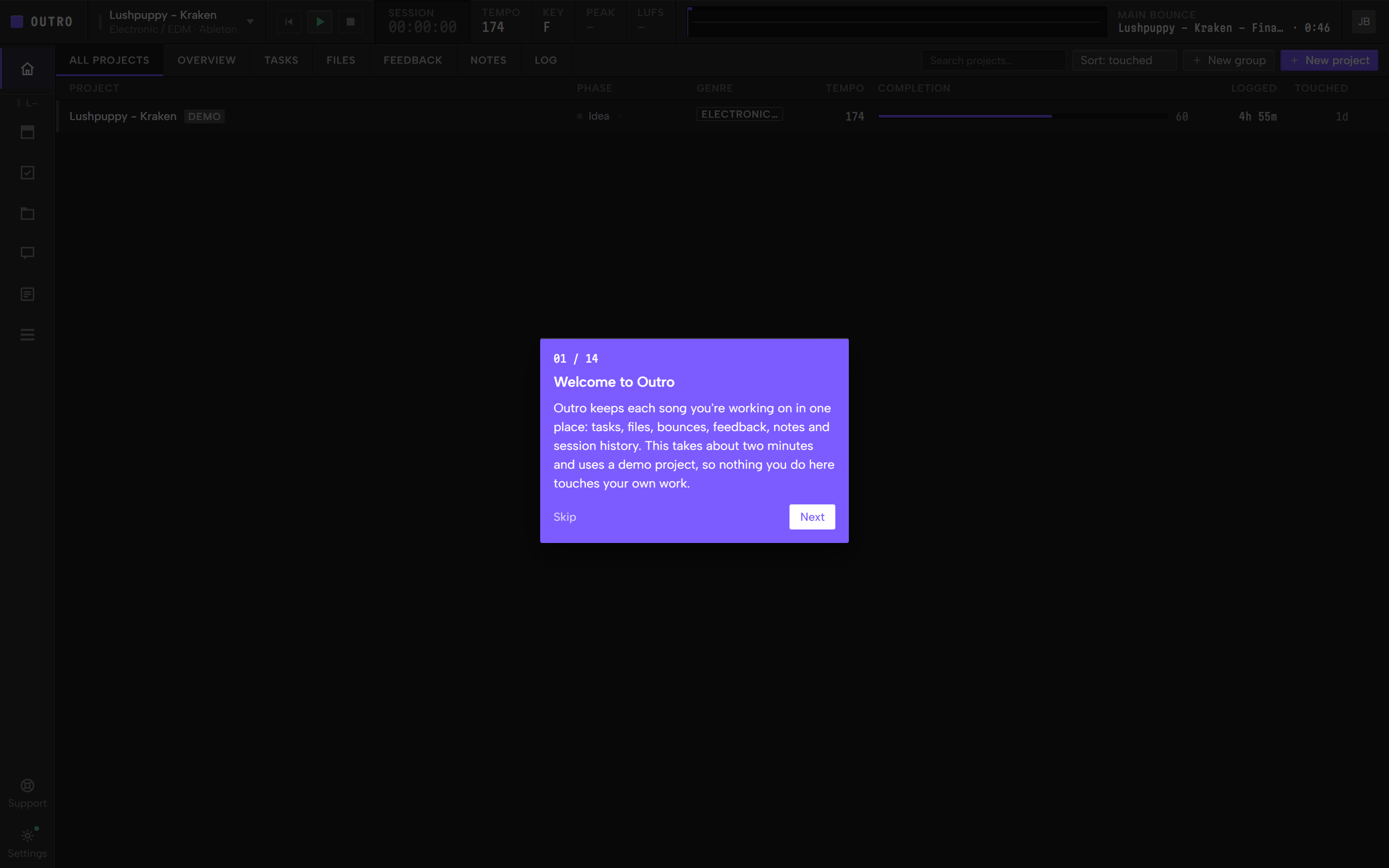
Open Outro. The Walkthrough starts on its own.
It's a tour of the app in 14 stops and takes about two minutes.
It runs on the Demo Project, so nothing you do in it touches your own work.
- Next moves on and Back goes back. The arrow keys do the same.
- Skip or Esc ends the tour.
- While the tour runs, the card is the only thing you can click.
- If you quit Outro partway through, the tour starts again the next time you open it.
To watch it again, open Settings and click Replay tour under Preferences. Support has a Replay the walkthrough row too.
The Demo Project
On a fresh install, Outro adds one Demo Project: Lushpuppy - Kraken, an Ableton session with its bounce, tasks, notes and session history.
It's marked Demo in the projects list.
Its main bounce is already set, so press play on the transport bar to hear it.
Its feedback comments are a sample and never leave your computer.
Its files sit in Outro's own data folder, away from your music.

The demo stays until you delete it. To delete it:
- Open the demo.
- Click the gear in the toolbar to open Project settings.
- Under Danger zone, click Delete project….
- Type the project's name to confirm.
- Click Delete project.
Deleting the demo also deletes its files from your computer. If you replay the Walkthrough with no demo left, Outro brings it back.
Create a project
A project is one song or beat.
The Walkthrough's last stop has a Make your first project button that opens the New project window. After that, use New project on the projects list.
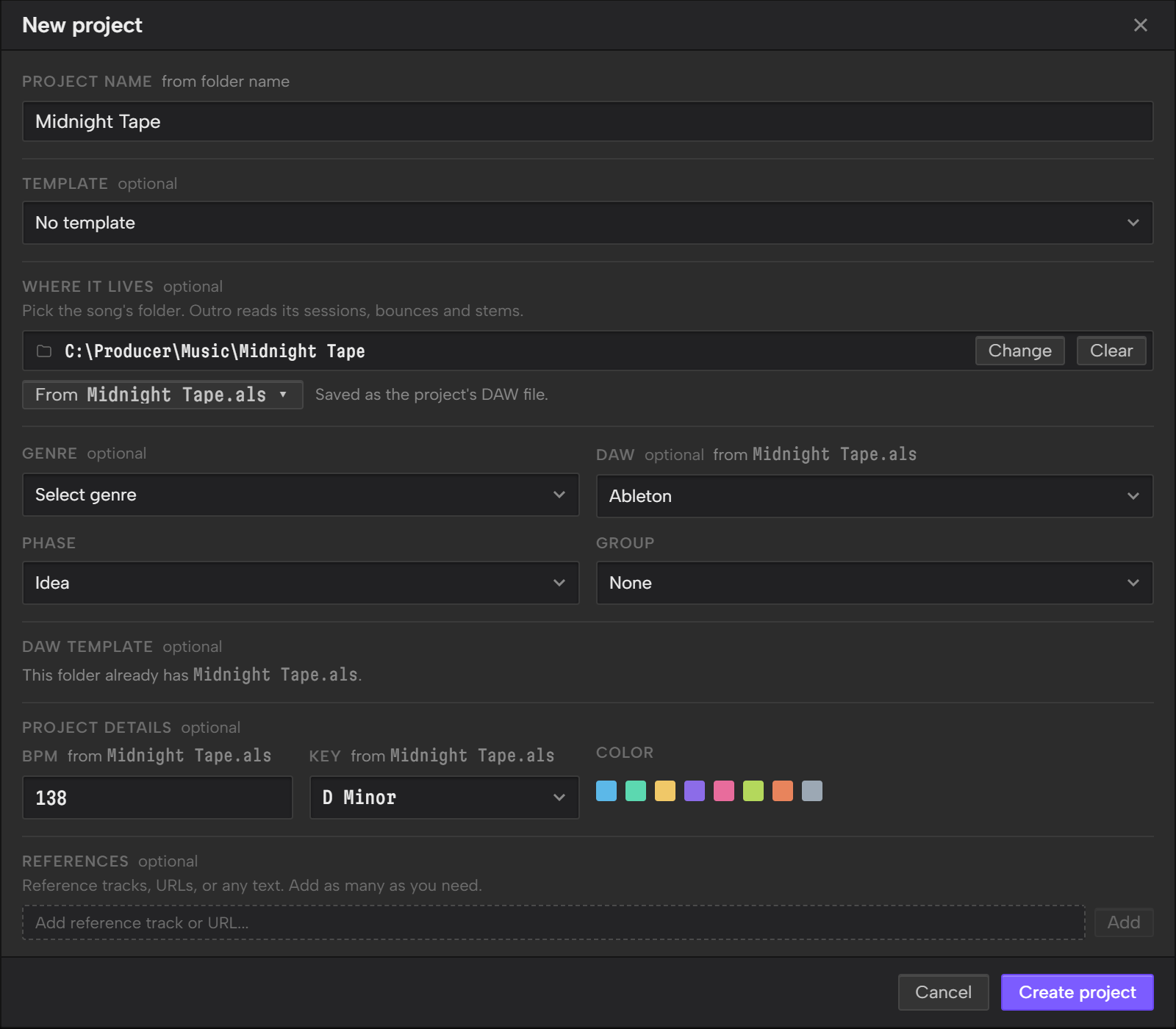
- Type a Project name. It's the only field you have to fill in, and a folder you pick in step 3 can fill it for you.
- To start from a saved setup, pick a Template. Start a project from a template covers them.
- Under Where it lives, click Choose… and pick the song's folder. The next section covers which folder.
- Add genre, DAW, phase, group, BPM, key, color and references if you want them. A new project starts on the Idea phase and in no group. Track progress with phases and Organize your projects into groups cover those two.
- Click Create project.
Outro opens the new project on Tasks.
What the folder fills in
When you pick a folder, Outro looks inside it. It fills the Project name from the folder's name, and the DAW, BPM and Key from the newest DAW session it finds there. A quiet from note next to each field says where its value came from.
Outro only fills a field that's empty, or one an earlier folder filled, so anything you typed stays. If you pick a different folder, the values the last one filled are replaced.
Key fills only when the session has one Outro can read as a major or minor key, and BPM only between 40 and 300. FL Studio and Reaper sessions never give a key. Your DAW covers what each DAW gives.
If the folder holds more than one DAW session, From and a file name show under the folder. Click it to see the sessions, newest first, and pick another. The fields refill from the one you pick, and Outro saves it as the project's DAW file. A folder with no DAW session says No DAW project in this folder.
Clear removes the folder and the from notes. The values it filled stay.
Set Primary DAW once in Settings, under Preferences, and new projects fill in the DAW for you. A DAW session in the folder you pick takes its place.
Link your DAW project folder
Outro reads the project folder where it already lives and never moves anything.
Pick the song's own folder, the one your DAW saves the session in. It can hold several saves of the same session.
If you skipped Where it lives when you made the project, link the folder from Files:
- Open the project and click Files.
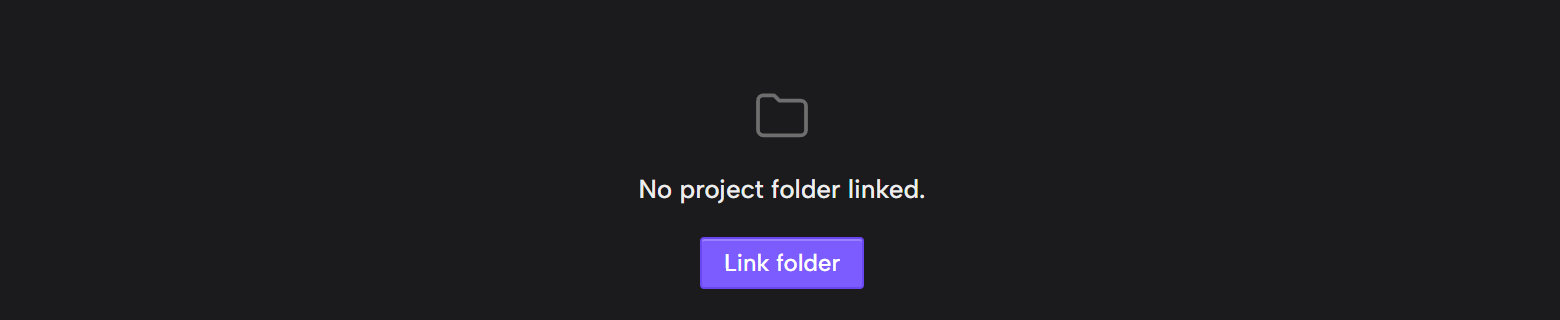
- Click Link folder.
- Pick the folder in the window that opens.
Linking a folder here can bring up an offer above the file list. One fills in the project's BPM and key from its DAW session, and another makes the project's DAW file from a template. Both wait for your click. Offers when you link a folder in Files covers them.
Outro sorts what it finds into buckets: DAW projects, Exports, Samples, Documents and Other. The Files Guide covers each one.
The Your DAW Guide shows what Outro reads from each DAW.
Outro reads the folder each time you open Files. If you bounce something while Files is open, click Rescan.
To use a different folder, click Change under Project folder in Files. If the folder moves, Files says it can't find it. Click Re-link folder and pick it again.
Set a main bounce
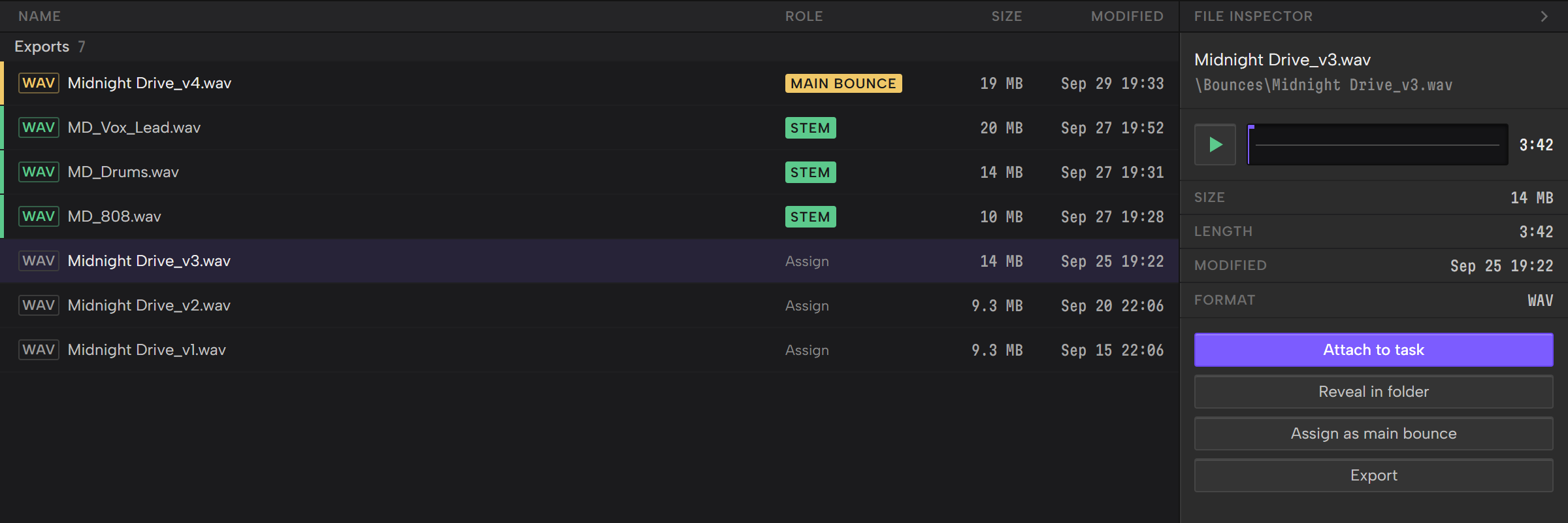
The main bounce is the one bounce the transport bar plays for this project, with its waveform and loudness. Nothing plays until you set one.
It comes from the Exports bucket in Files and has to be a WAV, MP3, M4A or FLAC file. Stems can't be the main bounce.
Audio goes in Exports when it sits loose in the project folder, or in a folder with export, bounce, render or master in its name.
Any of these sets it:
- In Files, click Assign on the bounce's row in Exports.
- Select the bounce in Files and click Assign as main bounce.
- Drag the bounce's row from Files onto the waveform in the transport bar.
- On Feedback, click Assign as main bounce on a track you've uploaded.
If you bounce again over the same file name, Outro plays the new bounce the next time you open the project.
The main bounce stays on this computer. It doesn't change what a Share Link opens.
To clear it, select it in Files and click Unassign.

Start a project from a template
A template is a setup you start a project from, so you don't build it again each time. There are two kinds, and one project can use both:
- An Outro template holds a project's lists, statuses, tasks and notes, plus its genre, color, DAW and phase.
- A DAW template is a session file you saved in your DAW. Outro copies it into the project's folder.
Templates stay on this computer.
Save a project as an Outro template
- Open the project and click the gear in the toolbar to open Project settings.
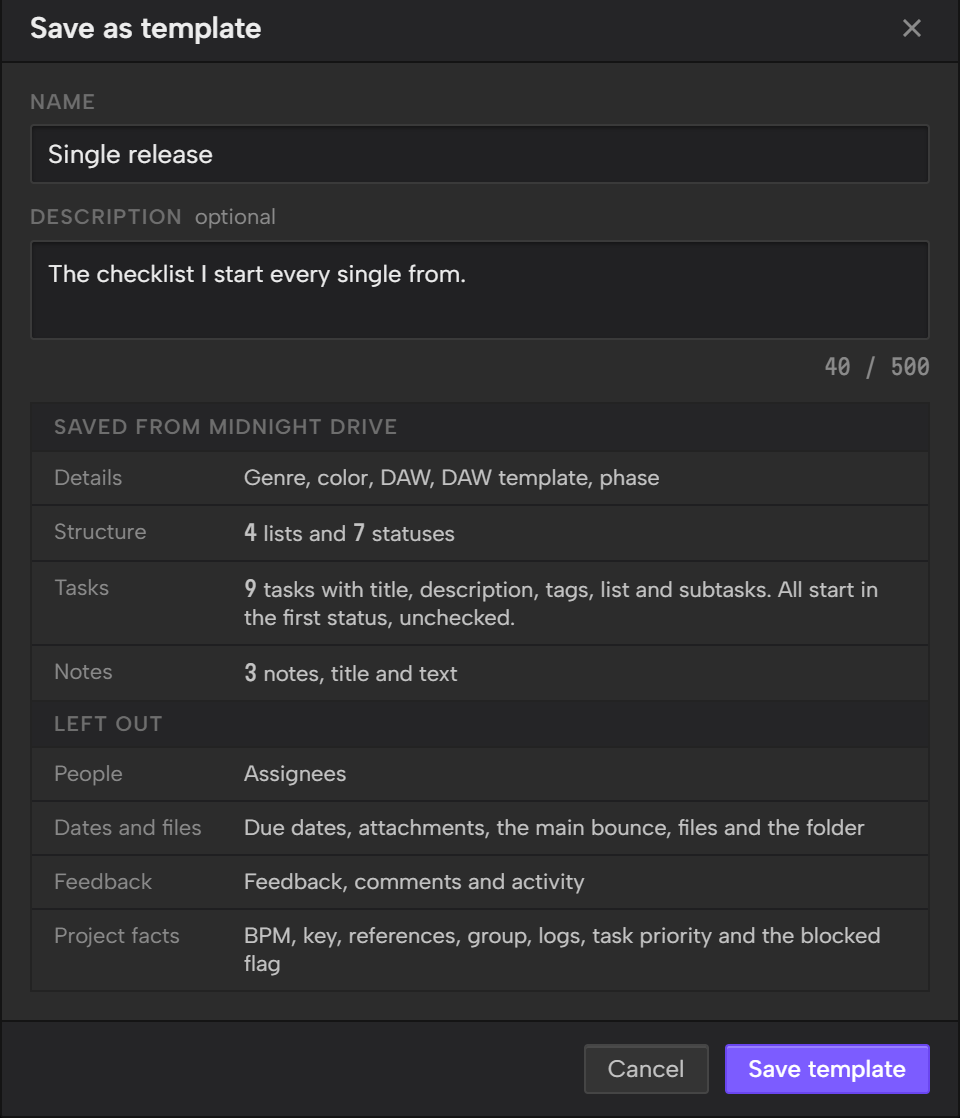
- In the Template panel, click Save as template.
- Type a Name, and a Description if you want one.
- Click Save template.
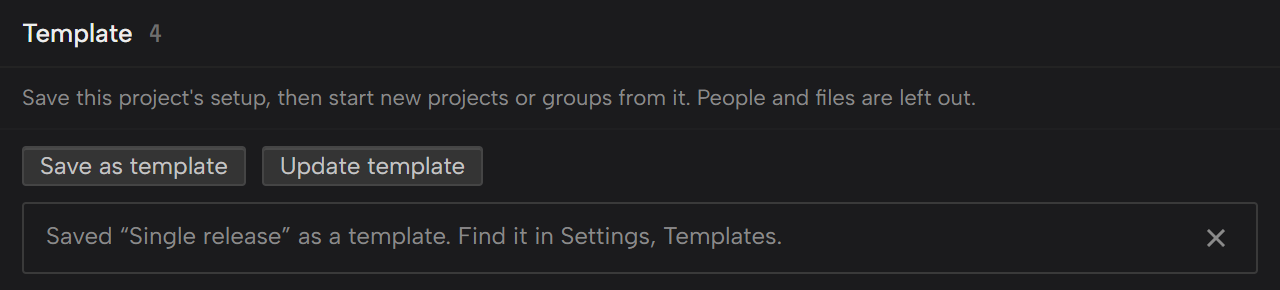
The panel then says where the template went: Settings, Templates.
A template is a copy of the setup at that moment. Changing the project afterwards doesn't change the template, and the other way round. Two templates can't share a name, and capital letters don't count, so "Rap single" and "rap single" clash.
The Save window lists what a template keeps, with the counts from your project:
- Genre, color, DAW, DAW template and phase.
- The lists and statuses.
- The tasks, with their title, description, tags, list and subtasks. Every task starts unchecked, in the first status.
- The notes, with their title and text.
And what it leaves out:
- People. Assignees.
- Dates and files. Due dates, attachments, the main bounce, files and the folder.
- Feedback. Feedback, comments and activity.
- Project facts. BPM, key, references, group, logs, task priority and the blocked flag.
To replace a template with this project's setup, click Update template, pick the template and confirm Replace template. The template keeps its name and description. Projects already made from it keep what they have.
Use an Outro template
- Click New project and pick the template under Template.
- Check what it filled in. Genre, color, DAW, DAW template and phase come from the template, each with a from note, and you can change any of them.
- Click Create project.
Under the select, the window says what the template will make, such as "Creates 4 lists, 7 statuses, 10 tasks and 2 notes." Outro builds the project with those lists, statuses, tasks and notes. Tasks start in the first status, with no assignee and no due date. A template that has notes replaces the starter note.
Open Overview and its top says what Outro built. Dismiss it when you've read it.
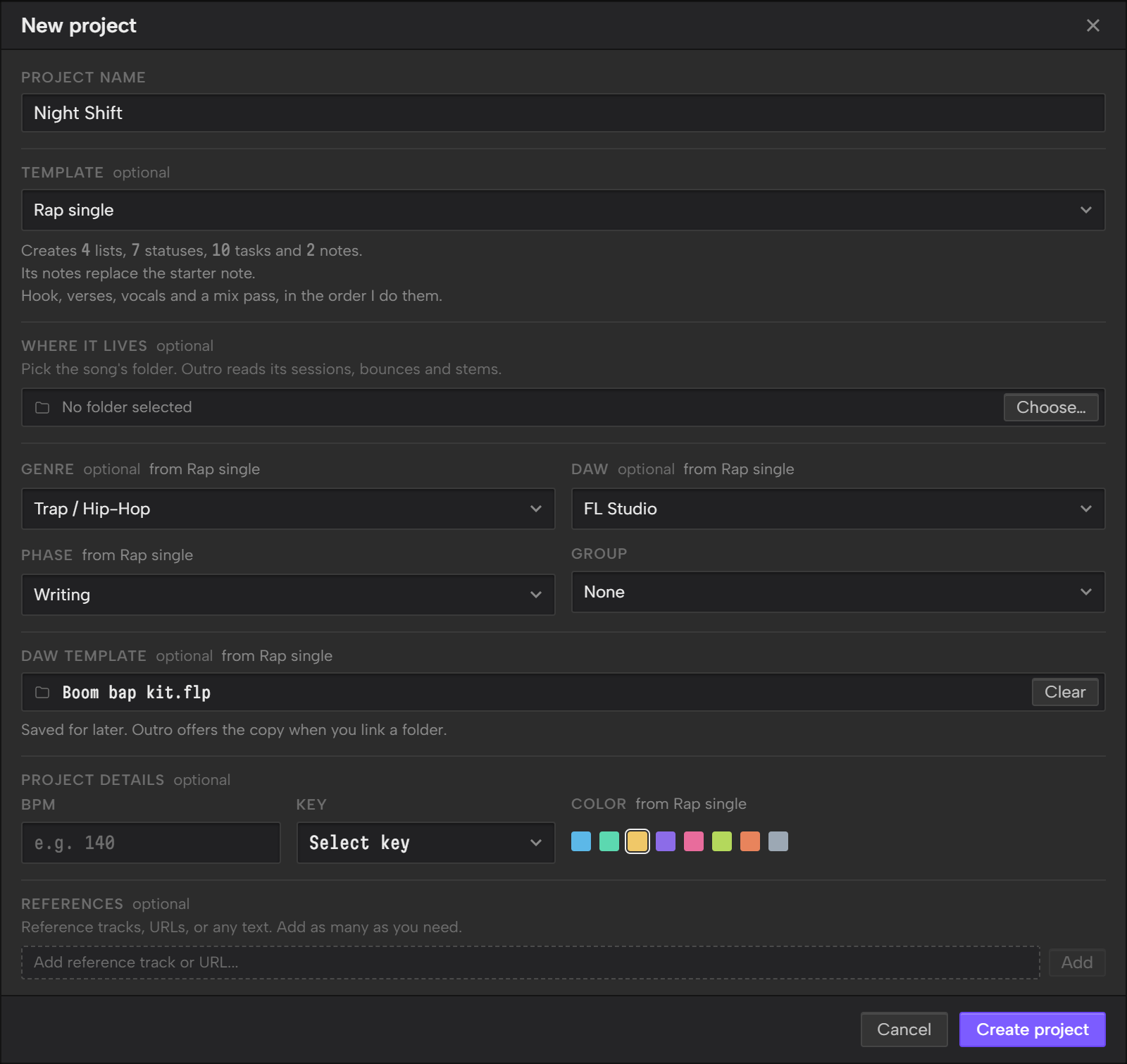
A few rules decide which value wins:
- Anything you set yourself stays. A template only fills a field that's empty, or one the last template filled.
- A DAW session in the folder you pick beats the template's DAW. Outro then clears the template's DAW template and says so.
- If the template has a phase, the project starts on it, and picking a Group doesn't change that. Pick a Phase yourself to override it.
With no templates saved, Template is greyed out and tells you where to make one.
Set up DAW templates
A DAW template is a file you saved in your DAW with your usual tracks and plugins in it. Outro keeps one templates folder per DAW.
- Click Settings in the rail and open the Templates tab.
- Under DAW templates, click Choose… next to your DAW and pick the folder where you keep its templates.
- In New project, pick that DAW. DAW template lists what's in the folder, including files in the folders inside it. Pick one.
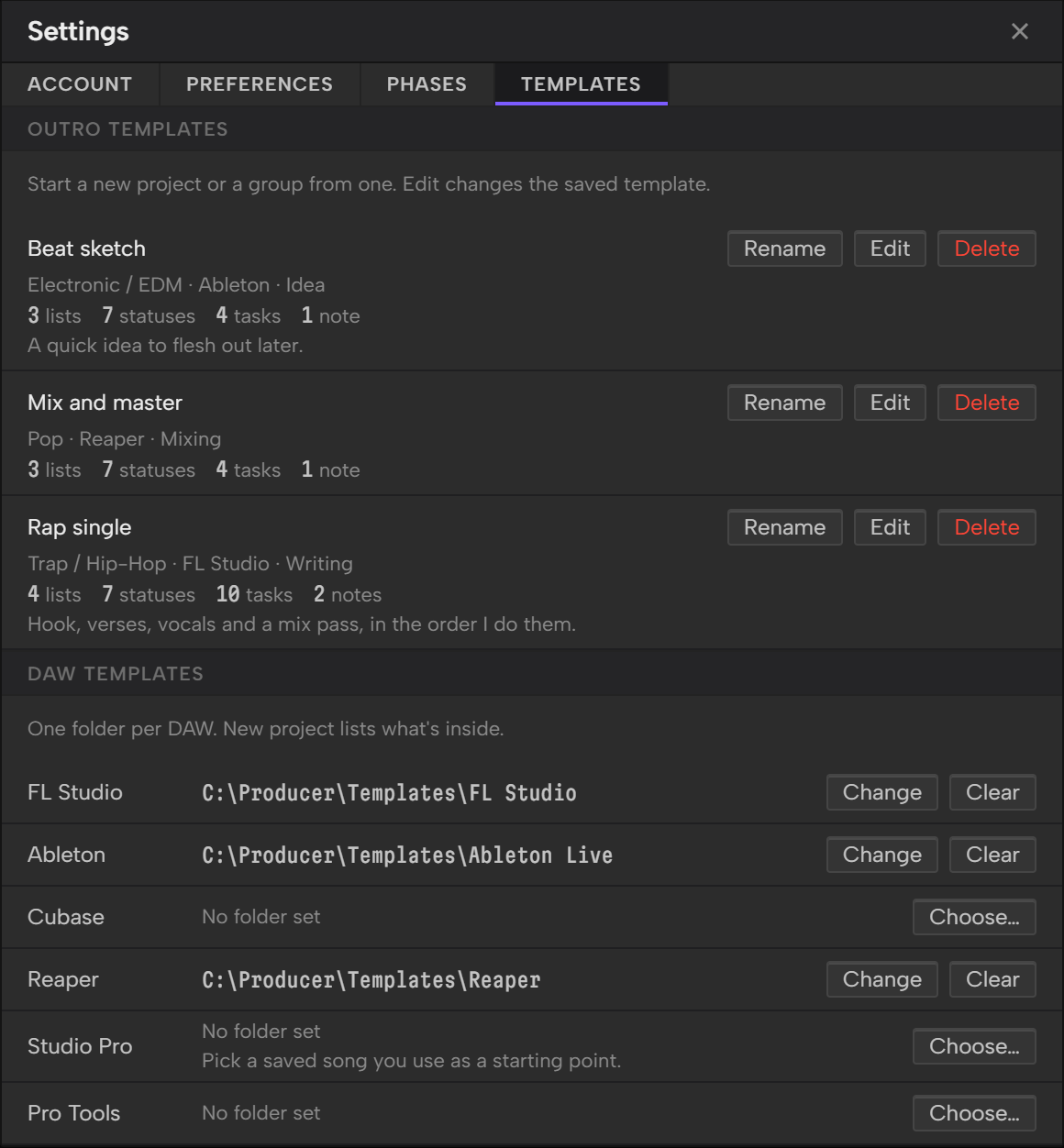
The DAW template field shows for FL Studio, Ableton, Cubase, Reaper, Studio Pro and Pro Tools. It doesn't show for Logic Pro or Other. Your DAW lists the file type and what Outro does for each DAW.
Change and Clear on a row change or forget a folder. Clear never touches a file.
If you haven't set a folder, Pick a template opens a file window at that DAW's usual templates folder. After you pick a file, Outro asks if you want to use its folder from now on. Click Save to do that.
With a folder set, Pick a different file… under the list uses a one-off file.
What Outro does when you click Create project depends on the folder:
- A folder with no session for that DAW. Outro copies the template into the folder, named after the project, like
Night Shift.flp. A line under the field says what the name will be. - No folder. Outro saves the template for later and offers the copy when you link a folder.
- A folder that already has a session for that DAW. The field reads "This folder already has" and the file's name, and nothing is copied.
Outro never replaces a file that's already in your folder.
After a copy, a card in the bottom right corner says the new file is ready and asks if you want to open it in your DAW now. Click Open to open it, or Not now to close the card. Nothing opens until you click. The card after a template copy in Overview has the details.
Three DAWs work a little differently:
- Ableton asks where to save the copy the first time. The card says so too. Choose the project folder.
- Studio Pro starts from a song you saved, not from a template file. Pick the song you use as a starting point.
- Pro Tools templates aren't copied. Files offers to open the template in Pro Tools. Save the session into the project folder and Outro picks it up as the project's session. Pro Tools templates in Files has the steps.
An Outro template can carry a DAW template too. It shows in New project as the DAW template, with the from note, and follows the same rules.
Manage your templates
The Templates tab in Settings lists your Outro templates above your DAW folders. Each template's row shows the template's name, its genre, DAW and phase, and how many lists, statuses, tasks and notes it has.
- Rename: click Rename, type, and press Enter. Escape cancels.
- Edit: opens the template in its own screen.
- Delete: asks first. Projects made from the template keep their lists, tasks and notes.
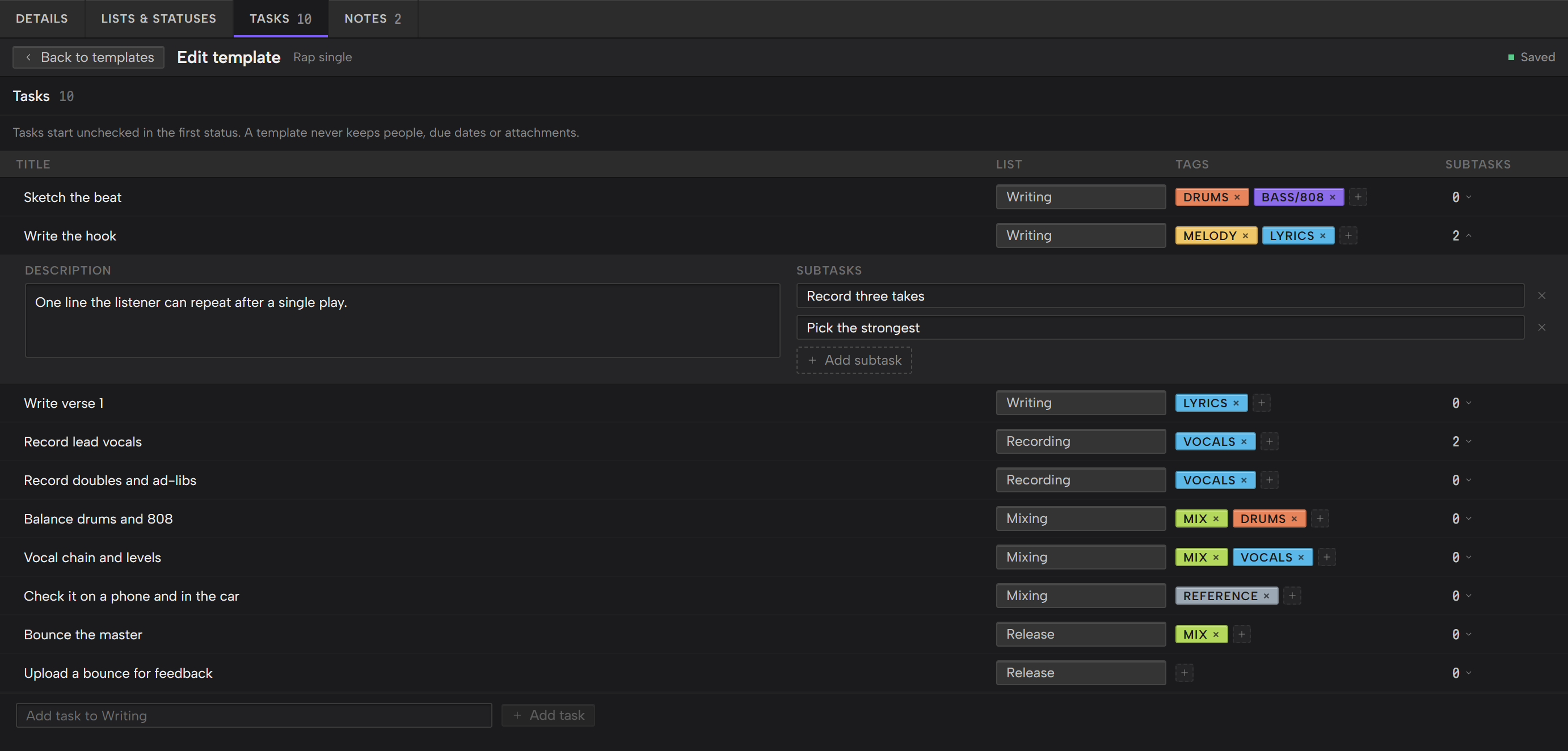
The editor has four tabs: Details, Lists & statuses, Tasks and Notes.
- Details holds the name, description, genre, DAW, DAW template, color and phase.
- Lists & statuses works like the lists and statuses in Project settings. Every task in a template starts in the first status.
- Tasks shows each task's title, list, tags and subtask count. Click a task's subtask count to edit its description and subtasks. Use the row at the bottom to add a task. There's no assignee, due date or attachment to set, because a template never keeps them.
- Notes works like the Notes screen, with Add note and Delete.
There's no Save button. Your changes save as you make them, and the corner of the screen reads Saving…, Saved or Not saved. Back to templates takes you back to Settings, Templates.
A template holds up to 30 lists, 30 statuses, 300 tasks and 50 notes.
Track progress with phases
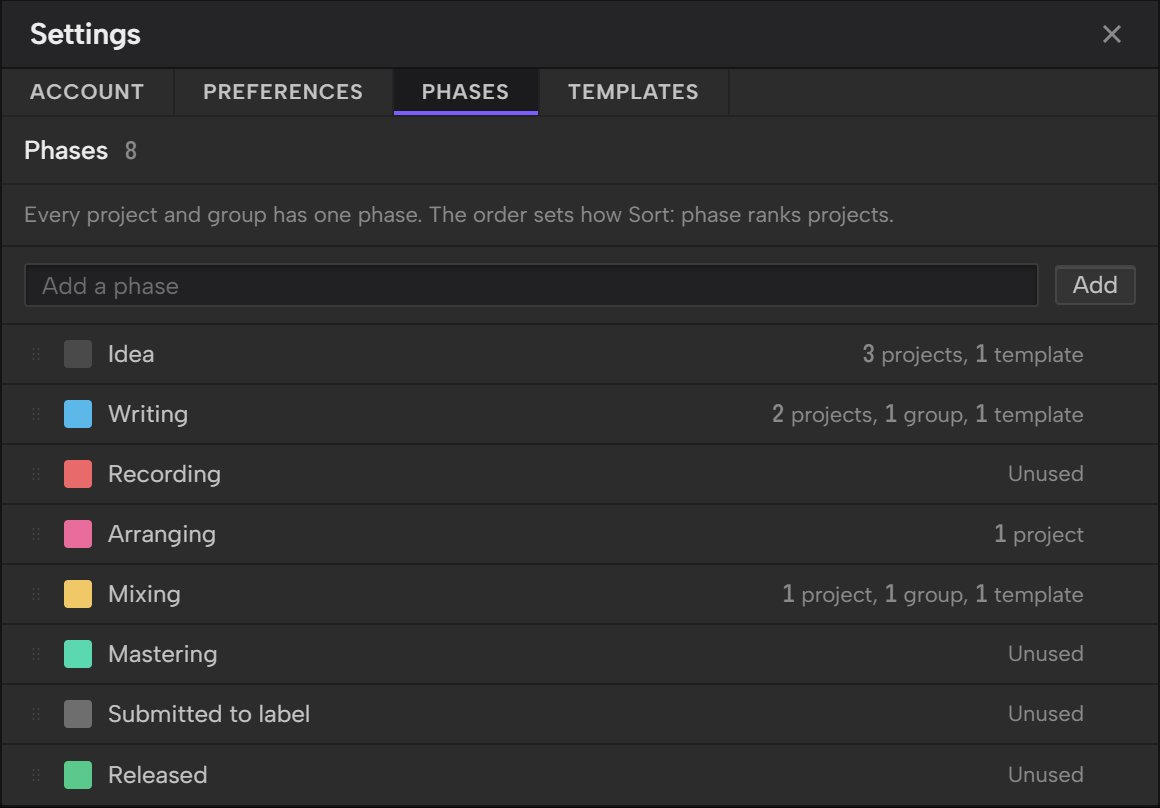
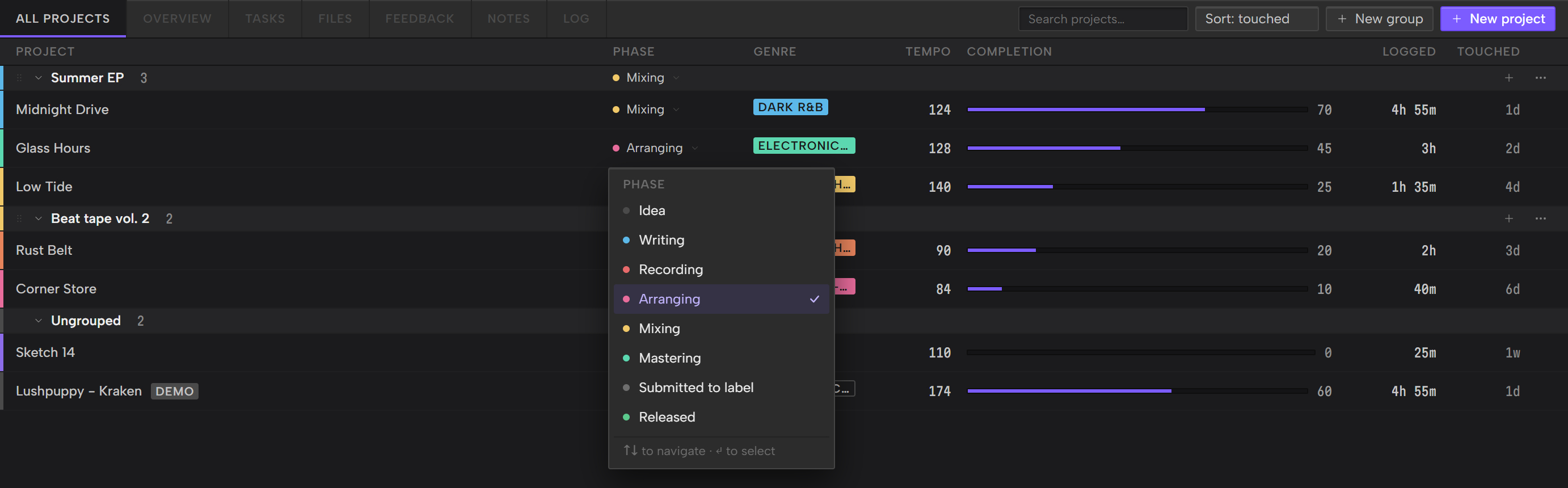
A phase is where a project is in its life. Outro starts you with eight, in order: Idea, Writing, Recording, Arranging, Mixing, Mastering, Submitted to label and Released.
Every project has one, and a new project starts on Idea. The Demo Project is on Idea too.
Your projects list is the All projects screen. Click Home in the rail to open it.
To change a project's phase, do either of these:
- On All projects, click the project's entry in the Phase column and pick a phase from the list.
- Open the project's Project settings and pick a Phase in the Project panel. It saves when you pick it.
Sort: phase in the toolbar orders the projects by the phase list, so Idea comes first and Released last. Projects on the same phase run A to Z by name.
Change the phases covers reordering the list.
Organize your projects into groups
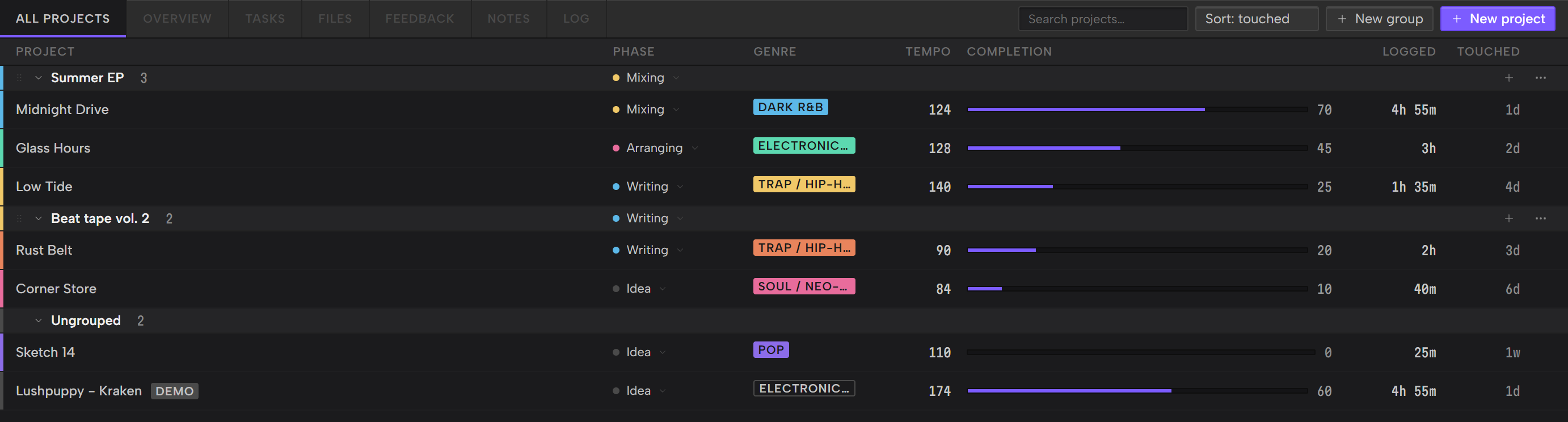
A group keeps related projects together on All projects, like the songs on an EP. A group has a name, an optional color and its own phase. A project is in one group at most, and projects outside any group sit under Ungrouped.
Until you make a group, All projects is one flat list.
Make a group
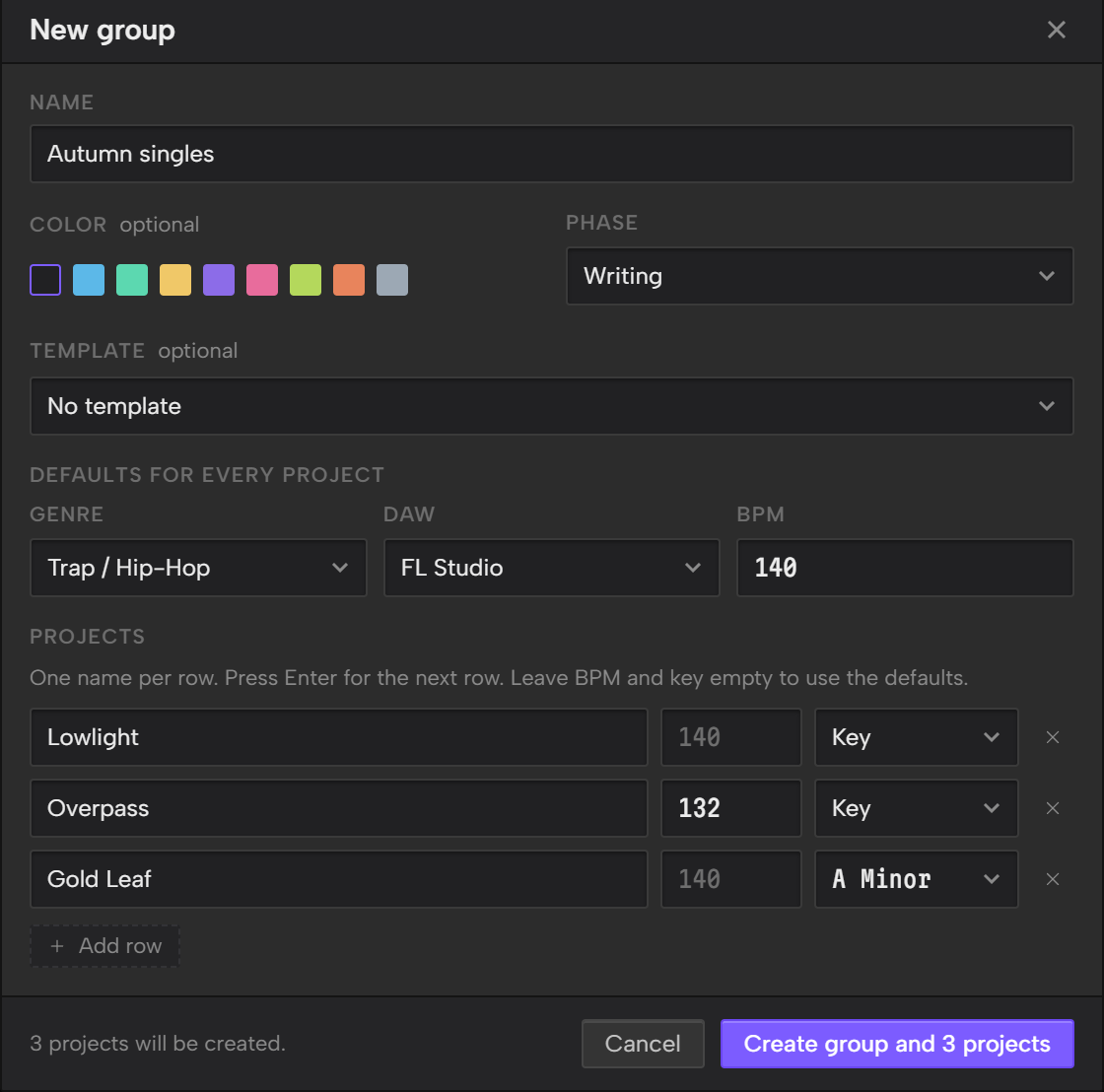
- Click New group in the toolbar.
- Type a Name.
- Pick a color if you want one, and a Phase for the group.
- Click Create group.
A group's phase is its own. Changing it never changes the phase of the projects inside.
Make several projects at once
The same window can make a group's projects in one go.
- To start every project from an Outro template, pick one under Template. It fills the genre and DAW defaults, and you can change them.
- Under Defaults for every project, set a genre, a DAW and a BPM. All three are optional, and every project takes them.
- Under Projects, type one name per row. Press Enter for the next row.
- To give one project its own BPM or key, fill them in on its row. A row with them empty uses the defaults.
- Click Create group and 3 projects. The button counts your rows.
Each project starts on the group's phase, or on the template's phase if the template has one. A template gives every project its lists, statuses, tasks and notes. If the template has a DAW template for the DAW you chose, each project keeps it for later and Outro offers the copy when you link a folder. Rows with nothing in them are skipped, and you can make up to 50 projects at a time. If a field has a problem, Outro marks it and creates nothing until you fix it.
These projects have no folder yet. Link one from Files, the way Link your DAW project folder describes.
Move a project into a group
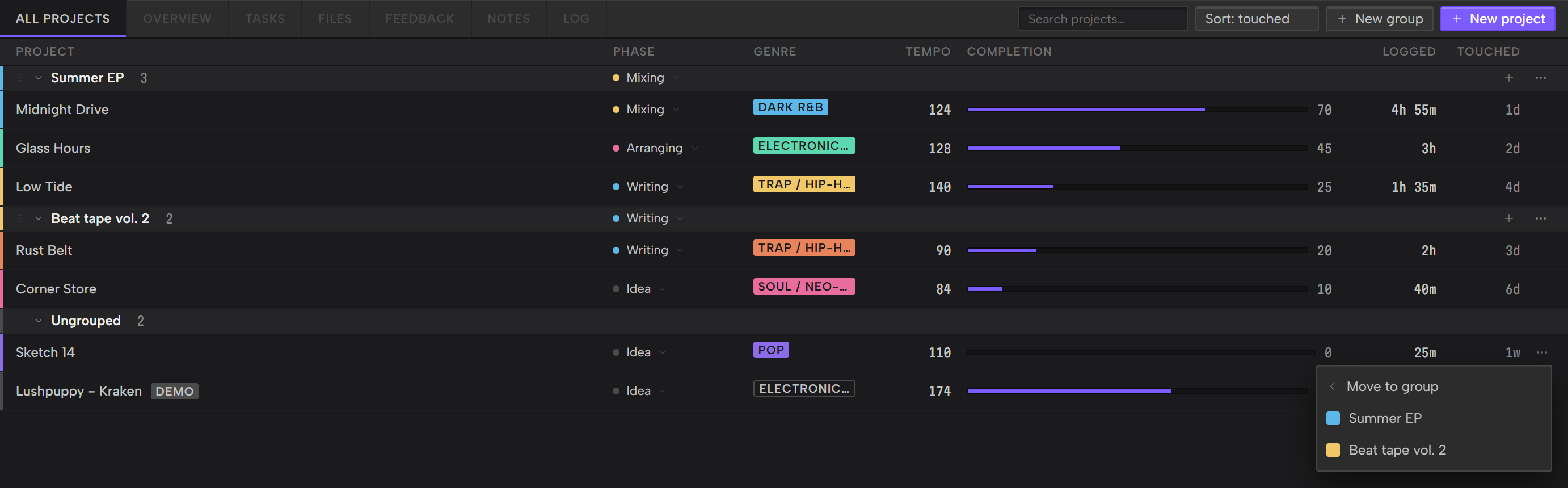
To move a project you've already made into a group, do any of these:
- Hover its row and click the three dots at the end. Choose Move to group and pick the group.
- Drag its row onto the group's header.
- Open its Project settings and pick the group under Group.
New group... in the same row menu makes a new group with that project already in it. To take a project out of a group, choose Remove from group in its row menu, or drag its row onto Ungrouped.
Add a project to a group
Click the + on the group's header. The New project window opens with that group and its phase already picked.
In New project, picking a Group sets Phase to that group's phase, until you pick a phase yourself. A template that has a phase keeps its own, so a group doesn't change it.
Work with a group
- Click a group's name to collapse or open it. Outro remembers which groups you collapsed.
- Drag the grip at the left of its header to move the group up or down the list.
- Click the phase on its header to change the group's phase.
- Use the three dots on its header for Rename, Color and Delete group....
Delete group... asks first. The group's projects move to Ungrouped, and no project is deleted.
Sort and search work inside the groups. Sort orders the projects in each group, and the groups keep the order you set. Typing in the search box hides the groups with no matching project, and clearing it brings them back.
Change the phases
The phases are one list for all your projects and groups. You edit the list in Settings.
- Click Settings in the rail.
- Click the Phases tab.
Then:
- Add: type a name under Add a phase and click Add. It goes at the end of the list. A name is 1 to 40 characters, and two phases can't share one.
- Rename: click a phase's name, type, and press Enter.
- Reorder: drag the grip at the left of a phase. The order sets how Sort: phase ranks projects.
- Recolor: click the color square and pick a color.
- Remove: click the x at the right of its row.
Each row says how many projects, groups and Outro templates use the phase, or Unused. An unused phase is removed at once. If projects, groups or templates use it, Outro asks which phase to move them to. Pick one and click Move and delete. Outro always keeps at least one phase.