Notes is where a project's words live: lyrics, mix notes, references.
Each project keeps as many notes as you need.
Open a project and click Notes to get there.
The notes list
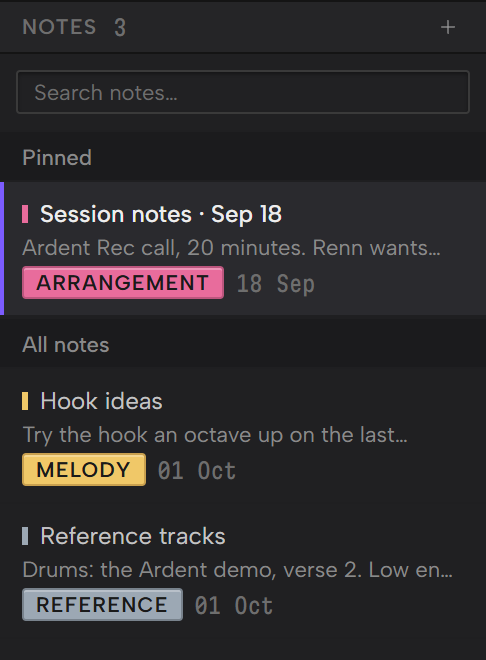
The list down the left side shows every note in the project. The number next to Notes at the top is how many there are.
- Notes you've pinned sit under Pinned, newest pin first.
- Everything else sits under All notes, most recently edited first.
- Each row shows the title, the start of the note, its tag and the day it was last edited.
Type in Search notes… to filter the list. It matches words in a note's title or its text.
To start a note, click the + at the top right of the list. The new note opens with its title ready to type.
A project with no notes shows No notes. and a New note button instead.
Write a note
Click the title to rename the note.
Type the note itself below the line.
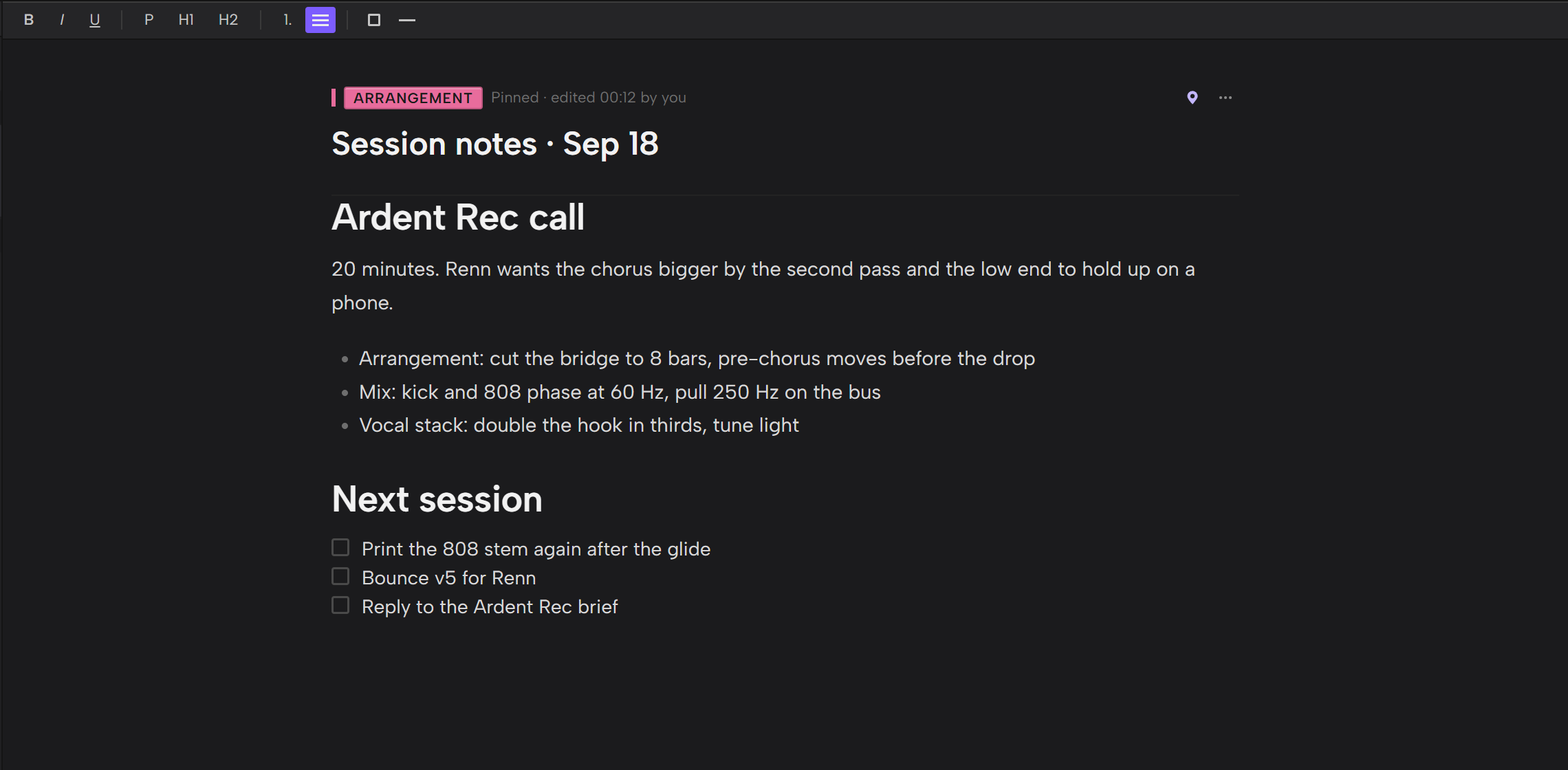
The toolbar above the note formats the text under your cursor:
- B, I and U for bold, italic and underline.
- H1 and H2 for headings. P turns a heading back into plain text.
- A numbered list and a bulleted list.
- A checklist and a divider line.
In a list, Tab indents the line and Shift+Tab moves it back out.
In a checklist, Enter starts a new item with its own box. Backspace on an empty item ends the checklist.
Click a box to tick it off. Outro saves the tick with the note.
Outro saves as you type, about a second after you stop. The toolbar shows Saving… and then Saved with the time.
Switching to another note or screen saves what you had too.
The bar under the note counts its words, and its checklist items and how many are ticked when it has any.
Tag, pin and delete
These sit in the row above the note's title.
- Tag gives the note one of the same tags tasks use, such as Melody, Drums or Mix. Its color shows in the list. Pick None to clear it.
- The pin moves the note into Pinned. Click it again to unpin.
- The ··· menu has Delete note. Outro asks first, and a deleted note can't be brought back.
Next to the tag, the note says when it was last edited, and Pinned if it's pinned.
The starter note
Every new project comes with one note, Project notes.
It starts with four labelled sections to fill in: Concept, References, Hook concept draft and Technical notes. The last one has a line for BPM and key.
Write over it, rename it or delete it like any other note.
Bring in a text file
A Markdown or plain text file in your project folder can become a note. In Files, select it and click Import to Notes.
The note takes the file's name. Each click makes a new note, so click once.
The Files Guide covers the rest of what you can do with a file.