Log is a project's session history: what you worked on, when and for how long.
A session gets there two ways. You time it with the session timer, or you log it by hand afterwards.
Time a session
The timer sits in the project's toolbar, on every screen of the project.
- Open the project.
- Click Start session.
The button turns into the running clock, with a red square that blinks while it runs. The transport bar's Session readout shows how long the session has run.
On a narrow window, Start session shows only its play icon.
Timed sessions
A timed session counts down from a target instead of up from zero.
- Click the arrow next to Start session.
- Pick 15 min, 25 min, 45 min or 60 min. Or type a number of minutes under Custom and click Start.
Custom takes 1 to 480 minutes. A number outside that starts at the nearest limit, and the box tells you which before you start.
At zero the session keeps running. The clock turns amber and counts the overtime up from zero with a plus sign.
If Desktop notifications is on in Settings, under Preferences, you also get a notification when you reach the target.
The target only paces the session. The log records the time you actually worked.
Stop and log it
- Click the running clock to stop.
- In Session complete, add a summary, a mood and activities if you want them. The window says which project the session is logged to.
- Click Log session.
The length is rounded to the nearest minute, and the session is dated the day it started. A session under 30 seconds rounds to zero, and the window says Too short to log.
Dismiss without logging throws the session away. The close button and Esc ask Discard this session? first: click Discard to throw it away or Log it to log it.
The session keeps running when you leave the project, open another one or go to Support. The transport bar's Session readout keeps counting, and any project's toolbar shows the running clock so you can stop it. The session is logged to the project you started it on.
If you leave while Session complete is open, it opens again the next time you open a project.
Quitting Outro ends a running or unlogged session without logging it. Stop and log it before you quit.

Log a session by hand
For time you didn't run the timer for, add the session afterwards.
- Open the project and click Log.
- Click Log session.
- Set Session date and, if you know it, Start time.
- Type the Duration (min).
- Add a summary, a mood and activities if you want them.
- Click Log session.
The date can't be in the future.
Mood and activities
Mood is one of Focused, Flowing, Curious, Stuck or Creative. Click it again to clear it.
Activities are the same tags you put on tasks, like Melody, Drums or Mix. Pick as many as the session covered.
The Tasks Guide lists all ten.
The history
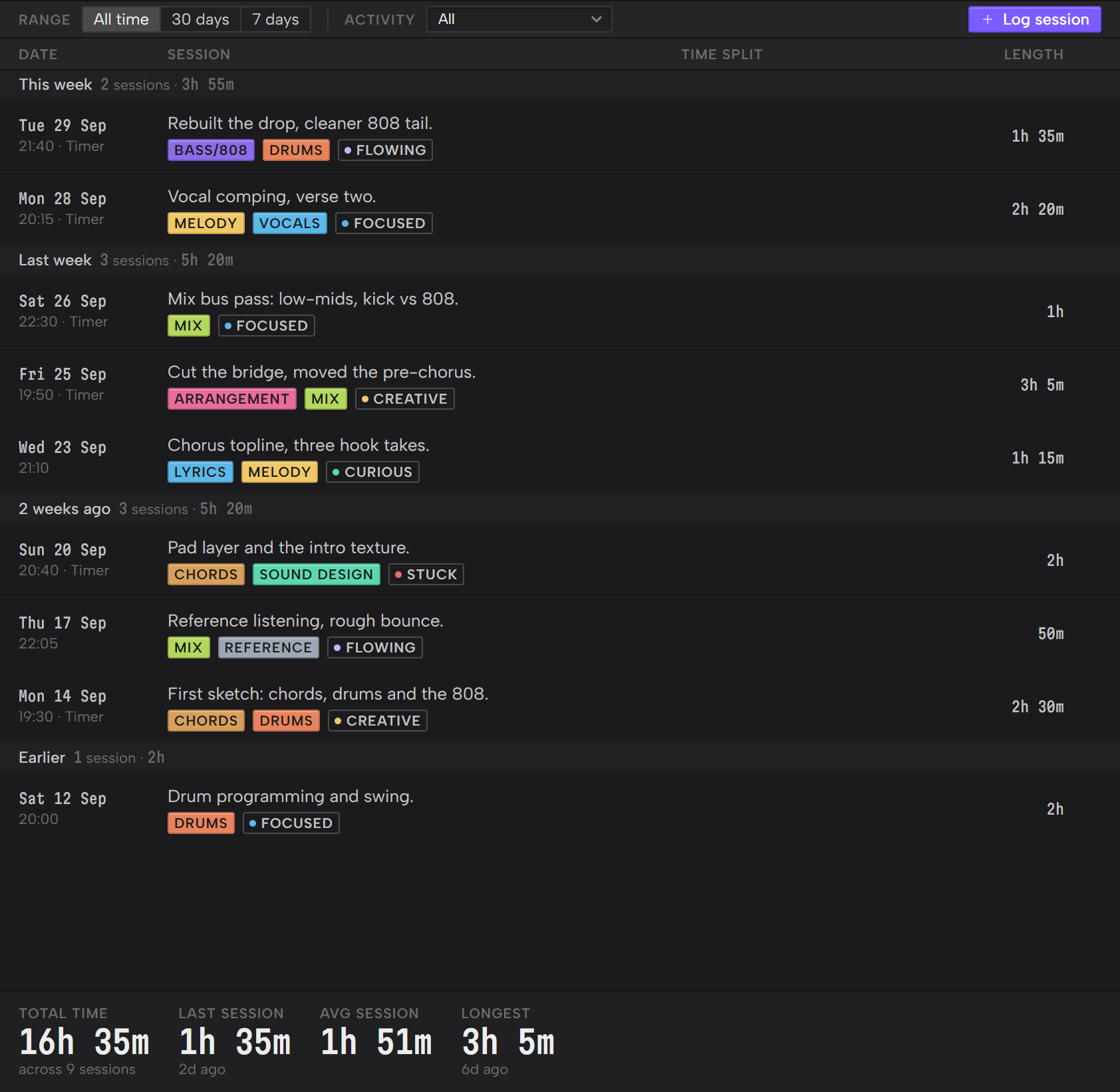
Log lists sessions newest first, grouped into This week, Last week, 2 weeks ago and Earlier. Weeks start on Monday.
Each week's bar shows how many sessions it holds and their total time.
Each row shows the date, your summary with its activities and mood, and the length.
Under the date, a timed session reads Timer, next to its start time.
To narrow the list:
- Range picks All time, 30 days or 7 days.
- Activity shows only the sessions tagged with the activity you pick. It appears once a session has one.
If nothing matches, click Clear filters.
Delete a session
Sessions can't be edited. To fix one, delete it and log it again.
- Point at the session's row and click the cross at its end.
- Click Delete session.
Its time comes off the project's total. You can't undo it.
Totals
Along the bottom of Log are four numbers: Total time, Last session, Avg session and Longest.
They count only the sessions the filters show.
A project's logged time also shows outside Log.
- The projects list has Logged and Touched columns, and Sort: logged puts the most worked-on project first.
- Overview shows the project's logged total.
Logging a session counts as touching the project.