Files shows what's in the project's folder on your drive, sorted into buckets.
Outro reads the folder where it already lives and never moves anything.
To link a folder or set the main bounce, see Link your DAW project folder and Set a main bounce in Getting started.
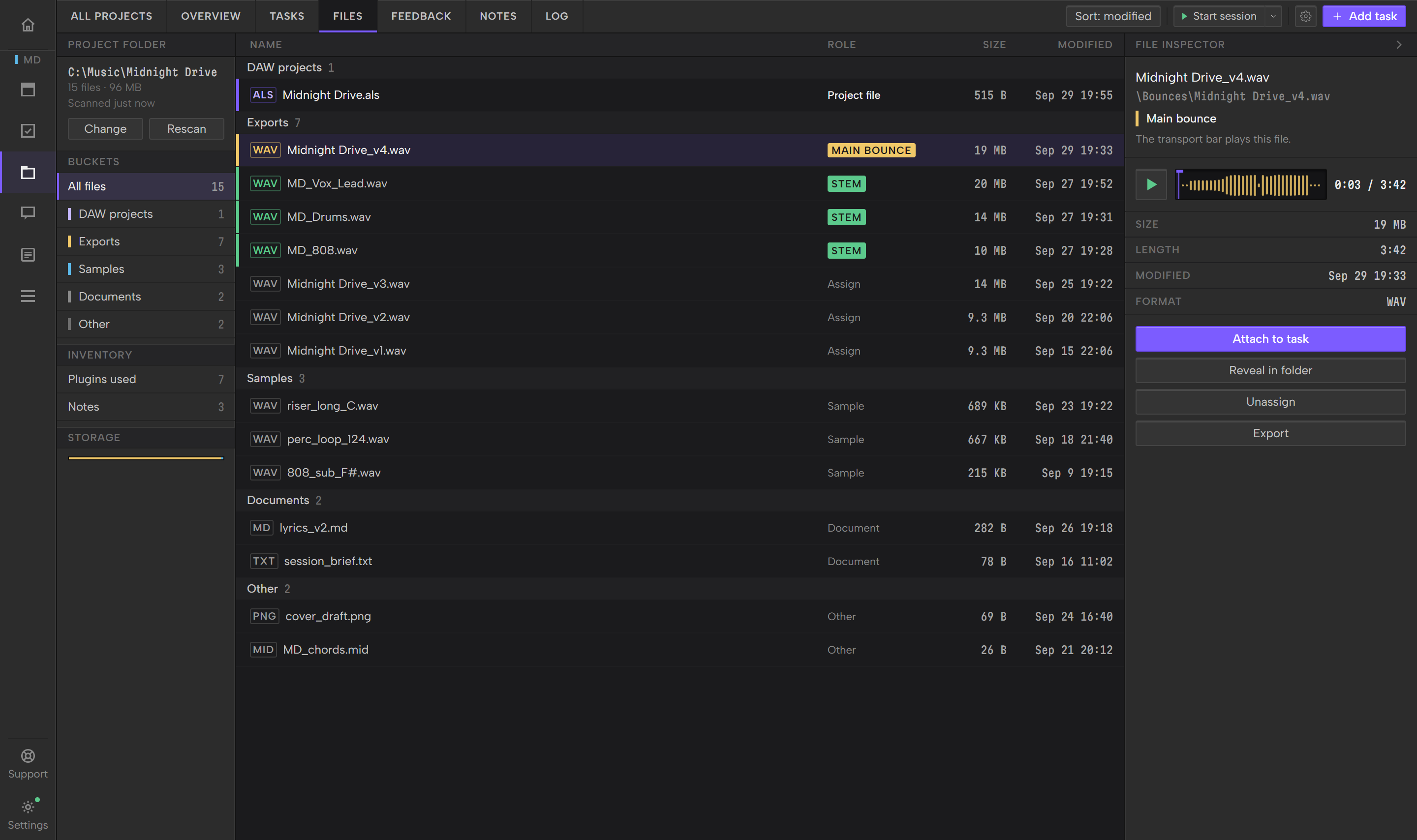
The screen
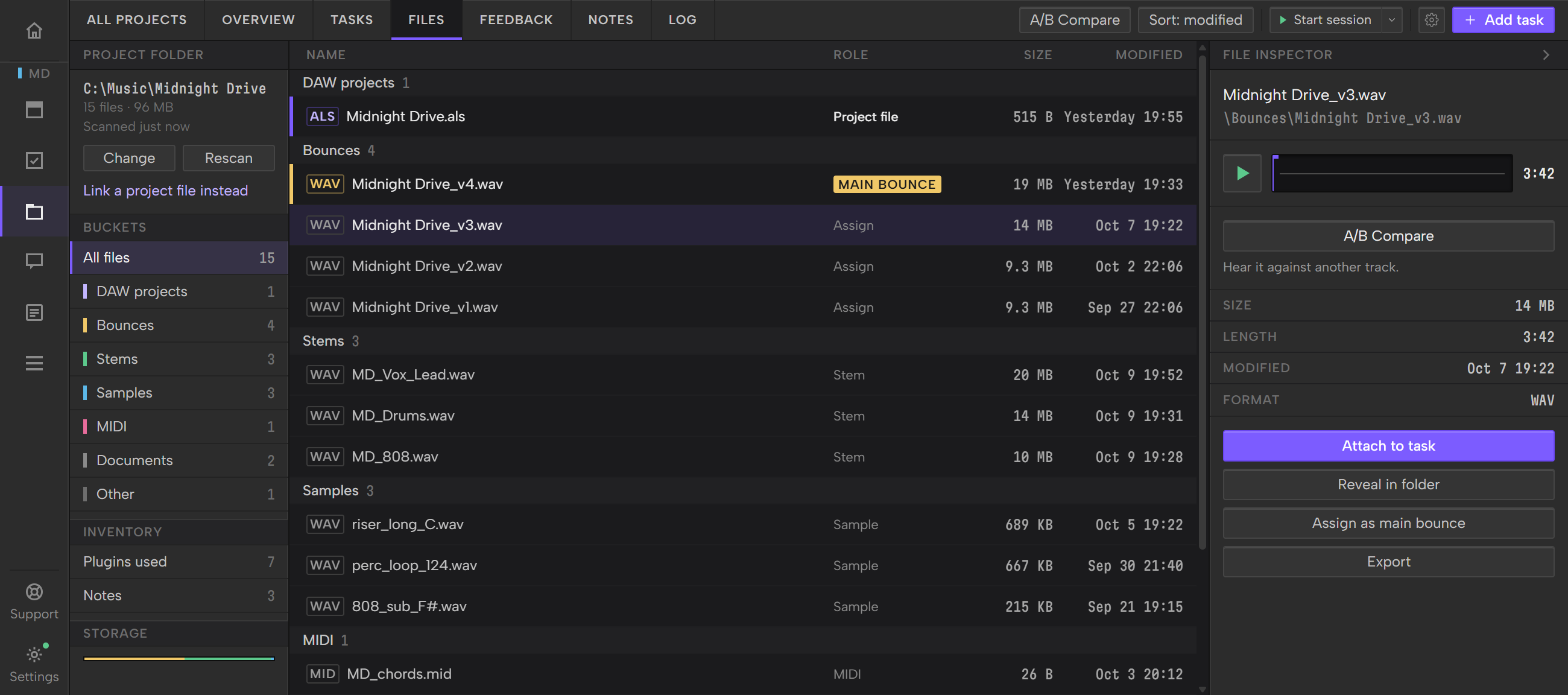
The left side shows the folder, its buckets and a storage bar. The middle is the file list. The right side is the File inspector for the file you select.
At the top left, Project folder shows the folder's path, how many files it holds and their total size, and when Outro last read it.
Outro reads the folder each time you open Files. Click Rescan to read it again after you bounce or save something.
Change points the project at a different folder.
The storage bar shows how much of the folder each bucket takes up.
Notes under Inventory takes you to the project's notes.
On a narrow window the File inspector folds into a thin strip. Click its arrow to open it again.
Offers when you link a folder
When you link a folder or change it from Files, Outro can make an offer in a row above the file list. It reads the folder first, and shows an offer only when there's something to act on. Each one waits for your click.
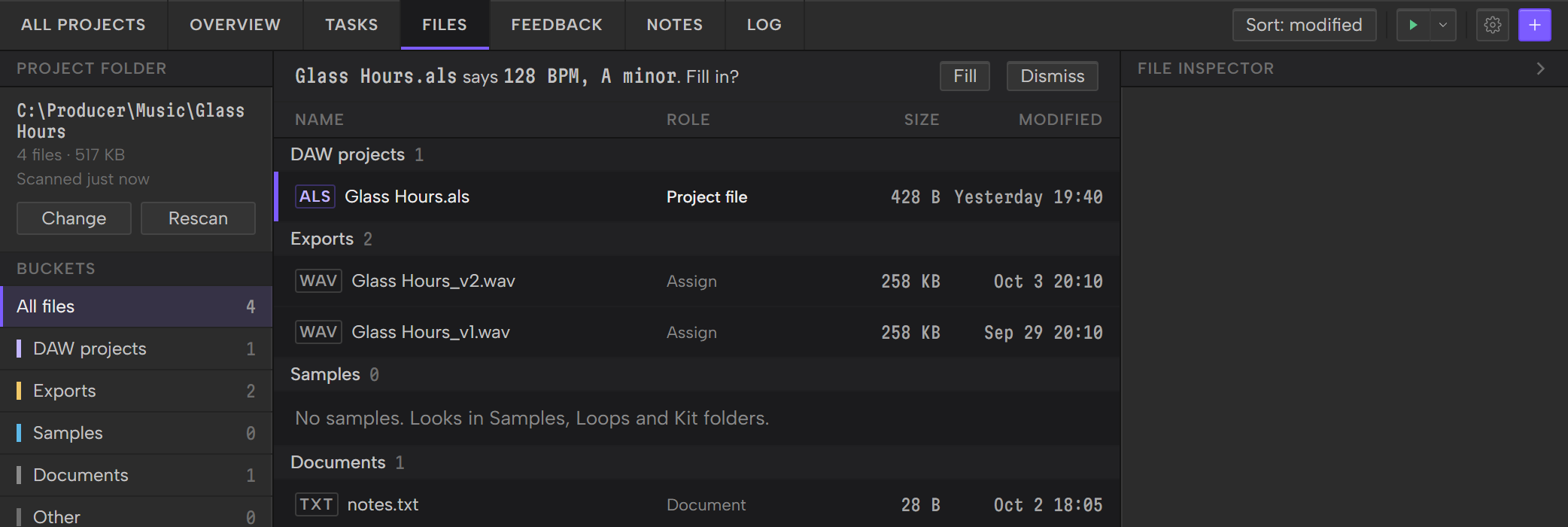
Fill in BPM and key
If the project's BPM or key is empty and its project file has one, the offer reads "Glass Hours.als says 128 BPM, A minor. Fill in?". Fill saves the values as the project's BPM and key, and only the empty ones. Dismiss hides the offer.
Outro offers a key only when the file gives a major or minor key, and a BPM only between 40 and 300. Your DAW covers what each DAW gives.
Make the project file from a template
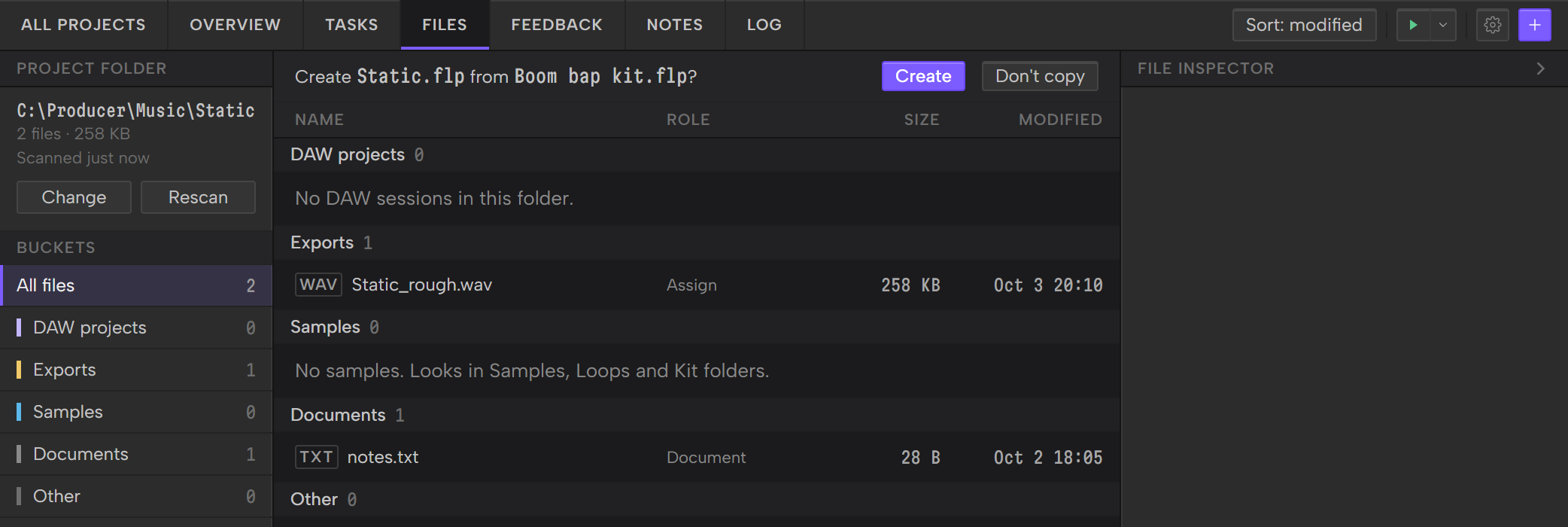
If you made the project with a DAW template and no folder, Files says, for example, "Boom bap kit.flp is waiting. Link a folder and Outro offers the copy." Link a folder and the offer reads "Create Static.flp from Boom bap kit.flp?". Your DAW lists which DAWs copy.
- Create copies the template into the folder, named after the project. The new file shows under DAW projects and becomes the project file. A card in the bottom right corner then asks if you want to open it in your DAW. The card after a template copy in Overview has the details.
- Don't copy drops the template for good.
If the folder already has a session for that DAW, Outro doesn't offer the copy. It drops the template and says "This folder already has" and the file's name, "so the template was dropped." Click Dismiss to hide the note.
Outro never replaces a file. If a file with that name is already there, the copy stops and tells you. If the template file has moved, the offer says it can't find it and stays, so you can try again or drop it.
For Ableton, the offer adds a line: Ableton asks where to save the first time, so choose this folder.
Copying a template is the only time Outro adds a file to your project folder, and the copy is always a new file.
Pro Tools templates
Outro doesn't copy a Pro Tools template. The offer reads, for example, "Open Mix template.ptxt in Pro Tools, then save the session into this folder." Click Open in Pro Tools, then save the new session into the project folder. When you come back to Outro, it finds the saved session, uses it as the project's session and says "Pro Tools saved" and the file's name. Not now drops the template.
The buckets
Every file lands in one bucket. Click All files to see them all, grouped by bucket, or click a bucket to see only that one.
- DAW projects: session files from FL Studio, Ableton, Logic Pro, Pro Tools, Studio Pro (formerly Studio One), Reaper and Cubase, in any folder Outro looks in (see How deep Outro looks).
- Exports: audio sitting loose in the project folder, and audio in a folder with export, bounce, render or master in its name. A Cubase
Mixdownfolder counts too. Audio in a folder named with the word stem, trackout, track out or multitrack lands here too, with a Stem tag. - Samples: audio in a folder with sample, loop, one-shot or kit in its name, audio in the folder your DAW keeps its audio in, and audio in any other subfolder. MIDI files in those sample folders go here too.
- Documents: text, Markdown, PDF, Word and RTF files.
- Other: everything else, like MIDI outside a sample folder, images, presets and archives.
Audio means WAV, AIFF, FLAC, MP3, M4A and OGG files.
Folder names match in any case. The bounce and sample words match anywhere in the name, so Bounces and Final Masters both count.
The stem words have to be a whole word, or its plural. Stems, Vocal_Stems, VocalStems, Track Out and Multitracks count, but System doesn't.
Each DAW's own audio folder counts as Samples, whatever its name:
- Studio Pro:
Media - Pro Tools:
Audio FilesandRendered Files - Cubase:
AudioandEdits - Logic Pro:
Audio Files, in a project that isn't packaged
Samples also lists the samples your FL Studio, Cubase or Pro Tools project file uses from elsewhere on your computer, in a From session group after the folder's own. Select one to play it or show it in its folder. See Your DAW.
Some DAW folders are never listed, because they hold copies of audio the project already lists: Studio Pro's Cache and Cubase's Freeze. Inside a Cubase session folder, Images is skipped too. An Images folder anywhere else is yours, and its files land in Other.
A stem word wins over a sample word, so audio in Stem Loops goes to Exports with a Stem tag, not to Samples.
How deep Outro looks
Outro reads the project folder and the folders directly inside it.
It goes up to three levels further inside a folder whose name matches a bucket word, and inside a subfolder that holds a DAW session, so an Ableton Samples/Processed/Consolidate folder still shows up.
In a very large folder Outro stops early and lists what it reached, so the app stays responsive.
The file list
Each row shows the file's name, its role, its size and when it was last changed.
The role column marks the project file, the main bounce and files with a Stem tag, and offers Assign where a file can take a role.
Sort the list from the toolbar:
- Sort: modified puts the newest first.
- Sort: name goes A to Z, with numbers in order, so
v9comes beforev10. - Sort: size puts the largest first.
The sort applies inside each bucket. Outro remembers your choice on this computer.
The File inspector
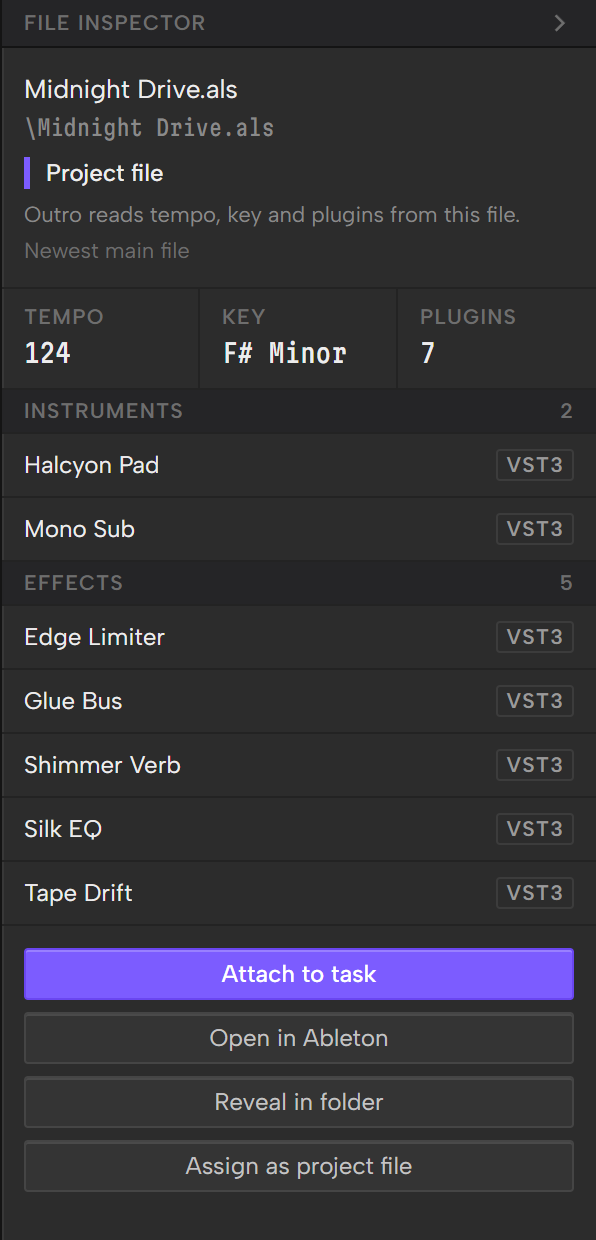
Click a file to see it in the inspector: its full name, where it sits in the folder and its details: size, last change and format, plus length for audio Outro can play. For a DAW session it shows tempo, key and plugins instead.
Play a file
WAV, MP3, M4A and FLAC files get a play button and a waveform in the inspector, in any bucket.
Click or drag on the waveform to move the playhead.
Playing a file here pauses the transport bar, and playing the transport pauses the file.
AIFF and OGG files are listed but don't play in Outro.
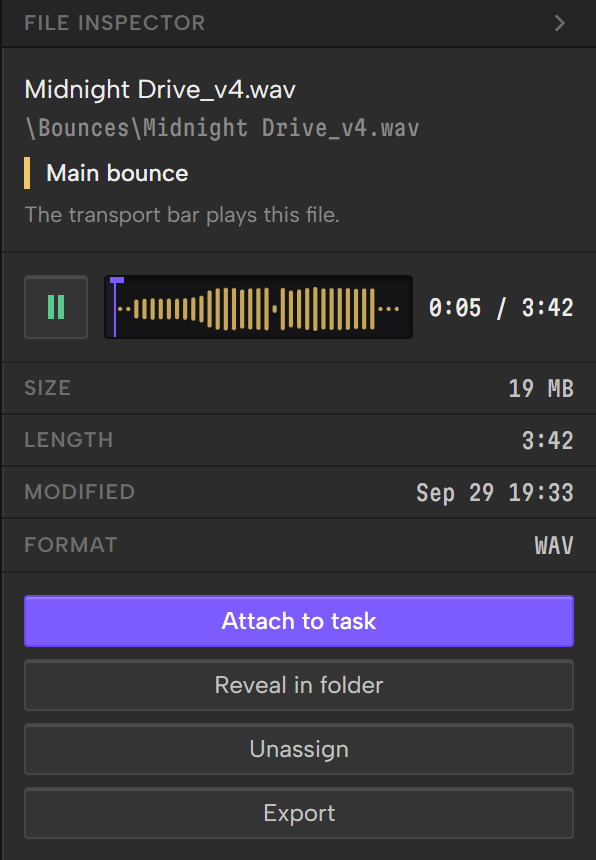
Actions
What the inspector offers depends on the file:
- Attach to task adds the file to one of the project's tasks. See Inside a task.
- Open in plus the DAW's name, for DAW projects files, opens the session in the app your computer uses for that file type.
- Reveal in folder shows the file in Explorer or Finder.
- A/B Compare, for audio Outro can play, plays the file against another track. See Compare two or three files.
- Export, for files in Exports, saves a copy wherever you choose. The original stays put.
- Import to Notes, for
.mdand.txtfiles in Documents, makes a note from the file named after it. It makes a new note each time you click. See Bring in a text file. - Assign as project file is covered under The project file. Assign as main bounce is in Set a main bounce.
Compare two or three files
A/B Compare plays two or three tracks from one project on a shared playhead, so you can hear a new bounce against the last one. It plays WAV, FLAC, MP3 and M4A files, up to 15 minutes each.
A/B Compare writes nothing to your project folder or your drive.
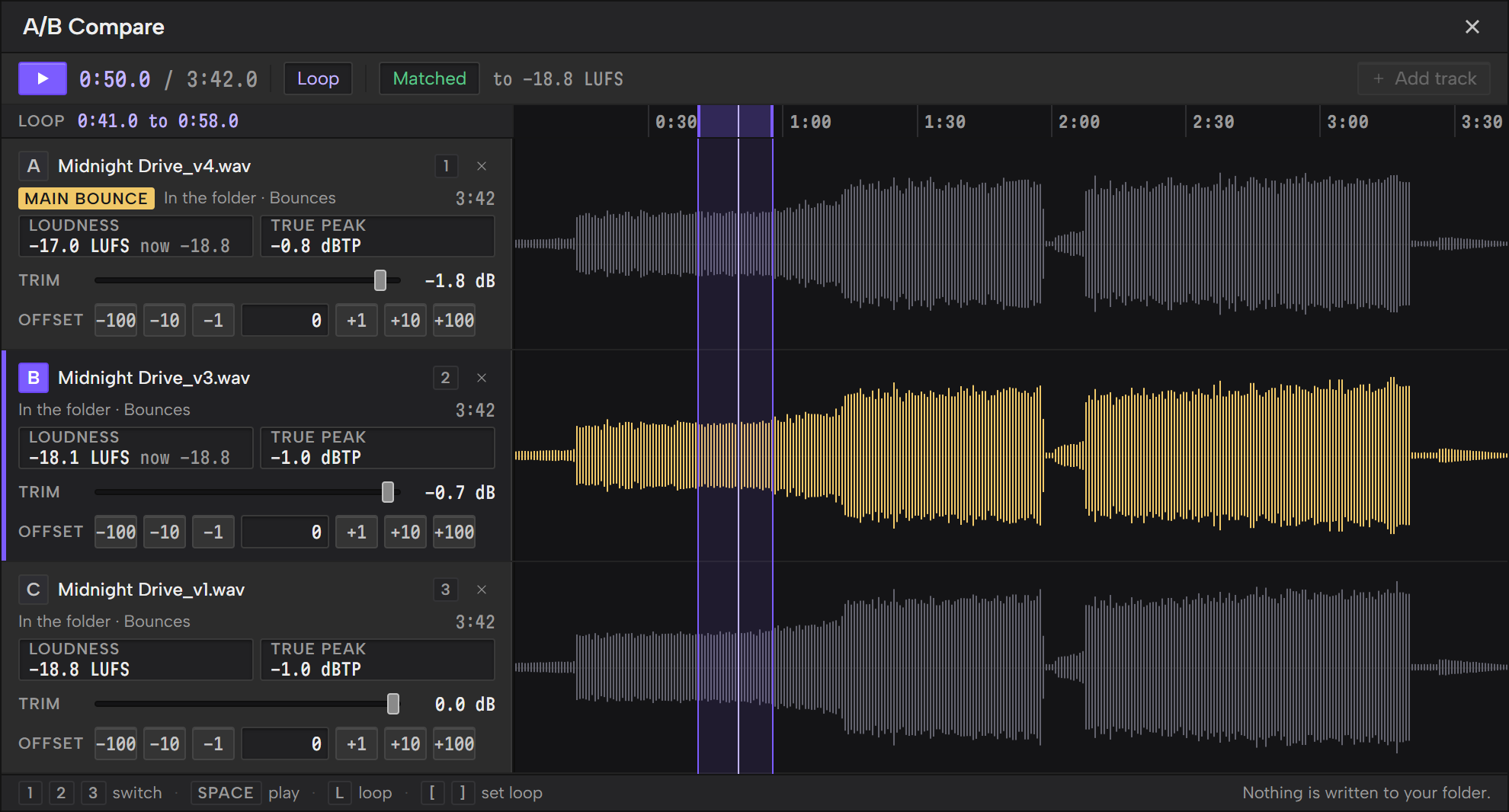
Open it
- Select a WAV, FLAC, MP3 or M4A file in the list.
- In the File inspector, under the player, click A/B Compare.
- In the list that opens, click the track to hear it against.
The file you started from is track A, and the one you pick is track B. The comparison opens in its own window over Files, and closing it brings you back to the same screen.
The toolbar above the list has the same A/B Compare button, beside the sort menu. Use it when the File inspector is folded into its thin strip. On a narrow window it reads A/B.
The button isn't there for AIFF and OGG files, or for files that aren't audio.
The list has two groups. In the folder is the project's playable audio, by bucket: Bounces (the Exports bucket), Stems and Samples. Uploaded tracks is what you've uploaded on Feedback. A track that's already open is greyed out and shows its letter.
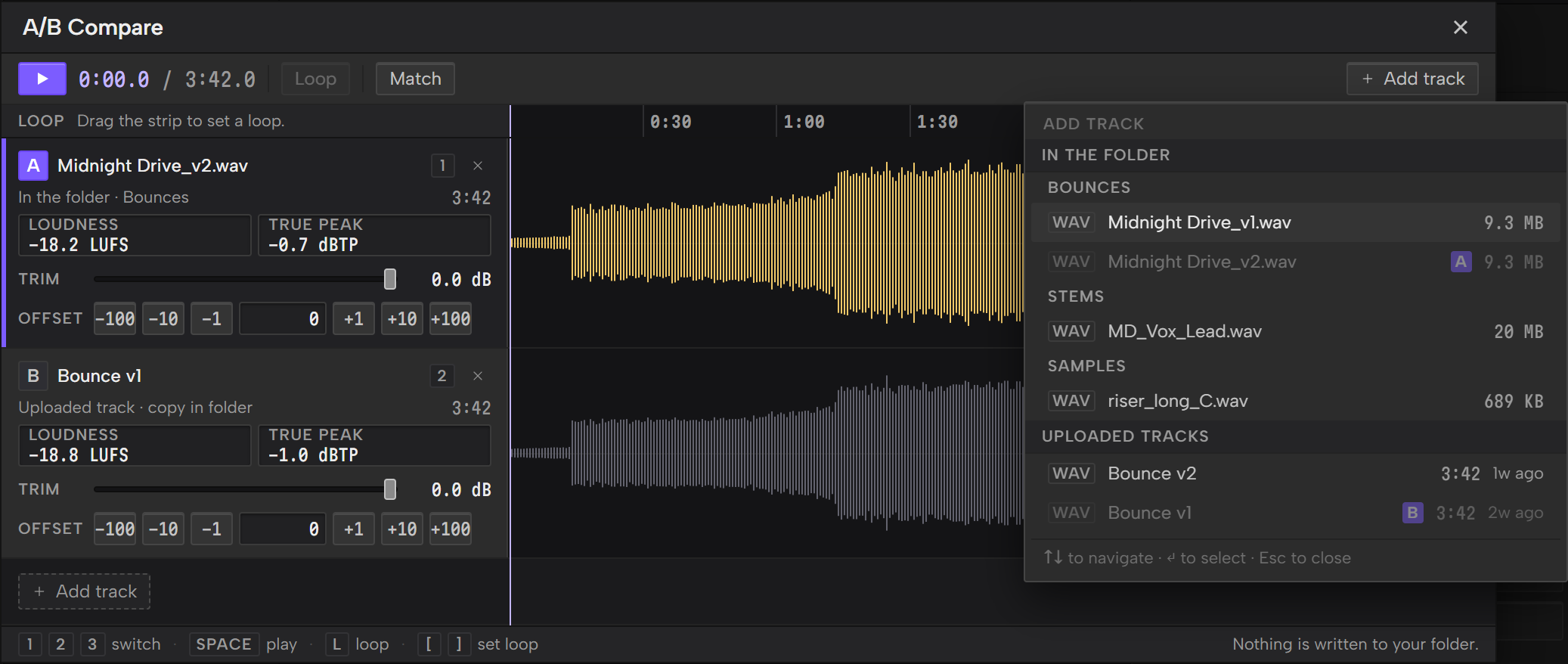
Click Add track to add the next one, up to three. Click a track's name to swap it for another, and click its × to remove it.
It also opens from the main bounce on the Overview screen and from an uploaded track on Feedback.
Switch between tracks
Every track plays at once and you hear one of them. Click a track's letter or its panel on the left, or press 1, 2 or 3, to hear that one instead. Playback doesn't stop and the playhead doesn't move, so you land on the same moment in the other track. The track you hear has the amber waveform.
Click the play button, or press Space, to play and pause. Click or drag on any waveform to move the playhead.
Only one player sounds at a time. Playing in A/B Compare pauses the transport bar and every other player, and playing any of them pauses A/B Compare.
Level
Tracks play at the level of the file. Outro doesn't normalize anything and never turns a track up. Each track shows its Loudness in LUFS and its True peak in dBTP, measured over the whole file. A true peak above 0 turns amber.
Trim turns a track down by up to 40 dB. Drag the slider, or click it and use the arrow keys: a tenth of a dB a step, a whole dB with Shift. Double-click the slider to go back to 0 dB. Once a track is trimmed, its loudness reading adds what you now hear, like "now −11.8".
Match turns every track down to the loudness of the quietest one, so they all play at the same level. Nothing is turned up. Match needs two tracks that have been measured, and it leaves out a silent one. It always works from each whole file, even with a loop set.
The button then reads Matched, with the level the tracks now share. Click Matched to put every trim back to 0 dB. Moving a trim yourself also ends Matched.
Loop a section
Drag across the strip above the tracks to set a loop. It has to be at least half a second long. Drag the loop's edges to resize it, and drag its middle to move it. Double-click the strip to clear it.
Loop, or L, turns the loop on and off. With the playhead where you want it, press [ to set the loop's start and ] to set its end. Every track loops together.
Line up two tracks
When two files don't start at the same moment, use Offset on one of them. The buttons move that track earlier or later by 1, 10 or 100 milliseconds. You can also type a number of milliseconds in the field and press Enter. With the cursor in the field, the up and down arrows move the track 1 millisecond, or 10 with Shift, and Esc puts the old number back. A track can sit up to 10 seconds either way.
Offset works while the music plays, and only the track you move changes.
Keys
- 1, 2 and 3 hear track A, B or C.
- Space plays and pauses.
- L turns the loop on and off.
- [ and ] set the loop's start and end at the playhead.
The keys do nothing while you're typing in an Offset field. To move the playhead from the keyboard, press Tab until the playhead on the loop strip has focus, then use the left and right arrows: 1 second a step, 10 with Shift. Home goes back to the start.
Uploaded tracks
An uploaded track plays from your project folder when the Exports bucket holds an identical copy of it. Its panel then reads Uploaded track · copy in folder, and it plays straight from that file with no download. Without a copy, Outro downloads the whole track into memory first and shows the progress on its lane. That needs a linked account, and the lane offers Link account when you're signed out.
A track that can't load says why on its lane, such as "Longer than 15 minutes." or "Couldn't read this file as audio." A track that failed to download has a Retry button, and every failed track has Remove.
Close it
Click the close button or press Esc. Playback stops. If the track list is open, Esc closes the list first.
Outro remembers each track's trim and offset, and the loop for the same set of tracks, until you quit Outro. Nothing is saved to disk.
The project file
Your folder can hold many saves of a session. Outro marks one as the Project file: the newest main session, unless you pick one.
Outro reads tempo, key and plugins from the project file. The transport bar shows its tempo and key, and the plugin count is on the Overview.
Which DAWs it can read is in the table in Your DAW. For the others, the inspector says it can't read tempo, key or plugins from this format.
To pick the project file yourself, click Assign on a session's row, or select it and click Assign as project file. Unassign goes back to the newest save.
If the file you picked goes missing, Outro uses the newest save and tells you in the inspector.
Backups
Sessions your DAW saved as backups or autosaves are marked Backup. They stay in the list, but Outro doesn't read them and they can't be the project file.
A session counts as a backup when it sits in a Backup, Backups, History, Session File Backups or AutoSaves folder directly inside the project folder or inside the DAW's own session folder (like Ableton's Song Project folder), or when its name is one your DAW gives autosaves.
What Outro reads from your DAW
Which DAWs Outro can read, and what works with every DAW, is in the Your DAW Guide.
Plugins used
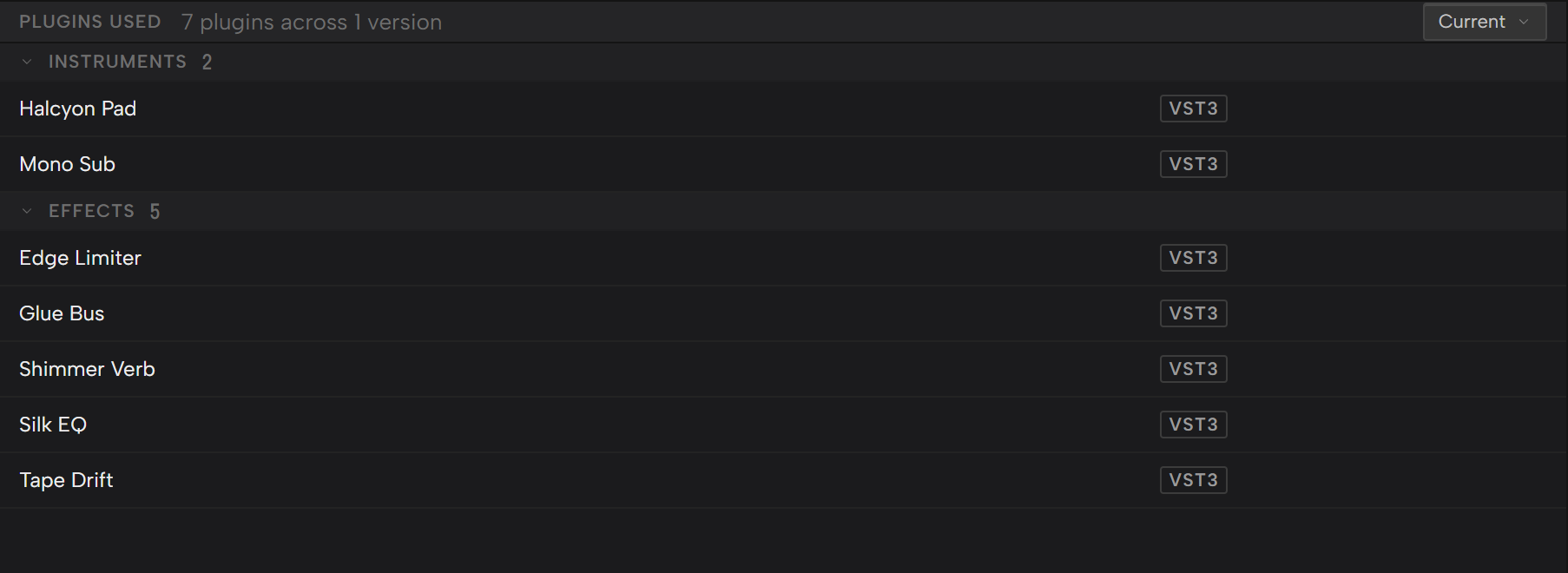
Plugins used, under Inventory, lists the Audio Plugins across the project's main sessions, split into instruments and effects.
A plugin Outro can't place goes under Unclassified.
Each row shows the plugin's name, its maker and its format, such as VST3, VST2, AU or CLAP. Your DAW's own built-in devices aren't listed.
The filter at the top shows the project file's plugins (Current), one save's plugins or All of them.
Like tempo and key, this depends on your DAW. See Your DAW.
The Stem tag
Stems aren't a bucket of their own. Audio in a folder named with the word stem, trackout, track out or multitrack sits in Exports with a green Stem tag. That includes a Stems folder inside your bounces folder.
Stems play in the inspector like any audio file, but they can't be the main bounce.