Feedback is where you send a bounce out for notes. A guest opens a link, plays the track and leaves comments pinned to the exact second, and you read them in Outro.
Before you start
Feedback runs on Outro Cloud, so it needs a linked account. Until you link one, Feedback shows Link account.
Link your account covers linking.
The Demo Project's feedback is a sample. You can read it and play it, but you can't upload, comment or share there.
Upload a bounce
- Open the project and click Feedback.
- Click Upload bounce.
- Pick the file.
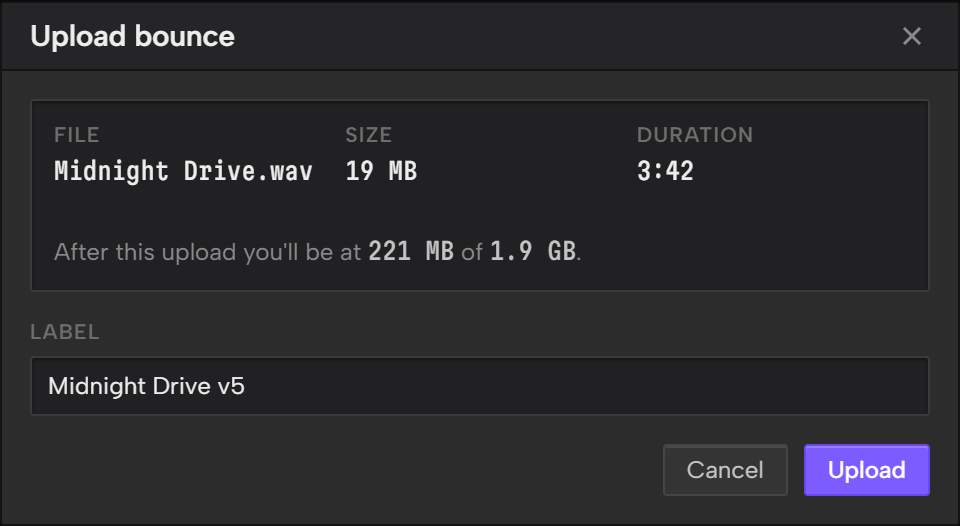
- Check the Label. It starts as the file name plus the next number, like "Mix v3".
- Click Upload.
The bounce has to be WAV, MP3, M4A or FLAC, and 64 MB or smaller. AIFF isn't supported. If a WAV is too big, bounce it as FLAC.
Outro uploads the file exactly as you bounced it. It doesn't convert, resample or normalize it.
The upload window shows how much of your storage you'll be using after this bounce. The amount you've used also sits next to Upload bounce.
When you're out of room, delete a track to free some up, or contact Support to raise your limit.
Each upload is a track. Switch between tracks from the Track row at the top of Feedback.
Share a link
Every track gets its own Share Link as soon as it finishes uploading.
- Pick the track.
- Under the waveform, click Copy link.
- Paste it to whoever you want notes from.
Anyone with the link can open it. They don't need an Outro account.

What your guest sees
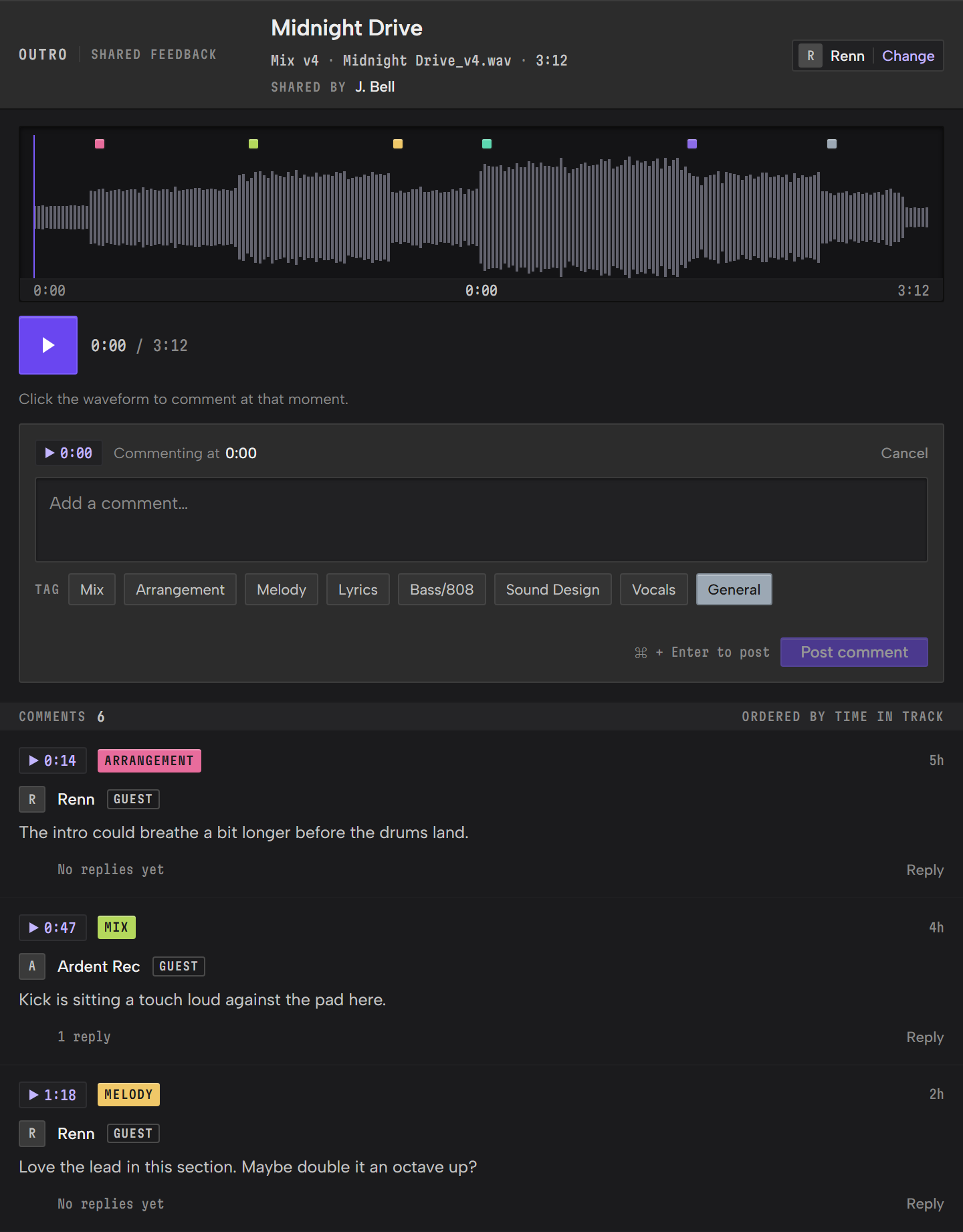
The link opens a page on fb.getoutro.app with the project name, the track's label, its file name and length.
It says who shared it: your artist or studio name if you've set one, otherwise your name. If neither is set, it reads "Shared with you for feedback".
Set the artist name in Settings, under Artist / Studio name. A link keeps the name it had when it was made, so make a new link after you change it.
On the page, your guest:
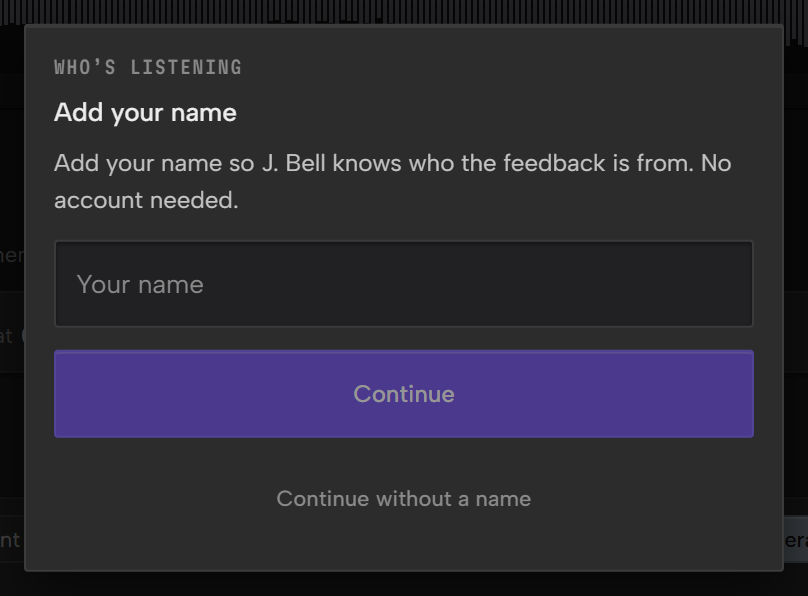
- adds their name, or carries on without one and shows as Anonymous. No account needed.
- plays the track.
- clicks the waveform (or taps it on a phone) to comment at that moment, picks a tag and posts.
- sees every comment on the track in order, and can reply to any of them.
There's no download button, and a guest can't resolve, delete or change anything.
Read and answer comments
Outro checks for new comments each time you open Feedback. Comments don't arrive on their own while it's open, so click Refresh to see new ones.
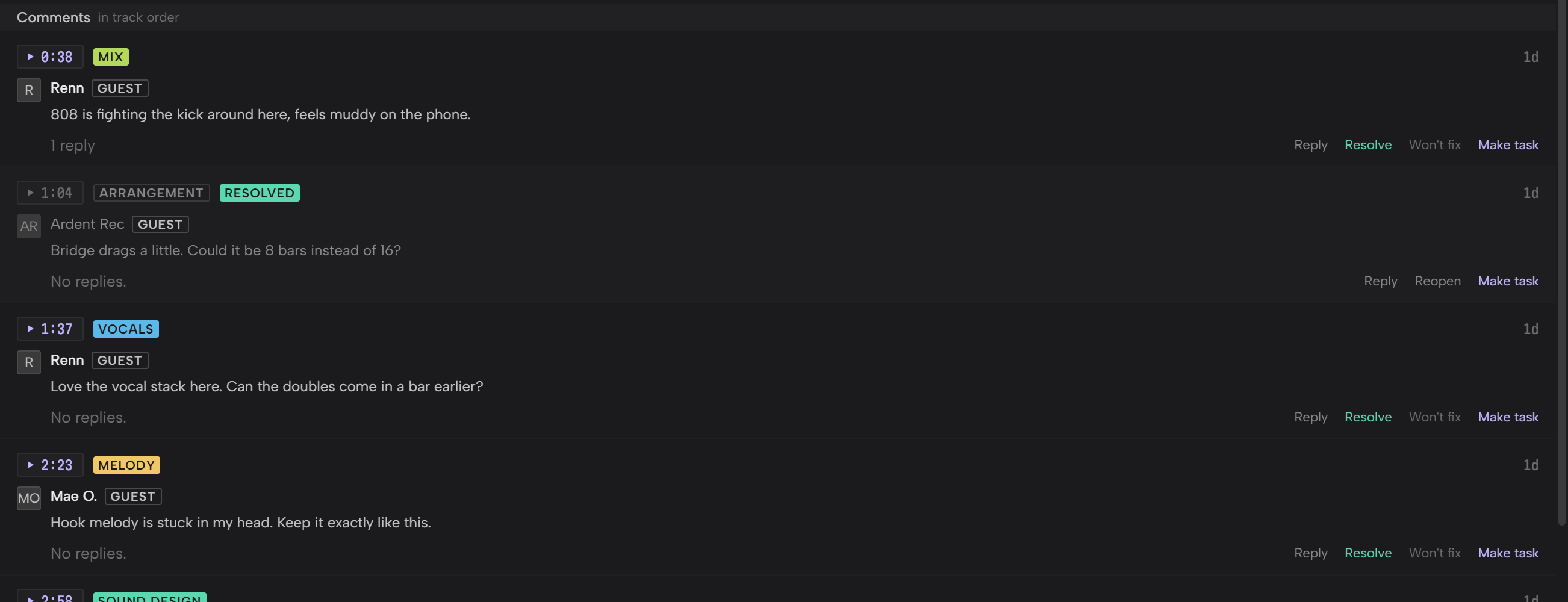
Comments are listed by where they sit in the track, not by when they came in. Each one has its timestamp, its tag and who wrote it. Guest comments are marked as guests.
- Click a comment's timestamp to play from that moment.
- Click a marker on the waveform to jump to its comment.
- Click Reply to answer in the comment's thread. Your guest sees the reply on their page.
- Click Resolve when it's handled, or Won't fix if you're leaving it. Reopen puts it back.
The Status buttons at the top filter the list to Open, Resolved or Won't fix. All shows everything.
Leave your own comment
- Click the waveform where you want the comment, or click Pin to current to use the playhead.
- Type the comment.
- Pick a tag: Mix, Arrangement, Melody, Lyrics, Bass/808, Sound Design, Vocals or General.
- Click Post comment.
A comment you don't pin lands at 0:00.
Turn a comment into a task
Click Make task on a comment. Outro adds a task to the project and marks the comment Task created.
- The task's title is the comment, cut to fit. The full comment, the track and the timestamp go in its description.
- It goes in the project's first list with its first status, like any new task.
- It gets the matching task tag when there is one. General comments come in untagged.
- Clicking again doesn't make a second task.
Tasks covers what you can do with it next.
Change or revoke a link
Under the waveform, next to Copy link:
- New link replaces the link. The old one stops working and a new one is ready to copy.
- Revoke link turns it off. Anyone using it loses access.
Either way, the comments stay on the track. After a revoke, the track shows No active link. Click Generate link to share it again.
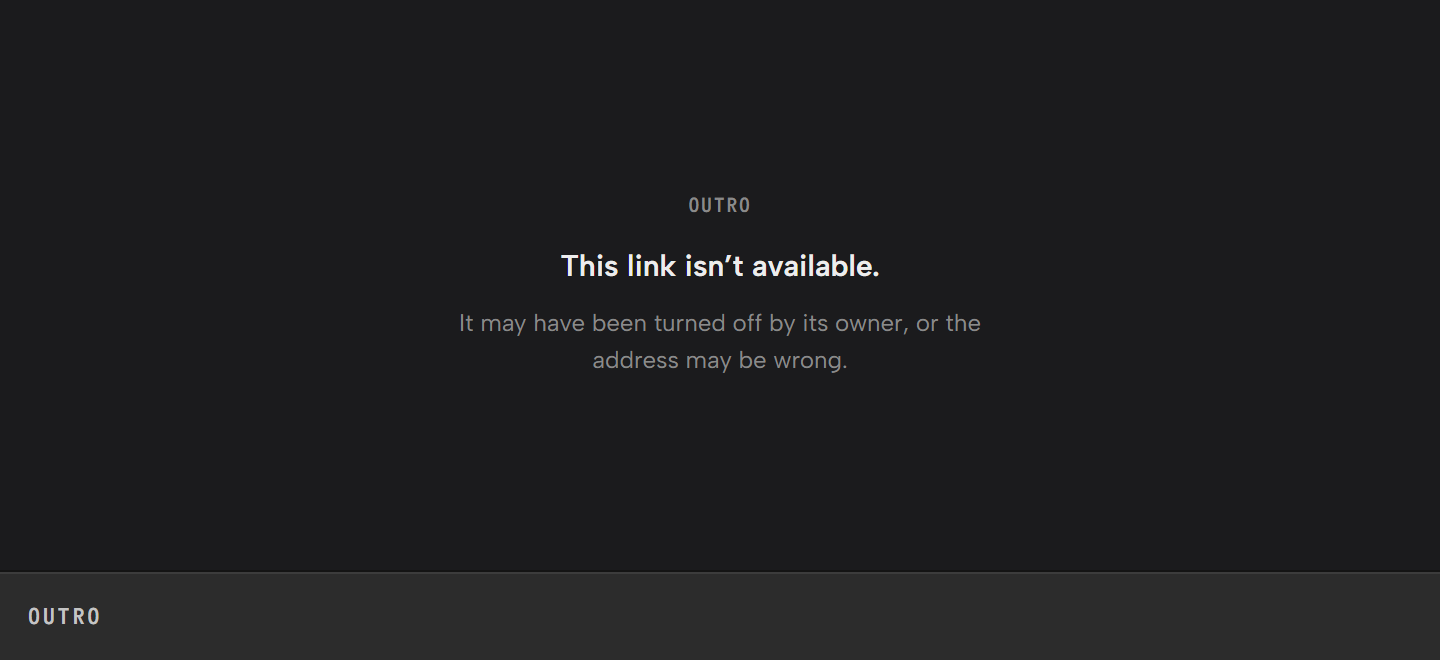
A guest who opens an old or revoked link sees "This link isn't available."
Delete a track
Click Delete track under the waveform. It deletes the track, its comments and its Share Link, and it can't be undone.
Compare tracks
Click Compare, next to Upload bounce, to hear the open track against the one uploaded just before it in A/B Compare. The open track is track A. With no earlier track, it opens with the open track alone and a list to pick the other one from. The button is greyed out when the open track hasn't finished uploading.

A track plays from the project folder when the Exports bucket holds an identical copy. Otherwise A/B Compare downloads the whole track before it plays, and shows the progress on its lane. Nothing is written to your drive. Compare two or three files in Files covers matching levels, looping and the keys.
Feedback and the main bounce
Any uploaded track can be the project's main bounce: pick the track and click Assign as main bounce. Set a main bounce in Getting started covers what the main bounce does.
Setting a main bounce never changes what a Share Link opens.