Tasks is where you plan the work on a song, as a table or a board.
Open a project and click Tasks. A new project opens there.
Lists and statuses
Every task sits in one list and has one status. They do different jobs.
- A list is a group of tasks. Name it anything, like a part of the track or a release date. Lists are the groups in the table and the columns on the board.
- A status is how far along the task is. The task's checkbox moves it to the project's completion status. Unticking it moves the task to your first status, like To Do.
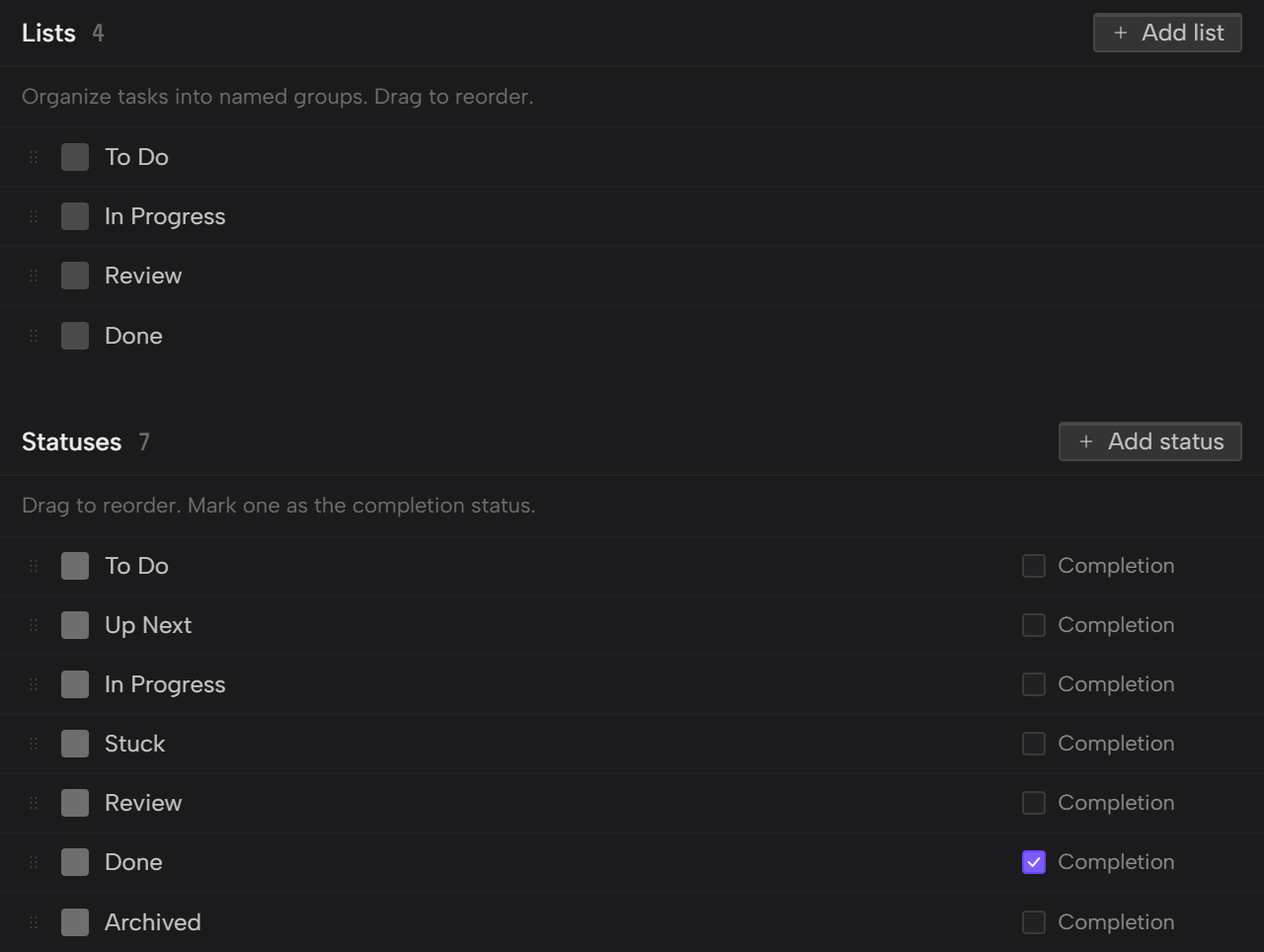
A new project starts with four lists: To Do, In Progress, Review and Done.
It also starts with seven statuses: To Do, Up Next, In Progress, Stuck, Review, Done and Archived. Done is the completion status.
Moving a task to another list doesn't change its status.
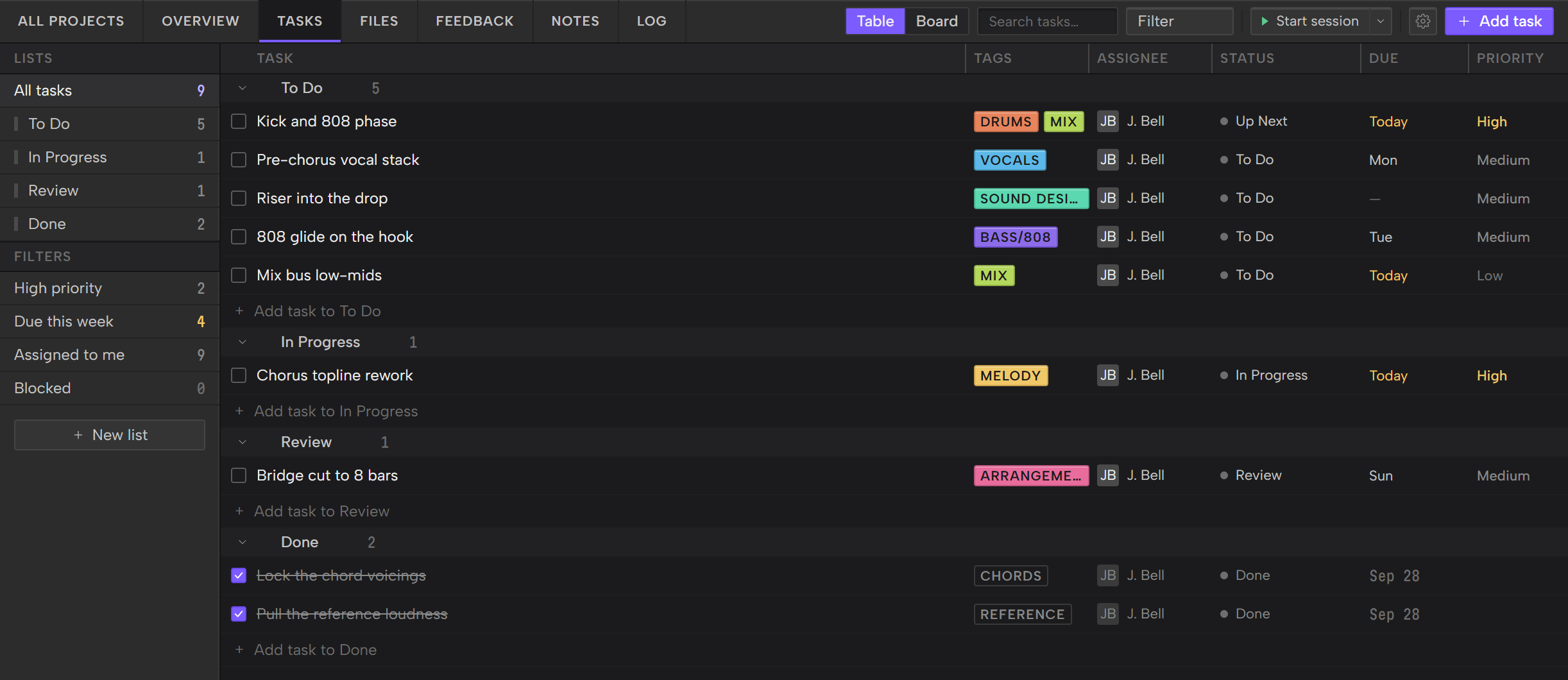
Table and board
The Table and Board buttons in the toolbar switch between the two views.
- Table shows one group per list. The columns are Task, Tags, Assignee, Status, Due and Priority.
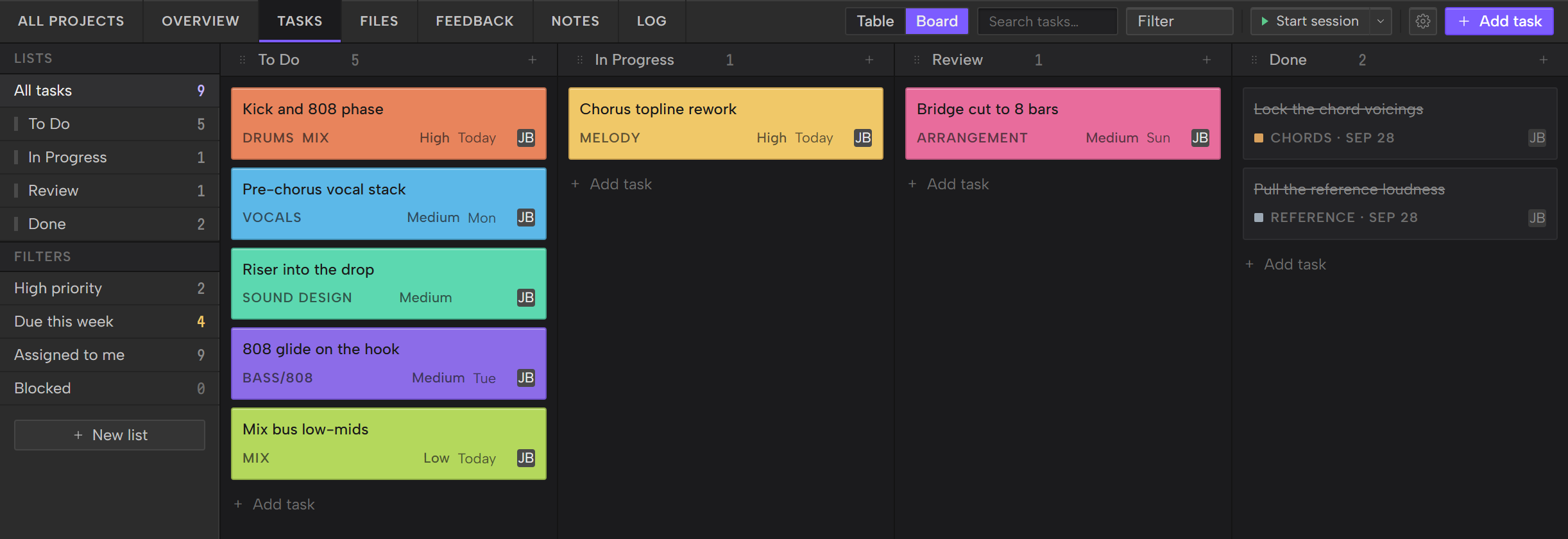
- Board shows one column per list, with each task as a card. A card takes the color of its first tag.
In both views:
- Drag a task to reorder it or to move it to another list.
- Drag the handle on a list's header to reorder your lists.
- Point at a list's header to show its color swatch, and click it to change the list's color.
In the table you can also:
- Click the arrow on a list's header to fold it. Outro remembers your folds for each project on this computer.
- Drag the edge between two column headers to resize a column.
Add a task
There are two ways.
Quick add. Click Add task to a list at the bottom of its group. On the board, click Add task at the bottom of a column or the + in its header. Type the title and press Enter.
The task lands in that list.
With details. Click Add task in the toolbar. The New task window takes a title, description, status, priority, due date and tags. Click Add task to save it.
A task made this way goes in your first list.
Tags say which part of the track a task touches. There are ten: Melody, Chords, Drums, Bass/808, Arrangement, Lyrics, Mix, Sound Design, Reference and Vocals. Each has its own color.
Tags can only be picked in the New task window, when you create the task.
Inside a task
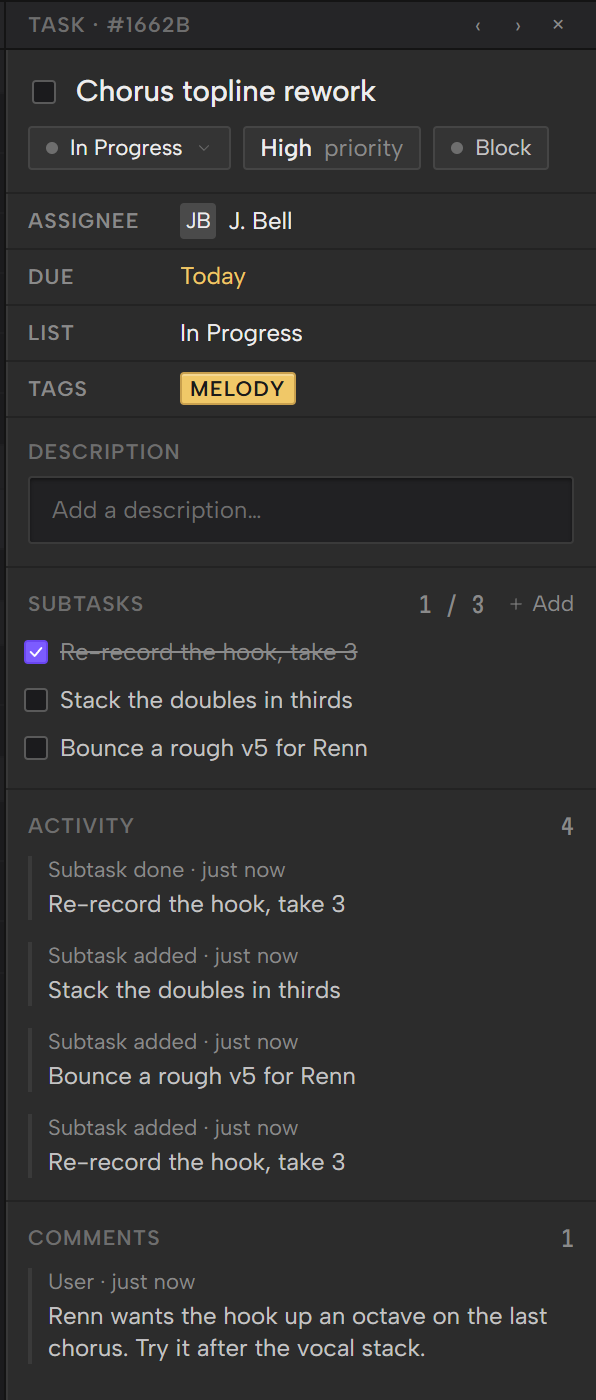
Click a task to open it in the panel on the right. The arrows at the top step to the previous and next task.
- Title. Click it to edit. In the table, double-click a task's title to edit it in place.
- Status, priority and Block. The three buttons under the title. Priority is Low, Medium, High or Urgent.
- Due. Click Set due date to pick a day. To clear it, point at the date and click the × that appears.
- Description. Click Add a description… and type. It saves when you click away.
- Subtasks. Click Add, type the step and press Enter. The box stays open for the next one. Click away when you're done. Esc throws away what you've typed. Click a subtask's text to change it. Enter or clicking away saves the change, and Esc cancels it. A finished subtask can't be edited. Tick a subtask to finish it. The count next to Subtasks shows how many are done.
- Comments. Type in the box at the bottom and press Enter or click Send.
- Assignee. Click it and pick your account's name to assign the task to yourself. Pick Unassign to clear it. It's greyed out until you link your account, and says "Link your account to assign". Link your account covers linking. The table's Assignee column works the same way.
- Activity. A record of status changes, subtasks and blocks on the task.
Files you attach from the Files screen show under Attachments.
You can also make a task from a feedback comment. Turn a comment into a task covers how.
Finish or block a task
- Click a task's checkbox, in the table or in the task panel, to finish it. Outro moves it to the completion status and strikes it through. Click again to reopen it. It goes back to your first status, like To Do. Board cards have no checkbox.
- Click Block when something outside the task is holding it up. A blocked task keeps its status until you click Blocked again. In the table its row shows in red, and on the board its card shows Blocked.
- Finishing a task clears its block.
Due dates read as Today, Tomorrow, a weekday or a date. In the table and the task panel, overdue dates turn red and today's turn amber.
Find tasks
The Lists sidebar on the left narrows the table or board.
- All tasks shows everything.
- Click a list to show only that list.
- Under Filters, High priority shows High and Urgent tasks. Due this week shows tasks due Monday to Sunday of this week. Blocked shows blocked tasks.
- Assigned to me shows the tasks assigned to you. Until you link your account it's greyed out and shows a dash instead of a count.
The Filter menu in the toolbar does the same thing.
Search tasks… in the toolbar finds tasks by title. Press Esc to clear it.
Each row in the sidebar shows how many tasks it holds.
Change your lists and statuses
On the Tasks screen:
- Click New list at the bottom of the sidebar, type a name and click Add list.
- Click a list's name on its header to rename it.
For everything else, click the gear in the toolbar to open Project settings.
- Lists: add, rename, reorder, recolor and delete lists. A project always keeps at least one list.
- Statuses: add, rename, reorder, recolor and delete statuses. Tick Completion on the one that means finished. A project always keeps at least one status.
Deleting a list or a status that still has tasks asks where to move them first.
If no status is ticked as Completion, task checkboxes can't be ticked.