A shared project is one project that more than one person works in, so you can collaborate on a music project with another producer. You share it by inviting people by email. Everyone in it sees the same tasks, notes and feedback. Each person keeps their own folder, files and log. Files can also set everyone's folder lists side by side, so you can see which files a Collaborator is missing, and send files to the people in the project.
The person who shares the project is its Owner. Everyone they invite is a Collaborator. A shared project holds up to 8 people, the Owner included.
What you share and what stays yours
Everyone in the project shares:
- The project's name, tempo and key.
- The lists and statuses.
- The tasks, with their subtasks, comments, assignees, tags and activity.
- The notes, with their tags and pins.
- The tracks on Feedback, and the comments on them.
- A list of what's in each person's linked folder: each file's name, path, size and fingerprint, plus the person's DAW, the plugins their newest sessions use, and the names and fingerprints of the samples they use. What Collaborators can see has the details.
Each person keeps their own:
- Project folder, and the files in it. Others see a list of them. Outro sends the contents of a file only when you choose to share it, for example in a Transfer or a Feedback upload.
- Main bounce.
- Log entries and the time you've logged.
- Phase, group and color.
- Reference tracks.
- Genre and DAW. Outro copies them from the Owner's project when you join. After that, each person's are their own.
A file you attach to a task stays on your computer. Everyone sees the attachment's name, and its row says "On this computer" or, for someone else's, "On Jo's computer". A file someone attached reaches you only if they send it in a Transfer.
What Collaborators can see
When you link a folder to a shared project, Outro shares a list of what's in it with everyone in the project. Collaborators see a list of names, sizes and fingerprints, never the files themselves. Everyone sees everyone else's list, the Owner's included. Outro keeps the lists in Outro Cloud, and only people in the project can read them.
A list holds:
- Each file's name and size, and the path to it inside the linked folder, such as
Stems/Kick.wav. - A fingerprint for each file: a code made from its contents. Two files with the same fingerprint are the same file, and the code can't be turned back into the file.
- The plugins used by the person's 20 newest sessions, by name.
- The names and fingerprints of the samples those sessions use, including samples outside the linked folder, and whether Outro found each one on that person's computer.
- The DAW the person uses for the project.
A list never holds:
- File contents. Outro reads each file on your computer to make its fingerprint, and only the fingerprint goes in the list. Outro sends the contents of a file only when you choose to share it, for example in a Transfer or a Feedback upload.
- Full paths, or the linked folder's own name. A file's path starts inside the linked folder.
- Where a sample is on your computer.
- Which plugins you have installed. Outro looks in your plugin folders on your own computer, to fill in Compare for you. See Plugin folders.
- Save times: when a file was saved or changed.
- Backups and autosaves of your sessions.
- Files whose names start with a dot, or that sit in a folder whose name does, such as
.env.
If you linked a single project file instead of a folder, the files in your list are that file, the files named after it and the files you've received, marked Received. The rest of the list is the same. Link a project file covers linking one.
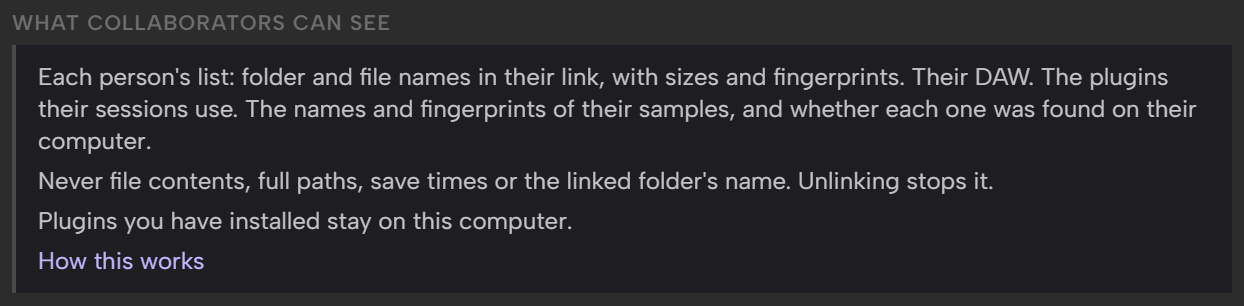
Outro tells you when it first shares your list. A strip across the top of Files says Collaborators can see what's in and your folder's name, or Collaborators can see your project file and the files named after it for a linked file. Under that heading it says: "Folder and file names in it, with sizes and fingerprints. Your DAW. The plugins your sessions use. The names and fingerprints of their samples, and whether each one was found on this computer. Never file contents, full paths, save times or this folder's name. Unlinking the folder stops it." For a linked file it begins "This file, the files named after it and the files you receive, with sizes and fingerprints." and ends "Never file contents, full paths, save times or the folder's name. Unlinking the file stops it." The strip shows once for each project on each computer. Click Got it to close it. How this works opens a Guide in your browser.

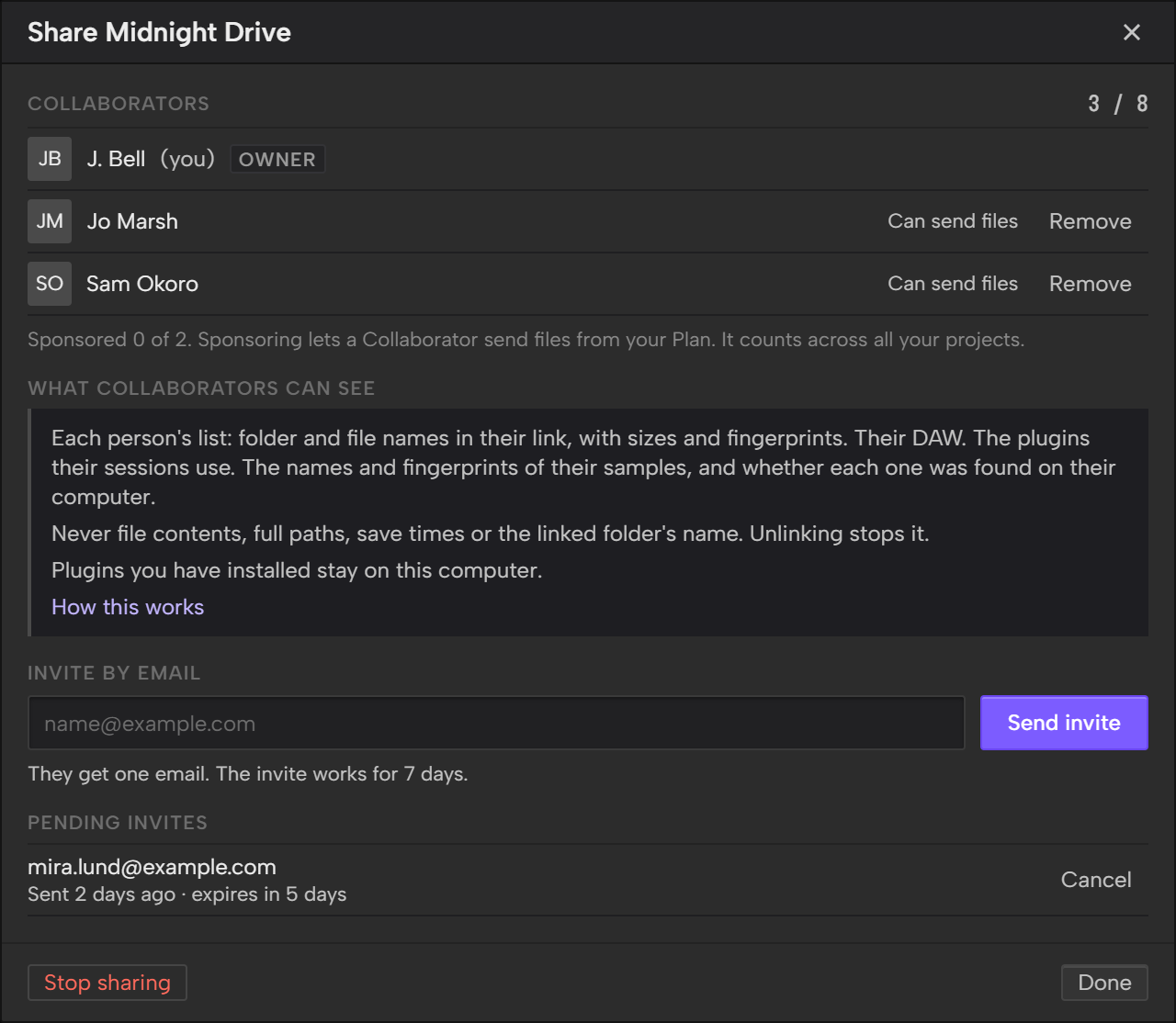
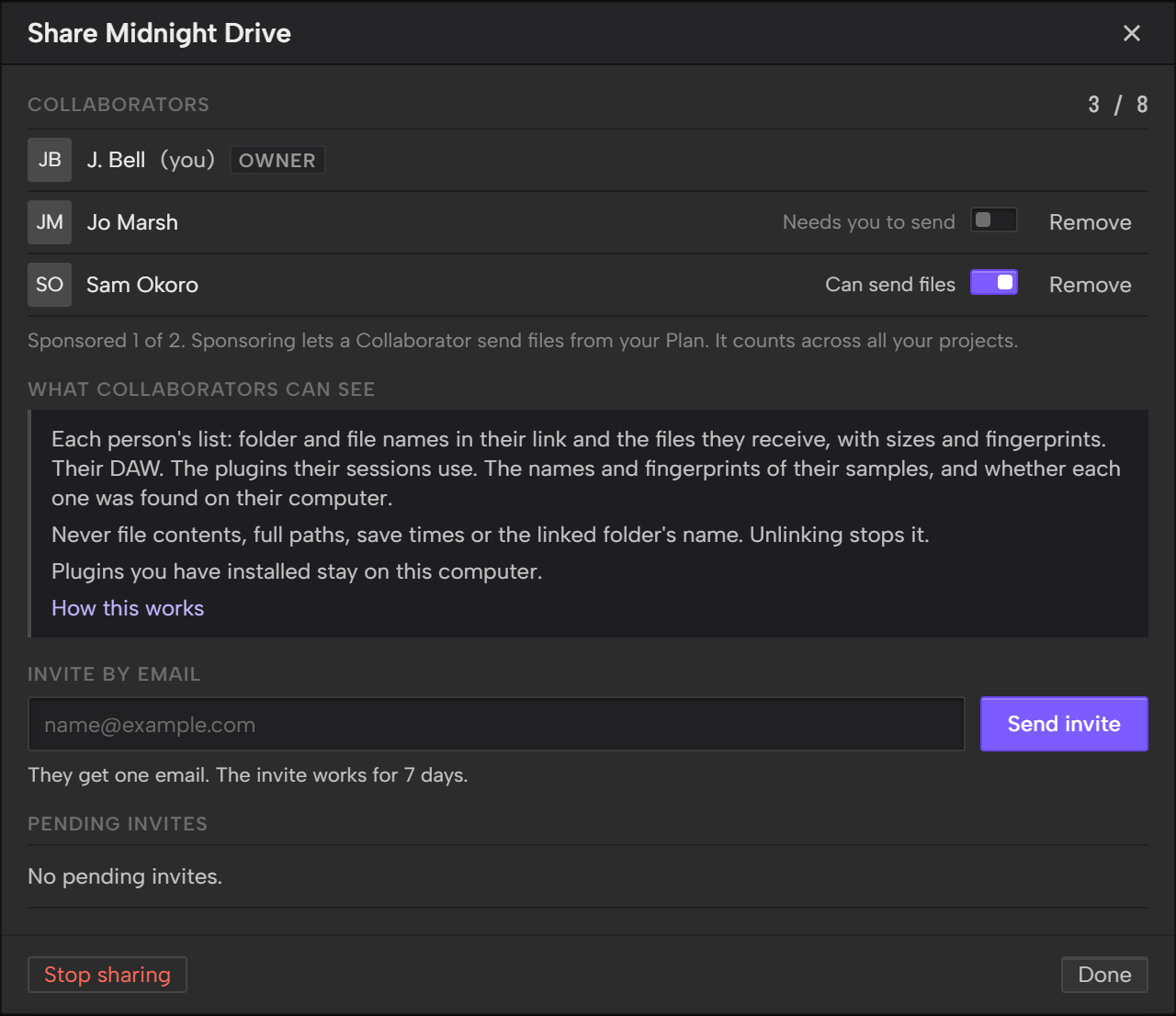
The Share window has a block called What Collaborators can see, once someone else has joined. It says: "Each person's list: folder and file names in their link and the files they receive, with sizes and fingerprints. Their DAW. The plugins their sessions use. The names and fingerprints of their samples, and whether each one was found on their computer." and "Never file contents, full paths, save times or the linked folder's name. Unlinking stops it." It also says "Plugins you have installed stay on this computer." A shared project with nothing linked names what the list holds before you link, under Link your folder for and the project's name.
Your list stays in Outro Cloud while you're in the project and the folder is linked. To stop sharing it, unlink the folder:
- Open the project and click Files.
- At the top left, under Link a project file instead, click Unlink folder.
With a linked project file, the link under Link folder instead reads Unlink project file. If Files can't find the folder or file, the same words are on that screen. There's no confirmation, and Outro doesn't touch your files. Unlinking also clears the project file you picked with Assign, and a main bounce taken from the folder reads as missing until you link the folder again.
Outro then asks Outro Cloud to delete your list. If Outro is online it does that right away. If not, it keeps trying while Outro is open, and tries again when Outro next starts. Until the list is deleted, the others can still see the last one you sent. Link a folder again and Outro shares a new list.
Outro also deletes your list when you leave the project, when the Owner removes you and when sharing ends.
Share a project
Only the Owner invites people. Inviting needs a linked account and the Pro Plan. Link your account covers linking. The Demo Project can't be shared.
- Open the project.
- Click Share in the toolbar. The dashed + square at the right of the transport bar, next to your account button, opens the same window. Or open Project settings and use Invite by email in the Sharing panel.
- Under Invite by email, type the person's address.
- Click Send invite.

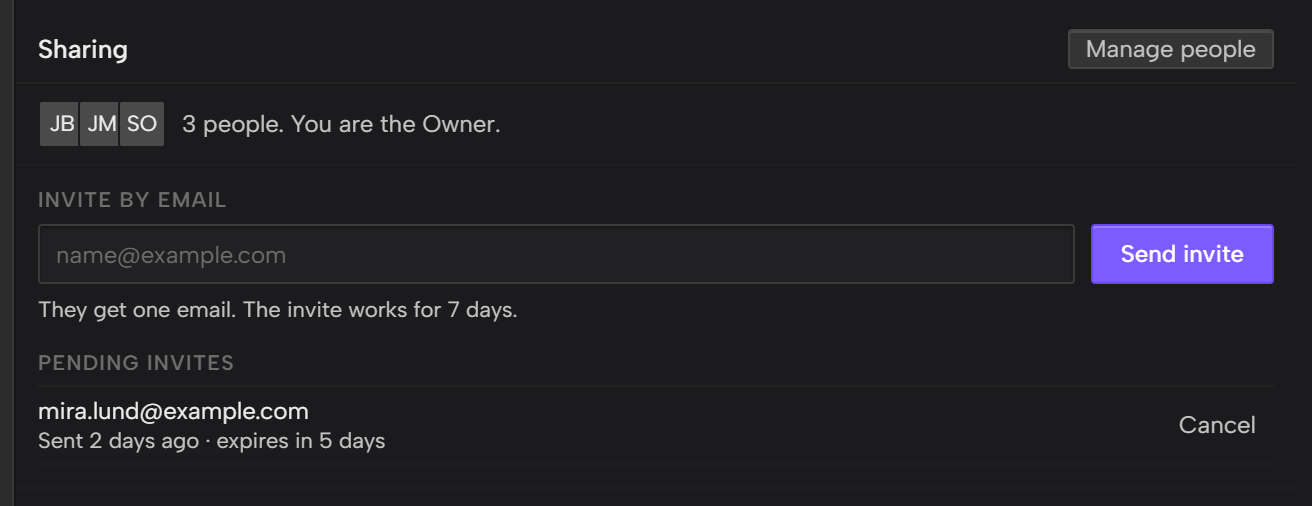
The Share window is titled "Share" and the project's name.
The person gets one email. The invite works once and lapses 7 days after it's sent.
Invites you've sent wait under Pending invites. Click Cancel next to one to withdraw it.
Until someone accepts, the project stays yours alone and doesn't show as shared.
You can also invite people while you make the project. In New project, under Invite people, type an address and click Add. Outro sends the invites when you click Create project, and says how many it sent. If an address is refused, it says "Couldn't invite" and the address, with the reason, and the project is made anyway. Below the Pro Plan, Invite people is off, with the same Pro Plan message above it.

If a task was assigned to someone who isn't in the project, Outro drops that assignee when sharing starts, and tells you how many.
When Send invite is off, the panel says why:
- You're not on the Pro Plan: "Inviting people is part of the Pro Plan. During the beta, join our Discord and ask for Pro." The panel also has a Join Discord button.
- The project has 8 people, counting pending invites.
- You're offline ("Go online to send invites.") or Outro needs you to sign in again ("Sign in again to send invites.").
If you've shared a project and your Plan drops below Pro, the panel says "Invites are paused until you're on Pro again." Pending invites still work until they expire. You can still remove people, cancel invites and stop sharing.
Joining a shared project works on any Plan, and so does downloading files other people send. Only inviting needs Pro. Sending files depends on your Plan, or on an Owner who lets you send.
Accept an invite
The invite email has an Accept the invite button. It opens a page on getoutro.app.
- Click Accept the invite.
- Sign in, or create an account, with the address the invite was sent to. The address has to be verified on the account.
- Click Join. The button carries the project's name.
The page says You're in. If you don't have Outro yet, it has a Download Outro button.
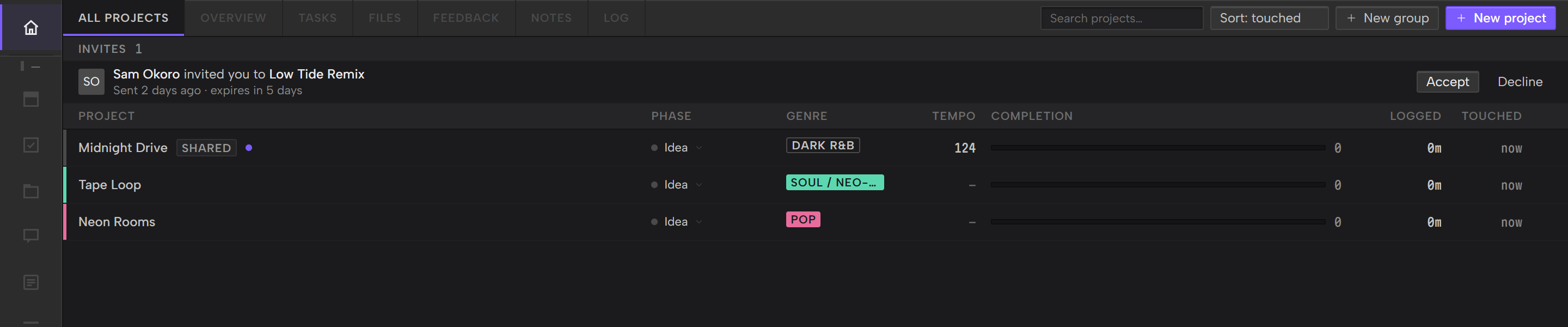
If Outro is already open and linked to that account, the invite also shows at the top of All projects, under Invites, with who sent it and when it expires. Click Accept or Decline.
The project appears in your list within a minute if Outro is open, or as soon as you open it, as a new project with no folder linked. Outro has to be linked to the account you accepted with. Link your DAW project folder covers linking your own folder. When you link a folder, Outro shares a list of what's in it. What Collaborators can see says what's in the list.
Until the Owner's Outro has set the project up, Tasks, Notes and Feedback say, for example, "Waiting for Jo Marsh to finish sharing". A strip under the transport bar says: "Waiting for Jo Marsh to finish sharing. Tasks, Notes and files appear here when they're ready." You don't need to do anything. The tasks and notes appear when they're ready.
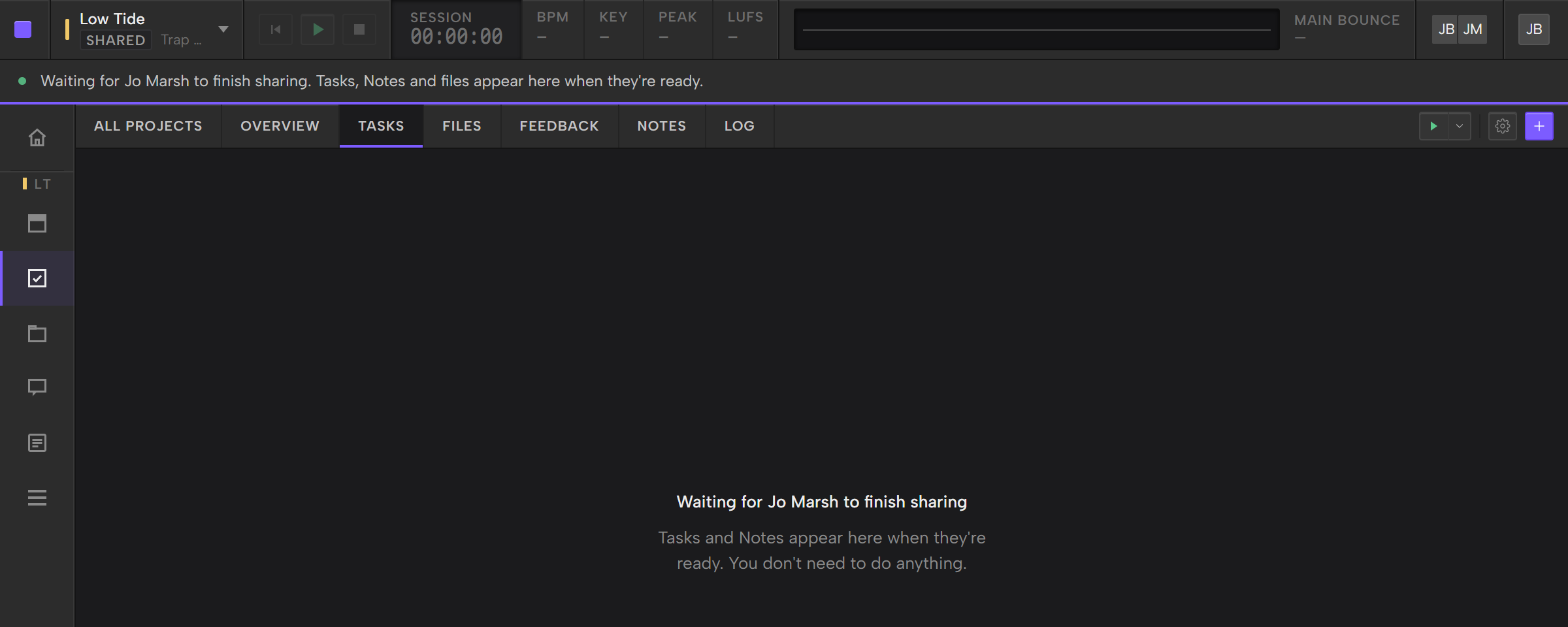
The Owner's Outro does the setting up, on the computer the invite was sent from. While it does, the Owner sees "Setting up sharing. Editing pauses for a few seconds."
Who can do what in a shared project
Everyone in a shared project can add and edit tasks and notes, comment, assign people and move tasks between lists. Some things are the Owner's.
| Action | Owner | Collaborator |
|---|---|---|
| Add and edit tasks, notes and comments | Yes | Yes |
| Move tasks between lists | Yes | Yes |
| Delete tasks, comments, notes, attachments and tracks | Only their own | Only their own |
| Change the project's name, tempo and key | Yes | No |
| Add, rename, reorder, recolor or delete lists and statuses | Yes | No |
| Invite people, cancel invites and remove people | Yes | No |
| Make and revoke Share Links | Yes | No |
| Send files to the others in the project | If your Plan allows it | If your Plan allows it, or if the Owner lets you |
| Let a Collaborator send files from your Plan | If your Plan allows it | No |
| Download files other people send | Yes | Yes |
| Ask for a file you're missing, and answer a request | Yes | Yes |
| Stop sharing, or delete the project for everyone | Yes | No |
| Leave the project | No | Yes |
Where a control is off for you, the reason is shown with it or in its tooltip, such as "Only Jo can change this." A delete you can't use isn't shown at all.
Genre, DAW, phase and color are yours to change. A Collaborator can't change the name, tempo or key, so Files doesn't offer to fill in the tempo and key from your session file.
Work together on tasks, notes and feedback
Live changes
While a shared project is open and Outro is in front, other people's changes arrive within a few seconds. A project you don't have open updates about once a minute.
The toolbar reads Synced, Syncing, Offline or Not signed in. When you have items that haven't reached the others, it adds how many.
In All projects and the project switcher, a Shared chip marks a shared project. A small dot on its row means someone else changed it since you last opened it. Opening the project clears the dot.
If two people change the same field of a task, the last change wins. Everyone sees the same activity on a task. Notes in a shared project covers what happens when two people save the same note.
Mentions and For you
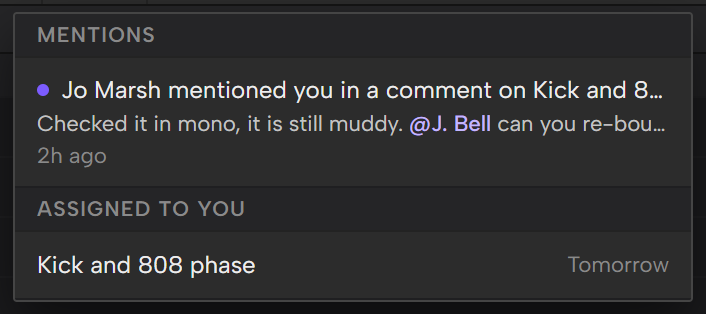
Type @ in a task comment or a note. A list of the people in that project opens at your cursor. Keep typing to narrow it, then pick a name.
The list holds the other people in the project. The mention shows as an @ and the person's name.
The person you mention sees it under For you. The button sits in the toolbar on Overview, Tasks, Notes and Feedback, and shows how many mentions are unread. Click a mention to open the task or note. For you also lists the tasks assigned to you.
A mention reaches the person on each computer where they use Outro with their account. Nothing is emailed, and Outro shows no notification outside the app. Saving a note again doesn't mention the same person twice.
Work offline
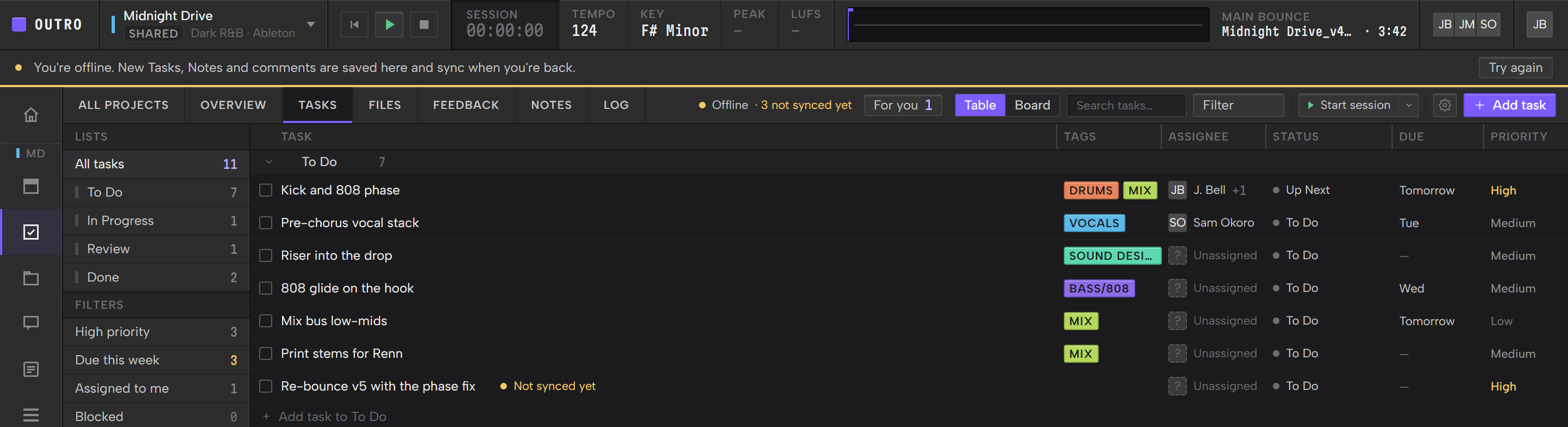
You can read a shared project without a connection. The toolbar says Offline, and a strip under the transport bar says: "You're offline. New Tasks, Notes and comments are saved here and sync when you're back." Click Try again to check for a connection now.
- New tasks, notes and comments are saved on your computer and marked Not synced yet. You can edit or delete your own until they sync.
- When you're back online they send in the order you made them, once each.
- Anything already shared can't be changed offline. Outro says "You're offline. Reconnect to edit shared items." and saves nothing.
- Feedback needs a connection. It isn't saved for later.
If the list a new task was made in is deleted before it syncs, the task goes into the first list and Outro says so. If the task a comment was on is deleted, Outro keeps the comment and says "Your comment couldn't be added because the task was deleted." Click Copy comment to copy its text.
Each Guide has a section on what changes in a shared project: Tasks in a shared project, Notes in a shared project and Feedback in a shared project.
See which files a Collaborator is missing
Once someone else has joined, Files has My files and Compare folders in its toolbar. Click Compare folders to see your folder set beside everyone else's. Each row is a file, and it says what you have, with at most one thing to do about it. Click a row to see who has it and who is missing it. Compare works with any DAW, because it compares the files in people's folders. Rows are grouped in the same buckets as Files, so you can check Stems or Bounces on their own.
Compare needs a folder from you too. Link your DAW project folder covers linking.
| Status | What it says |
|---|---|
| Has | You have the file. A copy with the same contents counts, whatever it's called and wherever it sits. |
| Missing | Someone else has the file and you don't. |
| Different version | Someone has a file at the same path as yours, with different contents. |
To see which Collaborator is missing a file, click its row. Who has it lists everyone with their state, and a Collaborator who is missing the file reads Missing. The inspector offers Send to with their name.
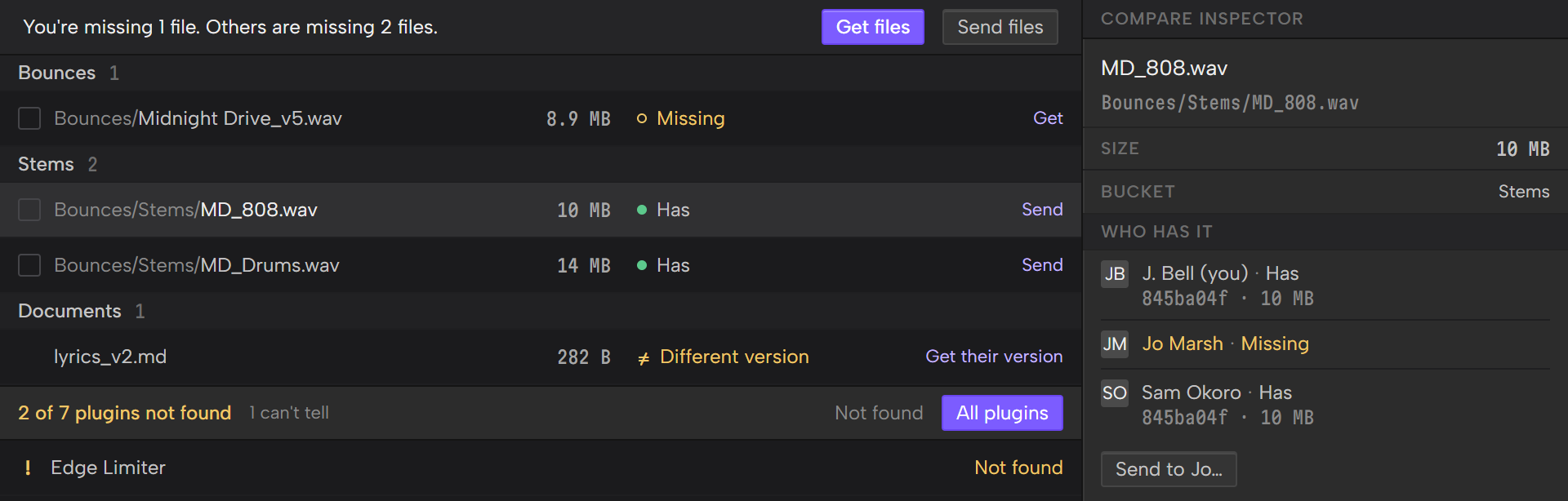
Compare opens on Only differences, the files someone is missing or holds a different version of. Click All files in the toolbar to see every file. A strip above the list counts what you're missing and what Collaborators are missing, such as "You're missing 1 file. Others are missing 2 files."
To ask for a file you're missing, click Get on its row, then Send request. The other person decides what to send. Ask a Collaborator for files in Files covers it.
Outro says Missing only when it can tell. Until then, a person's line reads Unknown.
Lists aren't live. Outro reads your folder again when you open Files or Compare. Click Check again in the toolbar to read it now. While Compare is open, someone else's new file appears a minute or two after their Outro reads it.
Compare project folders in Files covers getting and sending files, samples and plugins.
Send files to each other
People in a shared project can send each other files: stems, bounces, MIDI, samples or the project file. Pick the files in Files and click Send files. The people you send to download them into their own folder. Send files to a Collaborator has the steps.
To send someone what they're missing, open Compare folders, tick the rows that say Send and click Send files.
To ask for a file you're missing, click Get on its row. Ask a Collaborator for files covers it.
Let a Collaborator send files from your Plan
Only the Owner can do this, and only while the Owner's Plan allows it. It's for a Collaborator whose own Plan doesn't.
- Open the Share window.
- Find the Collaborator in the list. Their row says Needs you to send.
- Turn on the switch beside their name. The row now says Can send files.
A Collaborator who can send under their own Plan reads Can send files with no switch. The Share window shows whether each person can send, never their Plan.
You can let 2 people send at a time, across all your projects. Under the list, the window says how many: "Sponsored 1 of 2. Sponsoring lets a Collaborator send files from your Plan. It counts across all your projects." At 2 of 2, the other switches stay off until you turn one off.
What they send counts against your allowance. They see no number. The Send window tells them whether the files should fit: "This should fit." or "This may not fit on Dana's Plan right now. Untick some files, or wait for a Transfer to arrive."
Turn the switch off to stop. Files they already sent keep going.
If your Plan stops allowing it, the switches pause. The people you let send can't start a new send until it allows it again. What they already sent still finishes. They can still download.
If you're a Collaborator, a line under the list says where you stand: "You can send files.", or "You can download files. Dana can let you send.", or that sending is paused.
Leave, remove or stop sharing
However a Collaborator's time in a project ends, they keep a read-only snapshot of it. The Owner keeps the project, unless they choose to delete it.
Transfers end with the project's people. A Transfer isn't part of a snapshot.
- When someone who sent a Transfer leaves or is removed, it ends. People can't download what's left.
- When someone a Transfer was sent to leaves or is removed, they drop out of it. The others aren't affected.
- When sharing ends for everyone, every Transfer ends.
- Requests to or from someone who leaves or is removed are deleted, with any reason. Sharing ending deletes every request.
Files people already downloaded stay where they were saved. You stop receiving Transfers from a project you leave.
Leave a project
- Click the row of people at the right of the transport bar to open the Share window.
- Click Leave project.
- Click Leave project again to confirm.
You can also leave from Project settings, under Danger zone.
You keep a read-only snapshot of the tasks and notes as they are now. Tracks you uploaded go with you, and Share Links to them stop working. The Owner keeps the project. If you were the last Collaborator, sharing ends and the project goes back to just the Owner. If you have items that haven't synced, they go into the snapshot marked Not synced yet. You need a connection to leave.
Remove someone
- Open the Share window.
- Click Remove next to the person.
- Click the button that carries their name, such as Remove Jo.
They keep a read-only snapshot of the project as it was when you removed them. Tracks they uploaded go with them, and your Share Links to those tracks stop working. Tasks and notes they made stay in the project.
If the person is the last Collaborator, the dialog says, for example, "Jo is the last Collaborator, so sharing ends and the project goes back to just you." Sharing then ends the way it does when you stop sharing: the project is only yours again, and pending invites are cancelled.
Stop sharing
Click Stop sharing in the Share window, or in Project settings under Danger zone. Everyone you shared it with keeps a read-only snapshot. The project goes back to being only yours, with everything in it, including what the others added. Pending invites are cancelled.
After you stop sharing, Outro won't let you share that project again for a few days. It says "You stopped sharing this project recently. Try again in a few days."
Delete for everyone
Only the Owner can delete a shared project. Click the gear in the toolbar to open Project settings, click Delete for everyone under Danger zone, type the project's name and confirm. The project leaves your computer and sharing ends. Everyone you shared it with keeps a read-only snapshot. Files on your drive aren't touched. A Collaborator who wants out leaves instead.
Snapshots
A snapshot is a read-only copy of a shared project's tasks and notes as they were when sharing ended. It's in your project list with a Snapshot chip. A strip under the transport bar says what happened and when, for example "Jo stopped sharing this project on Oct 9, 2026. This is a read-only copy of Tasks and Notes as they were then."
- You can look through everything, but every control that changes something is off or gone.
- A snapshot's Feedback shows only the tracks you uploaded, now under your own account. If you uploaded none, it says "Feedback isn't part of a snapshot."
- Items that hadn't synced when it ended stay, marked Not synced yet. They never sync.
- If your computer was offline when sharing ended, Outro builds the snapshot from the final state the next time it connects. If it can't get that state, the strip adds "It may be missing recent changes."
- Delete snapshot on the strip, or in Project settings under Danger zone, removes the copy from your computer. It doesn't affect anyone else.

Sign in again or unlink with shared projects
Your shared projects belong to your account. Two things can happen to the account on a computer: Outro Cloud can stop accepting its sign-in, or you can unlink it. Shared projects and your account in Account & updates covers both, including the warning Outro gives when you have items that haven't synced.